Kwame Hollister

  • iPhone 17 vs Pixel 10: specs, cameras, battery and price compared

    iPhone 17 vs Pixel 10: specs, cameras, battery and price compared

    The iPhone 17 and Pixel 10 both start at $799 in the US and £799 in the UK, and both have 6.3-inch 120 Hz screens. Underneath, they make very different bets on cameras, chips and AI. This comparison uses Apple’s and Google’s official spec pages from their August and September 2025 launches, so you can see where each phone pulls ahead.

    iPhone 17 vs Pixel 10: Specs

    Here are the base models side by side. Apple doesn’t publish RAM or battery capacity, so those cells say so.

    ChipApple A19
    Display6.3 in, 120 Hz
    CamerasDual 48 MP
    PriceFrom $799 (256 GB)

    ChipGoogle Tensor G5
    Display6.3 in, 120 Hz
    CamerasTriple, 5x telephoto
    PriceFrom $799 (128 GB)

    Spec iPhone 17 Pixel 10
    Chip A19 (3 nm) Tensor G5 (3 nm, TSMC)
    Memory (RAM) Not published by Apple 12 GB
    Storage 256 GB, 512 GB 128 GB, 256 GB
    Display 6.3 in OLED, ProMotion up to 120 Hz 6.3 in Actua OLED, 60-120 Hz
    Resolution 2622 x 1206 (460 ppi) 2424 x 1080 (422 ppi)
    Peak brightness 3,000 nits outdoor 3,000 nits peak
    Always-on display Yes Yes
    Front glass Ceramic Shield 2 Gorilla Glass Victus 2
    Rear cameras 48 MP main + 48 MP ultrawide 48 MP main + 13 MP ultrawide + 10.8 MP 5x telephoto
    Front camera 18 MP Center Stage 10.5 MP
    Battery Not published; up to 30 hrs video (Apple claim) 4,970 mAh (typical)
    Wired charging 50% in about 20 min with 40W+ adapter Up to 30W
    Wireless charging MagSafe / Qi2.2 up to 25W Qi2 (Pixelsnap) up to 15W
    Wi-Fi Wi-Fi 7 (Apple N1 chip) Wi-Fi 6E
    Water resistance IP68 IP68
    Weight 177 g 204 g
    Thickness 7.95 mm 8.6 mm
    Colors Black, White, Mist Blue, Sage, Lavender Obsidian, Frost, Indigo, Lemongrass
    Software at launch iOS 26 Android 16
    Release date September 19, 2025 August 28, 2025

    Two things stand out right away. The iPhone is 27 g lighter and noticeably thinner, and the Pixel has a third camera that Apple keeps for its Pro models. In the US, both phones are eSIM-only with no physical SIM tray. That matters if you swap SIMs often or travel to countries where eSIM support is patchy.

    Design and display

    Both screens measure 6.3 inches, and both reach 3,000 nits in bright sunlight. This is the first year the base iPhone gets ProMotion and an always-on display, and that closes the biggest gap the Pixel used to hold. Our iPhone 17 base model breakdown covers the other changes in more detail.

    Apple’s panel is sharper at 460 ppi against 422 ppi. You won’t notice that at arm’s length. Apple’s adaptive refresh can also drop to 1 Hz for always-on mode, so it should sip a little less power on the lock screen.

    On the back, Apple uses a two-lens layout. Google keeps its full-width camera bar, which makes the Pixel 10 feel chunkier in the hand. If weight bothers you, 177 g against 204 g is a meaningful difference over a full day.

    Camera comparison

    The camera choice comes down to this: do you want zoom, or do you want a better ultrawide and selfie camera?

    Camera iPhone 17 Pixel 10
    Main 48 MP Fusion, f/1.6, sensor-shift OIS 48 MP, f/1.7, OIS
    Ultrawide 48 MP Fusion, f/2.2 13 MP, f/2.2, 120°
    Telephoto None (2x optical-quality crop from main) 10.8 MP, 5x optical, f/3.1
    Max zoom 10x digital 20x Super Res Zoom
    Front 18 MP square sensor, Center Stage, autofocus 10.5 MP, f/2.2
    Video Up to 4K60 Dolby Vision Up to 4K60

    Where the Pixel 10 wins

    The Pixel 10 is the only $799 phone from either company with a real 5x telephoto. That means proper optical zoom for concerts, kids on a sports field and portraits shot from a distance. The iPhone tops out at a 2x crop from the main sensor, then falls back on digital zoom. Beyond 2x, the Pixel should hold detail far better.

    Google also leans hard on software. Camera Coach uses Gemini to suggest framing and settings before you shoot. Add Me lets the photographer join a group shot. Magic Editor handles object removal and reframing.

    Where the iPhone 17 wins

    Apple doubled the ultrawide to 48 MP. That should give you cleaner landscapes and better macro close-ups than the Pixel’s 13 MP ultrawide. A higher pixel count is no guarantee of better photos on its own, but the jump from 12 MP to 48 MP on Apple’s ultrawide is large.

    The front camera is the bigger upgrade. Apple’s 18 MP square sensor lets you shoot landscape selfies while holding the phone upright, and Center Stage widens the frame automatically when more people step in. For video calls and vlogging, the iPhone has the stronger setup on paper.

    Buying tip

    If you rarely zoom past 2x, the telephoto matters less than the iPhone’s better ultrawide and selfie camera. Check your own camera roll for how often you zoom.

    Performance and chips

    Neither phone uses a Snapdragon processor. Apple’s A19 and Google’s Tensor G5 are both built on 3 nm processes, and the Tensor G5 is Google’s first chip made by TSMC instead of Samsung.

    Even so, published reviews and benchmarks consistently put the A19 well ahead, especially in graphics. Google designs Tensor for on-device AI, not raw speed. If you play demanding games from Google Play or the App Store, the iPhone is the safer pick.

    The Pixel does have 12 GB of RAM confirmed by Google. That helps keep more apps open and gives headroom for Gemini Nano running on the device. Apple doesn’t publish iPhone RAM figures, so a direct memory comparison isn’t possible from official sources.

    Battery and charging

    Google publishes a capacity of 4,970 mAh. Apple doesn’t, and quotes playback hours instead. That makes a straight mAh comparison impossible using official data alone.

    Battery and charging iPhone 17 Pixel 10
    Capacity Not published 4,970 mAh typical
    Official endurance claim Up to 30 hrs video playback 24+ hrs; up to 100 hrs with Extreme Battery Saver
    Wired speed Up to 50% in about 20 min (40W+ adapter) Up to 30W
    Wireless MagSafe / Qi2.2, up to 25W Qi2 Pixelsnap, up to 15W
    Built-in magnets Yes (MagSafe) Yes (Pixelsnap)
    Charger in box No No

    The iPhone wins on charging speed, both wired and wireless. Its 25W MagSafe charging is quick, while the Pixel’s 15W Qi2 is slower.

    The Pixel’s big news is Pixelsnap. It’s the first Pixel with magnets built in, so Qi2 chargers, stands and wallets snap on without a magnetic case. Android buyers who envied MagSafe now get the same convenience.

    Watch out

    Neither phone ships with a charger. To hit Apple’s fastest wired speed you need a 40W or higher USB-C adapter, which is an additional cost if you don’t already own one.

    Software and updates

    The Pixel 10 runs Android 16, and Google promises seven years of OS upgrades, security patches and Feature Drops. That’s a written commitment printed on the spec page.

    The iPhone 17 ships with iOS 26 and its new Liquid Glass design. Apple doesn’t publish a fixed update window. Its track record is strong, though, with recent iPhones typically getting six or more years of iOS updates. In practice, both phones should last you well past a normal upgrade cycle.

    The rest comes down to ecosystem. If you own a Mac, an Apple Watch or AirPods Pro 2, the iPhone ties into all of them with features like AirDrop, Handoff and instant pairing. If you live in Gmail, Google Photos and Google Home, the Pixel gets new Google features first.

    AI features

    This is where the two phones differ most.

    Pixel 10 (Gemini and Tensor G5):
    – Magic Cue pulls details from your apps, like a flight number from Gmail, and surfaces them in a call or message. It saves you managing several apps at once.
    – Voice Translate translates phone calls live, in a version of your own voice.
    – Camera Coach gives real-time photo guidance.
    – Call Screen and Circle to Search carry over, plus Gemini Live for conversations with your camera or screen.

    iPhone 17 (Apple Intelligence):
    – Live Translation works across Messages, FaceTime and Phone calls.
    – Visual Intelligence now works on screenshots, so you can search or act on anything shown on screen.
    – Call Screening and Hold Assist let you bypass spam calls and phone-tree waiting.
    – Writing Tools, Clean Up in Photos and optional ChatGPT integration round out the set.

    Google’s AI is more ambitious and more proactive today. Apple has also delayed its more personal Siri. If AI features are a main reason you’re upgrading, the Pixel is ahead.

    Price and value

    Launch prices match at the bottom of the range. Storage does not.

    Model US price UK price
    iPhone 17 256 GB $799 £799
    iPhone 17 512 GB $999 £999
    Pixel 10 128 GB $799 £799
    Pixel 10 256 GB $899 £899

    For $799 you get twice the storage with the iPhone. To match the iPhone’s 256 GB, the Pixel costs $899. That’s a $100 gap in Apple’s favor, which is unusual.

    Google does discount often, though. Pixels have a history of price cuts within months of launch, and carriers push trade-in deals on both phones. Compare those options before paying full price.

    Pros and cons

    iPhone 17

    Pros
    – 256 GB base storage for $799
    – Faster A19 chip, much stronger for gaming
    – 48 MP ultrawide and 18 MP Center Stage selfie camera
    – Lighter (177 g) and thinner
    – Faster 25W wireless and 40W-class wired charging
    – Wi-Fi 7

    Cons
    – No telephoto lens
    – Apple doesn’t publish battery capacity or RAM
    – Apple Intelligence trails Gemini in features
    – No fixed update promise in writing

    Pixel 10

    Pros
    – 5x optical telephoto at $799
    – Seven years of guaranteed updates
    – Most advanced on-device AI, including Magic Cue and Voice Translate
    – 12 GB RAM
    – Built-in Qi2 magnets for the first time on a Pixel

    Cons
    – Only 128 GB at the base price
    – Tensor G5 trails the A19 in graphics performance
    – Heavier at 204 g
    – Slower 15W wireless charging
    – Weaker ultrawide and front cameras

    iPhone 17 vs Pixel 10: Which should you buy?

    Buy the iPhone 17 if you want the most phone for $799 with no add-ons. You get double the storage, a faster chip, quicker charging and a lighter body. It’s also the clear pick if you already use a Mac, an Apple Watch or AirPods. People upgrading from an iPhone 13 will find the jump to 120 Hz, a 48 MP ultrawide and the new selfie camera dramatic.

    Buy the Pixel 10 if zoom photography and AI features matter most to you. The 5x telephoto is something Apple charges Pro money for. Google’s seven-year promise also gives you certainty, and Magic Cue plus Voice Translate are genuinely useful today.

    Our overall pick is the iPhone 17 for most buyers, mainly because of the storage gap at the same price. If you shoot a lot of zoomed photos, the Pixel 10 is the better camera for you. If you’re still deciding what matters in a new handset, our guide on how to choose a phone walks through the trade-offs.

    FAQ

    Is the iPhone 17 or Pixel 10 better value?

    At launch prices, the iPhone 17 is better value. It includes 256 GB for $799, while the Pixel 10 needs $899 for the same storage. Pixel discounts can narrow that gap later.

    Which has the better camera, iPhone 17 or Pixel 10?

    It depends on what you shoot. The Pixel 10 has a 5x optical telephoto for zoom. The iPhone 17 has a higher-resolution ultrawide and a much better front camera.

    Does the Pixel 10 have a bigger battery than the iPhone 17?

    Google lists 4,970 mAh for the Pixel 10. Apple doesn’t publish capacity for the iPhone 17, only an up to 30-hour video playback claim, so official figures can’t settle it.

    Do both phones support magnetic charging?

    Yes. The iPhone 17 uses MagSafe at up to 25W. The Pixel 10 adds Pixelsnap, with Qi2 magnets built in for the first time, at up to 15W.

    How long will each phone get updates?

    Google guarantees seven years of OS and security updates for the Pixel 10. Apple doesn’t publish a fixed window, but recent iPhones have typically received six or more years of iOS updates.

  • What Is Samsung One UI and How It Differs From Stock Android

    What Is Samsung One UI and How It Differs From Stock Android

    One UI is Samsung’s own interface for Android, and it runs on every current Galaxy phone, tablet and watch. Underneath, it is still Android, so Google Play, your apps and your Google account behave the same. What changes is the look, the built-in apps, a long list of Samsung-only features, and how and when updates reach you.

    This guide explains what One UI is, how it compares with the “stock” Android on Google’s Pixel phones, and how to handle updates, Gemini and Circle to Search on a Galaxy.

    What Samsung One UI actually is

    One UI is a software layer, usually called a skin or custom interface, that Samsung builds on top of Google’s Android. Google publishes the core operating system as open source through the Android Open Source Project (AOSP). Phone makers then add their own design, apps and features. Samsung’s version of that is One UI.

    When people search for “android samsung ui” or “samsung android ui,” this is the thing they mean. The home screen, the Settings app, the notification shade, the camera app, the keyboard and the lock screen on a Galaxy are all part of One UI.

    Current stableOne UI 8
    Based onAndroid 16
    First launchedLate 2018
    ReplacedSamsung Experience

    From TouchWiz to One UI

    Samsung has skinned Android since its earliest Galaxy phones. The first long-running skin was TouchWiz, which built a reputation for being heavy, busy and slow. Samsung Experience replaced it around 2016 and 2017 with a cleaner look, but the big reset came in November 2018, when Samsung announced One UI at its developer conference.

    The pitch was specific. Phones had grown too tall to use with one thumb, so Samsung split many screens into two zones. The top half became a “viewing area” for titles and information. The bottom half became an “interaction area” for buttons, lists and controls you actually tap. Open the Settings app or Samsung’s Messages app on a Galaxy today and you can still see that idea: a big header at the top and the content pushed down toward your thumb.

    One UI 1.0 rolled out to the Galaxy S9 and Note9 around the turn of 2019 and shipped on the Galaxy S10. Every Galaxy since has used it. You will also see it written as “oneui” in app package names and forum posts. It is the same software.

    One UI versions and the Android they run on

    Each major One UI release lines up with a major Android release. The “.1” and “.5” versions usually arrive with new hardware and add features without changing the Android base.

    One UI version Android base Debuted on When
    One UI 1.0 Android 9 Galaxy S9 update, then Galaxy S10 2018-19
    One UI 2.0 Android 10 Galaxy S10 update Late 2019
    One UI 3.0 Android 11 Galaxy S20 update Dec 2020
    One UI 4.0 Android 12 Galaxy S21 update Nov 2021
    One UI 5.0 Android 13 Galaxy S22 update Oct 2022
    One UI 6.0 Android 14 Galaxy S23 update Oct 2023
    One UI 6.1 Android 14 Galaxy S24 (first Galaxy AI) Jan 2024
    One UI 7 Android 15 Galaxy S25 Feb 2025
    One UI 8 Android 16 Galaxy Z Fold7 and Z Flip7 Jul 2025
    One UI 8.5 Android 16 Public beta for Galaxy S25 Dec 2025

    Two things stand out in that history. First, Samsung dropped the “.0” from version names starting with One UI 7, which is why you now see “One UI 8” rather than “One UI 8.0.” Second, the gap between Google’s release and Samsung’s has swung a lot.

    Android 15 reached Pixel phones in October 2024, while One UI 7 did not start its stable rollout to older Galaxy phones until April 2025. That roughly six-month wait drew plenty of criticism. Samsung tightened things up the following year: Android 16 landed on Pixels in June 2025, and One UI 8 began reaching the Galaxy S25 series in September 2025, a gap of about three months.

    What “stock Android” means today

    “Stock Android” gets used loosely, so it helps to pin it down. There are really three things people mean:

    • AOSP: the bare open-source Android code from Google. Almost nobody uses it as-is on a phone, because it lacks Google Play, Gmail, Maps and the Google apps most people expect.
    • Pixel software: the Android build Google ships on its own Pixel phones. This is what most reviewers mean by stock. It is AOSP plus Google’s apps, design and Pixel-only features such as Call Screen and Now Playing.
    • Near-stock skins: brands like Motorola and Nothing keep their software close to Google’s design and add a smaller set of extras.

    So the comparison that matters to buyers is One UI against Pixel software. Both are heavily customised in their own ways. Google simply has the advantage of building Android and its own phones at the same time, so Pixels get new Android versions first.

    Since Android 16’s first quarterly update, Pixels use Google’s Material 3 Expressive design, with bouncy animations, larger rounded tiles and colours pulled from your wallpaper. One UI uses its own design language. It has supported wallpaper-based colour theming, which Samsung calls Color palette, since One UI 4, but the shapes, icons, menus and layouts are Samsung’s.

    One UI vs stock Android side by side

    Here is how the two compare on the things you notice in daily use. The stock column refers to Pixel software running Android 16.

    Area Samsung One UI 8 Stock Android (Pixel)
    Design Samsung design, one-handed layout Material 3 Expressive
    Quick Settings Separate from notifications by default (One UI 7 and later) Combined shade
    Default browser Samsung Internet preinstalled alongside Chrome Chrome
    Notes app Samsung Notes Google Keep
    Gallery Samsung Gallery, with OneDrive sync option Google Photos
    Voice assistant Bixby and Gemini, side button configurable Gemini
    AI features Galaxy AI plus Gemini Gemini plus Pixel-exclusive features
    Multitasking Split screen, pop-up windows, Edge panels Split screen
    Desktop mode Samsung DeX on supported models Desktop features still limited
    Secure storage Secure Folder, backed by Knox Private space (Android 15 and later)
    Customisation depth Good Lock modules, themes, lock screen editor Wallpaper and colour theming
    New Android version Months after Pixel Day one
    Update promise (current flagships) 7 years 7 years

    The headline is simple. Pixel software is lighter and quicker to update. One UI has far more built-in features and settings. Neither one is objectively better; they suit different people, and that is covered at the end of this guide.

    The interface: where you notice the differences first

    Pick up a Galaxy after using a Pixel and the differences show up within a minute. Most of them come down to layout and where things live.

    Built for one hand

    Samsung has kept its one-handed focus since 2018. Large headers in Settings, Phone, Messages, Clock and other Samsung apps push the tappable content down. Many menus open from the bottom. If you still struggle to reach the top of a big phone, One-handed mode shrinks the whole screen toward the bottom corner. You switch it on under Settings > Advanced features > One-handed mode, then swipe down on the bottom edge to trigger it.

    There is also Easy mode, under Settings > Display > Easy mode. It enlarges icons and text, increases touch-and-hold delay, and simplifies the home screen layout. It is a sensible choice to set up for an older relative or anyone who wants a simple phone.

    The home screen, One UI Home and the app drawer

    Samsung’s launcher, the app that runs your home screen and app drawer, is called One UI Home. It appears in Google Play and the Galaxy Store as a separate listing, which is why you may see “Samsung One UI Home” pop up when you update apps. Samsung updates it independently of full system updates. You cannot install it on a non-Samsung phone, and on a Galaxy you cannot uninstall it.

    The biggest visible difference from a Pixel is the app drawer. By default, Samsung’s drawer scrolls sideways in pages, much like the home screen, and it sorts apps in a custom order unless you switch it to alphabetical. Pixels use a vertically scrolling, alphabetical list. If you prefer Samsung’s layout but want more control over sorting, folders and page grids, our guide on the One UI app drawer walks through the settings.

    You can also turn off the drawer entirely and put every app on the home screens, iPhone-style. Long press an empty spot on the home screen, tap Settings, and change Home screen layout to Home screen only.

    Quick Settings and notifications

    This changed in One UI 7. Samsung split the pull-down panel into two parts: swipe down from the left side of the top edge for notifications, and swipe down from the right side for Quick Settings, the toggles for Wi-Fi, Bluetooth, flashlight and the rest. That mirrors how iPhones work and differs from Pixels, where one swipe brings down both.

    If you prefer the old combined panel, long press any Quick Settings tile, open panel settings, and choose to show the two panels together. Samsung also lets you resize the brightness slider, rearrange tiles and pin your most used ones at the top.

    The navigation bar: buttons or gestures

    Pixels use swipe gestures by default and have mostly buried the old three-button bar. Samsung still ships many Galaxy phones with three buttons out of the box: Recents, Home and Back. You can swap the button order so Back sits where your thumb expects it, or switch to swipe gestures.

    Head to Settings > Display > Navigation bar. From there you can:

    • Choose Buttons or Swipe gestures
    • Change the button order
    • Hide the gesture hint bar at the bottom
    • Adjust Back gesture sensitivity
    • Turn Circle to Search on or off

    Samsung’s own NavStar module in Good Lock, covered below, adds further tweaks such as custom button icons.

    The Now Bar and Now Brief

    One UI 7 introduced the Now Bar, a pill-shaped strip at the bottom of the lock screen. It shows live activities: a running timer, music playback, a navigation route, an active call, or an Interpreter session. It is Samsung’s answer to the iPhone’s Live Activities, and Pixels do not have an exact equivalent.

    Now Brief is a related feature on recent flagships. It pulls together weather, calendar events, suggestions and health information from Samsung Health into a daily summary, shown at times such as morning and evening. How useful it is depends on how many Samsung apps you use. If your calendar lives in Google Calendar and your fitness data in another app, the brief feels thinner.

    Features you get on One UI but not on stock Android

    This is the strongest argument for One UI. Samsung bundles tools that would otherwise need extra apps, and several have no direct Pixel equivalent.

    Multitasking: split screen and pop-up view

    Both platforms support split screen. One UI goes further with pop-up view, which puts an app in a floating, resizable mini window on top of whatever else you are doing. You can shrink that window to a small bubble and bring it back later. It works well for keeping a calculator, chat or video call on top of a browser.

    To open an app in pop-up view, open Recents, tap the app’s icon above its preview, and choose Open in pop-up view. Swiping diagonally down from a top corner inside an app does the same thing if you enable it in Settings > Advanced features > Multi window.

    Edge panels

    Edge panels are a slim handle on the side of the screen. Swipe it in to open a panel with favourite apps, app pairs (two apps that launch together in split screen), tools, contacts or the clipboard. You can turn it on under Settings > Display > Edge panels. Pixels have nothing like it built in.

    Secure Folder and Knox

    Secure Folder creates a separate, encrypted space on your phone with its own apps, photos and files, locked behind its own PIN or biometrics. You can run a second copy of a messaging app inside it, or keep private documents away from anyone who borrows your phone. It is protected by Samsung Knox, the security platform built into Galaxy hardware and software.

    Android 15 added a similar feature called private space to Pixels, so the gap has narrowed. Secure Folder is still more mature and more flexible.

    Knox also powers several other One UI security features:

    • Auto Blocker blocks app installs from unknown sources and certain malicious commands over USB.
    • Maintenance mode hides your personal data when you hand the phone in for repair.
    • Knox Vault stores sensitive data such as passwords and biometrics in an isolated, tamper-resistant chip on supported models.

    Modes and Routines

    Modes and Routines, previously Bixby Routines, lets you automate the phone with if-this-then-that rules. A few examples:

    • When you connect to your car’s Bluetooth, open Maps and set media volume to 70%.
    • At 11pm, turn on Sleep mode, mute notifications and dim the screen.
    • When battery falls below 15%, switch on Power saving and turn off Always On Display.

    You find it under Settings > Modes and Routines. Pixels have a few fixed automations, but nothing this open-ended without a third-party app.

    Samsung DeX

    DeX turns a supported Galaxy phone or tablet into a desktop-style workspace with resizable windows and a taskbar. On phones you connect to a monitor with a USB-C to HDMI cable or adapter. On a Samsung tablet, DeX runs right on the screen and pairs naturally with a keyboard cover, which suits anyone who wants a laptop-ish setup without buying a laptop. Google has been working on its own desktop mode for Android, but DeX has years of head start.

    Good Lock

    Good Lock is a free Samsung app, available through the Galaxy Store in supported countries, that unlocks deep customisation through separate modules. The most popular are:

    • Home Up: changes app drawer behaviour, folder styles and the Recents screen
    • QuickStar: customises the Quick Settings panel and status bar icons
    • LockStar: rearranges the lock screen
    • NavStar: tweaks the navigation bar and gestures
    • Theme Park: builds custom themes and icon packs
    • Keys Cafe: custom keyboard layouts and effects
    • Camera Assistant: adds advanced options to the Samsung Camera app

    Nothing on stock Android comes close without rooting or a pile of separate apps.

    Buying tip

    If deep customisation matters to you, check that Good Lock is available in your country before buying a Galaxy for it. Samsung has expanded availability, but some modules still vary by region.

    Galaxy AI, Gemini and Circle to Search

    AI is now a big part of how Samsung pitches One UI. Galaxy phones carry two sets of AI tools: Samsung’s own Galaxy AI features and Google’s Gemini assistant.

    What Galaxy AI includes

    Galaxy AI arrived with One UI 6.1 on the Galaxy S24 in January 2024 and was later added to the Galaxy S23, Z Fold5, Z Flip5 and Tab S9 series. Features vary by model, but the core set includes:

    Feature Where you use it What it does
    Live Translate Phone app Translates both sides of a voice call in near real time
    Interpreter Quick Settings Split-screen translation for face-to-face conversations
    Chat Assist Samsung Keyboard Adjusts tone and translates messages as you type
    Note Assist Samsung Notes Summarises, formats and translates notes
    Transcript Assist Voice Recorder Transcribes and summarises recordings
    Photo Assist Gallery Moves, removes or resizes objects with generative fill
    Audio Eraser Gallery Reduces wind, crowd and other noise in videos
    Sketch to Image Gallery, Notes Turns rough drawings into generated images

    Pixels have their own versions of several of these, such as Magic Editor and Audio Magic Eraser, plus exclusives like Call Screen. Samsung’s edge is that its tools are spread across apps you use daily, like the keyboard and the call screen.

    Watch out

    Samsung’s fine print has said Galaxy AI features are provided free “until the end of 2025.” Check Samsung’s current terms for your model before assuming every AI feature stays free indefinitely.

    Make the Side button start Gemini

    Bixby is still Samsung’s own personal digital assistant, and it remains on every Galaxy. But Gemini is the more capable assistant for most people, and on the Galaxy S25 series Samsung made it the default for the Side button in many markets. On older or regional models, the button may still wake Bixby.

    To check or change it:

    1. Open Settings > Advanced features > Side button.
    2. Under Press and hold, choose Digital assistant instead of Wake Bixby or Power off menu.
    3. Next, go to Settings > Apps > Choose default apps > Digital assistant app.
    4. Tap Device assistance app and select Gemini.

    If you pick Digital assistant in step 2 but leave Google Assistant as the default in step 4, holding the button will open the older assistant. Both settings need to agree.

    Confirm your Gemini preferences

    Once Gemini answers the Side button, open the Gemini app and tap your profile picture to reach its settings. The ones worth checking:

    • Gemini on lock screen: decides whether Gemini can respond without you unlocking first
    • Gemini Apps Activity: controls whether your conversations are saved to your Google account
    • Apps (extensions): lets Gemini act inside connected apps

    On the Galaxy S25 and newer, Gemini can work with Samsung Calendar, Samsung Notes and Samsung Reminder, so you can say “add a reminder to call the dentist on Thursday” and it lands in Samsung’s app rather than Google’s.

    Using Gemini day to day

    The best uses are practical rather than flashy. You can ask Gemini about what’s on your screen, such as a long article or a restaurant’s menu, and get a quick summary. Gemini Live lets you hold a spoken back-and-forth conversation, and on supported phones you can share your camera or screen so it can see what you are asking about. You can also chain tasks across apps, like finding a restaurant and sending its address to a friend in one request.

    Circle to Search

    Circle to Search debuted on the Galaxy S24 and Pixel 8 series in January 2024, and it is one of the few headline features Samsung and Google shipped at the same time. Long press the home button or the gesture handle at the bottom of the screen, then circle, scribble on or tap anything visible: a jacket in a video, a landmark in a photo, a word in a foreign-language post. Google runs a visual search on it without you leaving the app.

    It is built on the same technology as Google Lens, so it handles translation, product lookup and text copying. It can also identify a song playing around you or in a video. If it doesn’t trigger, check that it’s turned on under Settings > Display > Navigation bar.

    Samsung apps vs Google apps: the duplicate problem

    One of the most common complaints about One UI is duplication. A new Galaxy often carries two apps for the same job: Samsung Internet and Chrome, Samsung Gallery and Google Photos, Samsung Notes and Google Keep, Samsung Wallet and Google Wallet, Galaxy Store and Google Play.

    Some of Samsung’s apps are excellent. Samsung Notes is one of the best handwriting apps on Android, especially with an S Pen. Samsung Internet has built-in ad blocker support and strong privacy settings. Samsung’s Phone app supports call recording in regions where that is legal, which Google’s dialer handles differently.

    Here is how to cut the clutter without breaking anything:

    • Pick defaults: Settings > Apps > Choose default apps lets you set your browser, phone, SMS and assistant app.
    • Disable what you won’t use: open the app’s info page and tap Disable or Uninstall. Core Samsung apps can usually be disabled, and partner apps preinstalled in some regions can often be removed outright.
    • Keep app stores: leave the Galaxy Store installed even if you never browse it. Samsung delivers updates for many of its own apps and Good Lock modules through it.

    Samsung has also leaned toward Google for some core apps. In the US, recent Galaxy flagships use Google Messages as the default texting app, which gives you RCS chat features and keeps your messages consistent if you later switch to a Pixel.

    Accessories follow a similar pattern. Galaxy Buds pair with a pop-up card and sync settings through Samsung’s Galaxy Wearable app. Third-party earbuds, including AirPods Pro 2, connect as standard Bluetooth headphones, so they work fine but lose features like automatic ear detection controls and quick settings toggles you would get on an iPhone.

    How One UI updates work

    This is where One UI has changed the most in recent years. Samsung used to trail far behind Google on support length. Its current flagships now match Pixels.

    Samsung’s update promise vs Google’s

    Phone Launched OS upgrades Security updates
    Galaxy S25 series 2025 7 years 7 years
    Galaxy Z Fold7 / Z Flip7 2025 7 years 7 years
    Galaxy S24 series 2024 7 years 7 years
    Galaxy A56 / A36 / A26 2025 6 generations 6 years
    Galaxy S23 series 2023 4 generations 5 years
    Pixel 8 and later 2023 onward 7 years 7 years

    The table shows why the model year matters if you buy a Galaxy secondhand or on discount. A Galaxy S23 launched with Android 13 and tops out four upgrades later, while a Galaxy S24 should keep getting new versions into the next decade.

    Two caveats. First, the promise counts from launch, not from when you buy. Second, it guarantees updates will come but not how quickly. Pixels get each new Android version on release day, while Galaxy phones get it after Samsung finishes One UI work, usually starting with the newest flagship and working down the range. Mid-range and budget models often receive updates weeks or months after the S series, and some cheaper models get security patches quarterly rather than monthly.

    How your Galaxy handles updates for you

    By default, One UI downloads updates in the background over Wi-Fi and asks you to install them. You control this under Settings > Software update:

    • Auto download over Wi-Fi: grabs update files automatically when you’re on Wi-Fi
    • Install overnight: Samsung may offer to install between 2am and 5am while you sleep, provided the battery is charged enough

    There are actually three update channels on a Galaxy, which confuses many people:

    1. One UI software updates: the big version upgrades and Samsung’s security patches, delivered through Settings > Software update.
    2. Google Play system updates: smaller Google-delivered fixes for core Android components, found under Settings > Security and privacy > Updates.
    3. App updates: Samsung apps update through the Galaxy Store, and Google apps and One UI Home through Google Play.

    If something like the Camera or Gallery app gets a new feature but your One UI version hasn’t changed, it usually came through the Galaxy Store.

    How to check your current software version

    1. Open Settings.
    2. Tap About phone (About tablet on a Galaxy Tab).
    3. Tap Software information.

    You’ll see your One UI version, Android version, Google Play system update date, and the Android security patch level. The patch date matters more than most people think. If it’s more than three or four months old on a phone that’s still supported, check for an update.

    How to manually check for a software update

    1. Connect to Wi-Fi and make sure the battery is above 20%, or plug in your charger.
    2. Open Settings > Software update.
    3. Tap Download and install.
    4. If an update is available, tap Download, then Install now once the download finishes.

    The phone restarts during installation, and big version upgrades can take 15 to 30 minutes. Back up first through Samsung Cloud, Google One or Smart Switch on a computer, just in case. Major upgrades rarely wipe data, but a backup costs little.

    If your phone says it’s up to date while others with the same model already have a new version, that’s normal. Samsung rolls updates out in waves by region and carrier. Carrier-locked phones in the US often lag unlocked models by days or weeks.

    Joining the One UI beta

    Samsung runs public beta programs for new One UI versions through the Samsung Members app, usually for flagships in a handful of countries such as the US, UK, South Korea, Germany and India. When a beta opens, a banner appears in Samsung Members and you register from there. The One UI 8.5 beta, for example, opened for the Galaxy S25 series in December 2025.

    Betas carry bugs, and going back to stable software usually means waiting for the final release or wiping the phone. Only join on a phone you can afford to have misbehave. Samsung Members is also where you report bugs and run diagnostics, and it’s the first stop for support before booking a repair.

    One UI beyond phones: tablets, foldables and watches

    One UI runs across Samsung’s range, and that consistency is part of the appeal.

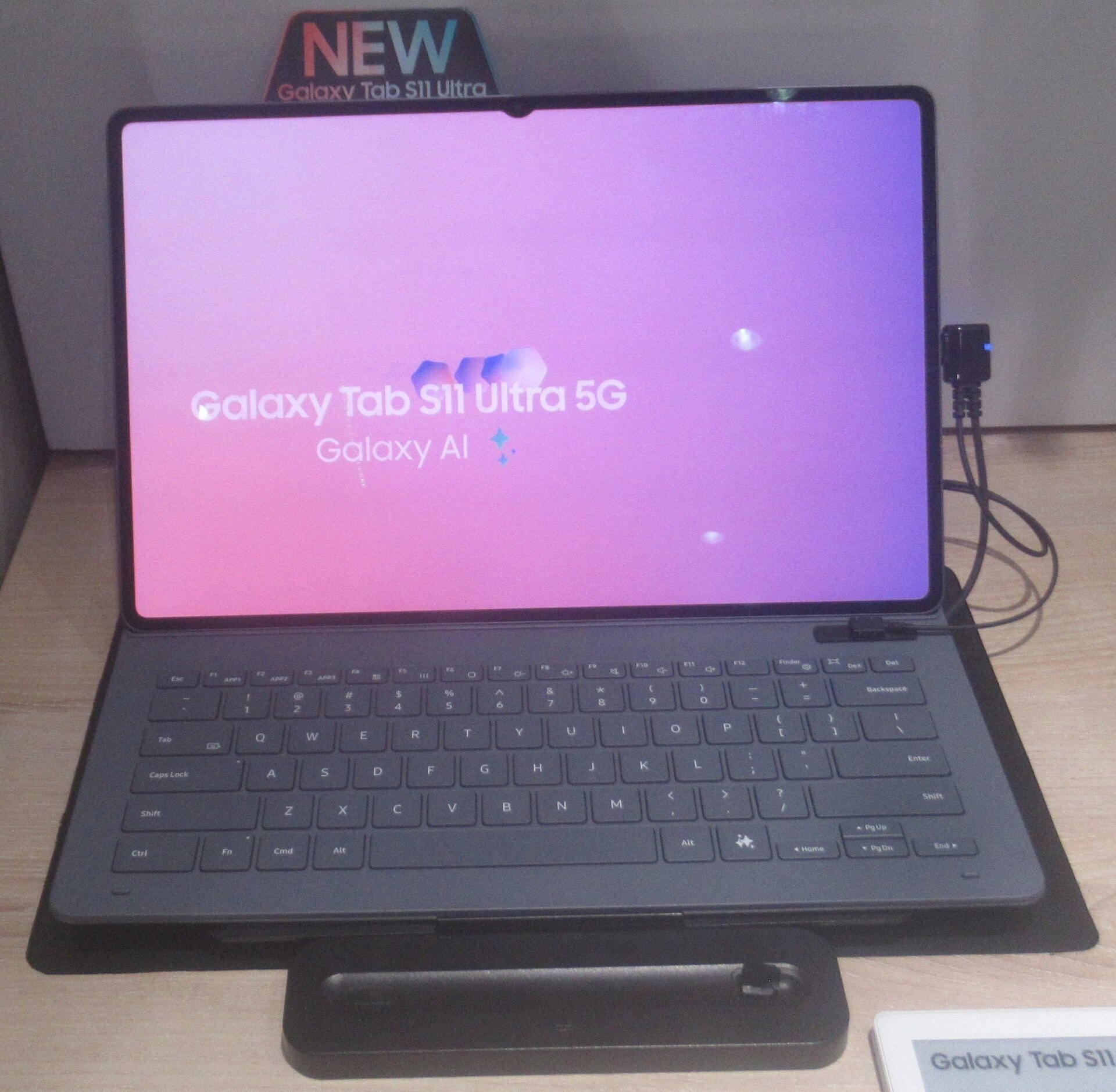
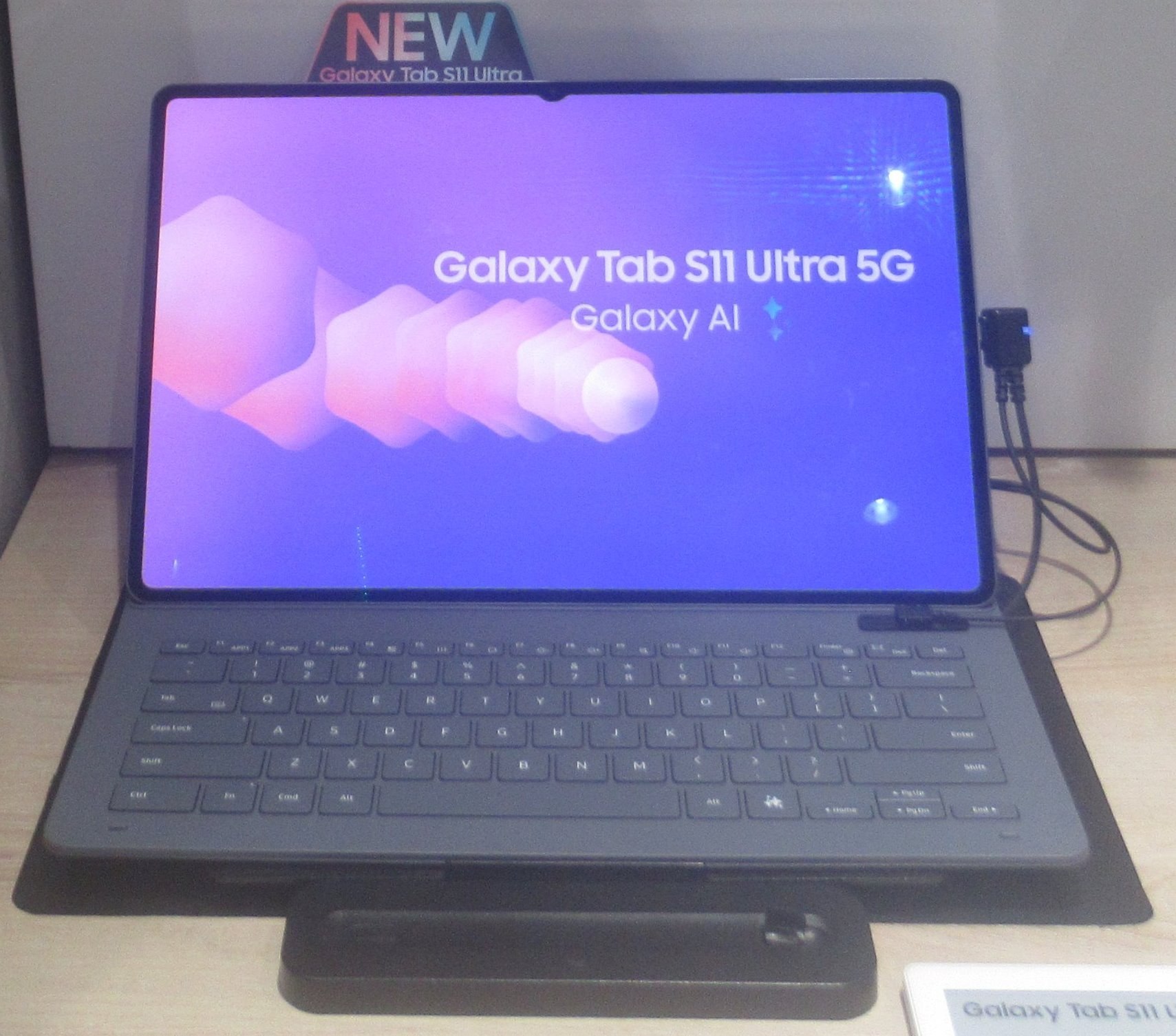
    Tablets. Galaxy Tabs use the same One UI, adapted for large screens with a taskbar, three-app split view and DeX. The Galaxy Tab S11 and Tab S11 Ultra launched in September 2025 running One UI 8 on Android 16, with Galaxy AI and Gemini built in. Anyone choosing a Samsung tablet benefits from the fact that settings, apps and gestures match your phone almost exactly.

    Foldables. The Galaxy Z Fold and Z Flip lines get extra One UI features you won’t find on slab phones. On the Fold, apps can stretch across the inner screen, and the taskbar makes it work like a small tablet. On the Flip, One UI runs a cut-down version on the cover screen, called FlexWindow, with widgets and selected full apps. Samsung often debuts new One UI versions on foldables now, as it did with One UI 8 on the Z Fold7 and Z Flip7.

    Watches. Galaxy Watches run One UI Watch on top of Google’s Wear OS. The Galaxy Watch8, launched in July 2025, shipped with One UI 8 Watch on Wear OS 6, adding Samsung Health features such as Bedtime Guidance and Antioxidant Index. Health data syncs back to the Samsung Health app on your phone, which ties into Now Brief.

    The honest downsides of One UI

    One UI has improved enormously since the TouchWiz days, but some trade-offs remain.

    Slower access to new Android versions. Even at three months, you wait for features Pixel owners already have. Lower-end Galaxy phones wait longer.

    More preinstalled software. Expect duplicate apps, Samsung services you’ll be prompted to sign into, and in some regions partner apps installed out of the box. Most can be disabled, but it’s work you don’t do on a Pixel.

    More settings to dig through. The number of options is a strength for tinkerers and a burden for people who want a phone that simply works. The Settings search bar helps a lot. Use it instead of hunting through menus.

    Bixby still lurks. Even if you never use it, Bixby occasionally appears in prompts and some regional defaults. Reassigning the Side button fixes most of it.

    A Samsung account helps a lot. Features like Samsung Cloud, SmartThings Find for locating a lost phone, Samsung Health sync and Good Lock work best with a Samsung account. You can skip it, but you lose a good chunk of what makes One UI worthwhile.

    On performance, the old reputation for lag no longer holds on flagship hardware. Current Galaxy S and Z phones run One UI smoothly. Budget A-series models with less RAM can feel slower than a similarly priced Pixel, mostly because One UI does more in the background.

    Who should pick One UI, and who should pick stock Android

    Choose a Galaxy with One UI if you:

    • Want lots of features built in, from Secure Folder to DeX to pop-up windows
    • Like to customise your phone heavily through themes, Good Lock and routines
    • Multitask a lot, especially on a foldable or tablet
    • Already own Galaxy Buds, a Galaxy Watch or a Galaxy Tab and want them to work together
    • Want a wide choice of hardware, from budget A-series phones to the S Ultra and Z Fold

    Choose a Pixel or a near-stock phone if you:

    • Want new Android versions and features the day Google releases them
    • Prefer a lighter, simpler interface with fewer duplicate apps
    • Care about Pixel-exclusive tools like Call Screen and Now Playing
    • Don’t want to configure much after setup

    If you’re coming from an iPhone 13 or another older iPhone, One UI will probably feel more familiar than you expect. The split notification and Quick Settings panels, the lock screen live activities in the Now Bar, and the option to drop the app drawer all echo iOS habits. A Pixel will feel more different.

    FAQ

    Is One UI Android?

    Yes. One UI is Samsung’s interface built on top of Android, and each version maps to a specific Android release. One UI 8 is based on Android 16. You still get Google Play, Google apps and full Android app compatibility.

    What is the latest version of One UI?

    One UI 8, based on Android 16, is the current stable version. It debuted on the Galaxy Z Fold7 and Z Flip7 in July 2025 and began reaching the Galaxy S25 series in September 2025. Samsung opened a One UI 8.5 beta in December 2025.

    Can you install stock Android on a Samsung phone?

    Not in any practical way for most people. Installing other Android builds requires unlocking the bootloader, which permanently trips Samsung’s Knox security flag and disables features such as Samsung Wallet and Secure Folder. Many US models don’t allow bootloader unlocking at all. A better route is to set Google’s apps as your defaults and, if you like, install a third-party launcher from Google Play.

    Does One UI slow down your phone?

    Not noticeably on recent flagships, which have plenty of power and RAM. On cheaper Galaxy A models, One UI’s extra features and background services can make things feel slower than lighter software on similar hardware. Disabling apps you don’t use and trimming animations under Developer options can help.

    What is One UI Home on Google Play?

    It’s Samsung’s launcher, the app that runs your home screen and app drawer. Samsung lists it on Google Play and the Galaxy Store so it can push updates without a full system update. It only works on Galaxy devices.

    Do Samsung phones get updates as long as Pixels?

    Current flagships do. The Galaxy S24, S25, Z Fold7 and Z Flip7 get seven years of OS and security updates, matching the Pixel 8 and later. Galaxy A56, A36 and A26 get six years. The difference is speed: Pixels get new Android versions first, while Galaxies get them after Samsung’s One UI release.
  • How to Turn On Dark Mode for Your Phone Keyboard

    How to Turn On Dark Mode for Your Phone Keyboard

    You can turn on keyboard dark mode in under a minute. On most phones, the keyboard follows your system dark mode, so switching that on is usually enough. If you want a dark keyboard while the rest of the phone stays light, you need the keyboard app’s own theme setting.

    iPhone: Use System Dark Mode

    The built-in iOS keyboard has no separate theme option. It follows your phone’s appearance setting.

    1. Open Settings.
    2. Tap Display & Brightness.
    3. Select Dark.

    You can also switch automatically. Turn on Automatic to change from light to dark at sunset. A faster route is Control Center: long-press the brightness slider, then tap the Dark Mode button.

    Buying tip

    If you want a dark keyboard with a light iPhone, install a third-party keyboard such as Gboard and pick a dark theme inside its app.

    Android with Gboard

    Gboard is the default keyboard on Pixel phones and many other Android phones. It has its own theme picker.

    1. Open any text field so the keyboard appears.
    2. Tap the gear icon, or open the menu in the toolbar.
    3. Tap Theme.
    4. Choose a dark color, or pick System auto.

    System auto matches your phone’s dark theme. A fixed dark color keeps the keyboard dark at all times. You can also toggle key borders on or off.

    Samsung Galaxy with Samsung Keyboard

    Samsung Keyboard turns dark when you enable Dark mode under Settings > Display. To choose a keyboard theme on its own:

    1. Go to Settings > General management.
    2. Tap Samsung Keyboard settings.
    3. Open Theme and pick a dark option.

    One UI lets you customize a lot from these menus. The keyboard is one setting, and the One UI app drawer layout is another worth adjusting while you’re in there.

    Microsoft SwiftKey

    1. Open the SwiftKey app.
    2. Tap Themes.
    3. Select a dark theme from the gallery.

    SwiftKey also lets you build a custom theme with your own photo as the background.

    Keyboard Stuck in Dark Mode?

    Sometimes the keyboard stays black even with light mode on. The cause is usually a single app. Developers can force a dark keyboard inside their app, and iOS respects that setting.

    Try these fixes:

    • Check whether the keyboard is dark in only one app.
    • Update that app.
    • Restart the phone.
    • On Android, check the keyboard app’s theme. A fixed dark theme overrides system settings.

    Watch out

    High-contrast and accessibility settings can also change keyboard colors. Check them before you reset anything.

    Does a Dark Keyboard Save Battery?

    On OLED screens, yes. Black pixels draw little or no power. The savings from the keyboard alone are small, though, because it covers only part of the screen. The bigger benefit is comfort, especially at night.

    FAQ

    Can I get a dark keyboard without full dark mode on iPhone?

    Not with Apple’s keyboard. You need a third-party keyboard such as Gboard or SwiftKey.

    Why did my keyboard turn black on its own?

    Your system dark mode probably switched on a schedule. Or the app you’re using forces a dark keyboard.

    Does Gboard dark mode work on iPhone?

    Yes. Open the Gboard app, tap Themes, and choose a dark one.

    Will a dark keyboard theme affect typing speed?

    No. It changes the color scheme, and on OLED screens it can save a little power, but layout and autocorrect stay the same.

  • Snapdragon Processors Explained and How Each Tier Compares

    Snapdragon Processors Explained and How Each Tier Compares

    A Snapdragon processor is a system-on-chip (SoC) made by Qualcomm. It packs the CPU, graphics, AI engine, camera processor and 5G modem into a single piece of silicon, and it powers most Android phones plus a growing number of Windows laptops. Qualcomm sells it in four main phone tiers: the 8 series for flagships, 7 for upper midrange, 6 for midrange and 4 for budget phones. Each tier trades performance and features for price.

    What is a Snapdragon processor?

    The name “processor” is a little misleading. When people say a phone has a Snapdragon processor, they mean the whole SoC, not only the CPU.

    A modern Snapdragon chip bundles these blocks onto one die:

    • CPU (Kryo or Oryon): the general-purpose cores that run apps, the operating system and most of what you tap on.
    • Adreno GPU: handles graphics, games, the interface animations and some compute tasks.
    • Hexagon NPU: the AI engine. It runs on-device features like live translation, photo editing and voice transcription.
    • Spectra ISP: the image signal processor. It turns raw camera sensor data into the photo you see.
    • Snapdragon modem: the 4G and 5G radio, labelled X75, X80 and so on.
    • FastConnect: the Wi-Fi and Bluetooth subsystem, including Wi-Fi 7 on recent chips.
    • Sensing Hub and security blocks: low-power processors for always-on features, plus secure storage for keys and biometrics.

    Putting everything on one chip saves space, cuts power use and lowers cost for phone makers. It also means the chip decides a lot more about your phone than you might expect. Camera processing, call quality, Wi-Fi speed and battery life all trace back to it.

    Qualcomm doesn’t make phones, and it doesn’t manufacture chips either. It designs them, then pays a foundry to build them. TSMC builds most current Snapdragon chips. Samsung Foundry built several generations, including the Snapdragon 8 Gen 1.

    The Snapdragon CPU: from Kryo to Oryon

    If you searched “snapdragon cpu,” this is the part you want. The CPU is the core cluster inside the SoC, and Qualcomm has taken two very different approaches to it.

    The Kryo years

    For most of the last decade, Qualcomm’s CPUs carried the Kryo brand. Early Kryo cores were custom designs. Later Kryo chips used standard Arm Cortex cores with small tweaks, so a “Kryo” CPU in a Snapdragon 8 Gen 2 was really a mix of Cortex-X3, A715, A710 and A510 cores.

    That approach worked, but it meant Qualcomm’s CPU performance depended largely on Arm’s roadmap. Apple, designing its own cores from scratch, kept a clear lead in single-core speed.

    The Oryon era

    Qualcomm bought Nuvia, a startup founded by former Apple chip architects, in 2021 for about $1.4 billion. Nuvia’s team became the core of Oryon, Qualcomm’s fully custom CPU design.

    Oryon first shipped in the Snapdragon X Elite laptop chip in 2024. It arrived in phones later that year with the Snapdragon 8 Elite, which uses two “prime” Oryon cores and six “performance” Oryon cores. There are no small efficiency cores at all. That’s a major break from how Android phone CPUs had been built for years.

    Arm sued Qualcomm in 2022, arguing that Nuvia’s license didn’t transfer. A US jury ruled largely in Qualcomm’s favor in December 2024. Oryon is now the CPU in Qualcomm’s flagship phone and PC chips, while its midrange and budget phone chips still use Arm Cortex cores.

    Big, medium and little cores

    Most Snapdragon CPUs split their cores into clusters:

    • Prime core(s): run at the highest clock speed for bursty tasks like opening an app.
    • Performance cores: carry sustained work like gaming and multitasking.
    • Efficiency cores: handle background jobs at low power.

    A spec like “1+3+4” means one prime core, three performance cores and four efficiency cores. Clock speed alone tells you little. A newer core at 2.8 GHz can easily beat an older one at 3.2 GHz.

    How Snapdragon naming works

    Qualcomm’s naming has changed three times since 2021, which confuses plenty of buyers. Here’s how to read a current name.

    Name part What it means Example
    First digit The tier: 8 flagship, 7 upper mid, 6 mid, 4 budget Snapdragon 7 Gen 3
    “Gen” number The generation within that tier. Higher is newer Snapdragon 8 Gen 3
    + A boosted version of the base chip in the same tier Snapdragon 7+ Gen 3
    s A cut-down or cost-optimised version Snapdragon 8s Gen 4
    Elite Qualcomm’s top tier, using custom Oryon cores Snapdragon 8 Elite
    “for Galaxy” A higher-clocked bin made for Samsung Snapdragon 8 Elite for Galaxy
    X prefix Laptop and PC chips Snapdragon X Elite

    Before 2021, Qualcomm used three-digit names like Snapdragon 888, 765G and 480. The first digit still marked the tier, so an 888 was a flagship and a 480 was a budget chip. You’ll still see these in older and refurbished phones.

    The tricky part is that tiers overlap. A Snapdragon 7+ Gen 3 is faster than an older 8 Gen 1 in many tasks. A 7s Gen 3 is a different, slower chip than a 7 Gen 3. Always check the full name, including the letter and generation, before you compare phones.

    The four phone tiers at a glance

    Tier Typical phone price Current example chips Example phones
    Snapdragon 8 (Elite, Gen, 8s) Roughly $500 to $1,300+ 8 Elite, 8 Gen 3, 8s Gen 4 Galaxy S25, OnePlus 13, Nothing Phone (3)
    Snapdragon 7 (7+, 7, 7s) Roughly $350 to $600 7+ Gen 3, 7 Gen 4, 7s Gen 3 OnePlus Nord 4, Honor 400, Redmi Note 14 Pro+
    Snapdragon 6 Roughly $250 to $400 6 Gen 4, 6 Gen 3 Galaxy A36
    Snapdragon 4 Under $250 4 Gen 2, 4s Gen 2 Redmi 12 5G, Redmi A4 5G

    Prices vary hugely by region. Chinese and Indian brands often sell an 8-series phone for the price of a Galaxy A-series phone in Europe, so treat these bands as a rough guide.

    Snapdragon 8 series: the flagship tier

    The 8 series is where Qualcomm puts its newest technology first. You get the fastest CPU and GPU, the best camera processing, the most capable AI engine and the newest modem.

    CPU8-core Oryon, up to 4.32 GHz
    ProcessTSMC 3 nm
    GPUAdreno 830
    ModemSnapdragon X80
    AnnouncedOctober 2024

    Snapdragon 8 Elite

    The Snapdragon 8 Elite was announced in October 2024 and became the default flagship Android chip of 2025. It’s built on TSMC’s 3 nm process. Its CPU uses two prime Oryon cores at up to 4.32 GHz and six performance cores at up to 3.53 GHz.

    Qualcomm claimed a 45% jump in CPU performance and 40% in GPU performance over the 8 Gen 3, with the GPU about 40% more power efficient and the overall system about 27% more efficient. Independent reviews broadly backed up a big generational leap, especially in multi-core work.

    The Galaxy S25 series uses a “Snapdragon 8 Elite for Galaxy” version with the prime cores clocked up to 4.47 GHz. Samsung used Snapdragon chips across every Galaxy S25 model worldwide, which ended the Exynos versus Snapdragon split that annoyed European buyers for years.

    Other 8 Elite phones include the OnePlus 13, Xiaomi 15 series, Asus ROG Phone 9 and Galaxy Z Fold 7.

    Two other details matter for real use. The Spectra ISP supports camera sensors up to 320 MP, though megapixel count is only a small part of photo quality. The bigger benefit is faster processing for multi-frame HDR and video. Qualcomm and Google also agreed that 8 Elite phones can receive up to eight years of Android OS and security updates. Whether your phone actually gets that depends on the brand.

    Snapdragon 8 Elite Gen 5

    Qualcomm announced the Snapdragon 8 Elite Gen 5 in September 2025. It moves to third-generation Oryon cores, stays on a 3 nm process and pushes prime core clocks up to 4.6 GHz. Xiaomi’s 17 series was the first to ship with it in China, and it’s expected in most late 2025 and 2026 Android flagships.

    The naming change matters. “8 Elite Gen 5” signals that Elite is now the flagship brand, with the original 8 Elite effectively becoming the first generation.

    Watch out

    Samsung has not officially confirmed which chip every Galaxy S26 model will use in every region. Treat reports of an Exynos and Snapdragon split as unconfirmed until launch.

    Snapdragon 8 Gen 3: still a strong buy

    The Snapdragon 8 Gen 3 launched in October 2023 on TSMC’s 4 nm process. It uses a 1+5+2 layout: one Cortex-X4 prime core at 3.3 GHz, five Cortex-A720 cores and two Cortex-A520 efficiency cores.

    It powered the Galaxy S24 Ultra, OnePlus 12 and Galaxy Z Fold 6 and Z Flip 6. Two years on, it’s still faster than any midrange chip in day-to-day use. Discounted 8 Gen 3 phones are some of the best value buys you’ll find, as long as the software support window still has years left.

    The 8s chips: flagship-lite

    The “s” versions take flagship features and trim the CPU and GPU to hit lower prices.

    The Snapdragon 8s Gen 3 (March 2024) used one Cortex-X4 core at 3.0 GHz, four A720 cores and three A520 cores. It appeared in the Poco F6 and Motorola Edge 50 Ultra.

    The Snapdragon 8s Gen 4 (April 2025) dropped efficiency cores entirely. It uses one Cortex-X4 at 3.21 GHz and seven A720 cores at varying clocks, with an Adreno 825 GPU. The Nothing Phone (3) and Poco F7 use it.

    The 8s chips keep most of the flagship camera and AI features. What you lose is peak gaming performance and some sustained speed under load.

    Flagship chip comparison

    Chip Process CPU layout Top CPU clock GPU Announced
    8 Elite Gen 5 3 nm 2 prime + 6 performance (Oryon) 4.6 GHz Adreno Sep 2025
    8 Elite TSMC 3 nm 2 prime + 6 performance (Oryon) 4.32 GHz Adreno 830 Oct 2024
    8s Gen 4 TSMC 4 nm 1 X4 + 7 A720 3.21 GHz Adreno 825 Apr 2025
    8 Gen 3 TSMC 4 nm 1 X4 + 5 A720 + 2 A520 3.3 GHz Adreno 750 Oct 2023
    8s Gen 3 TSMC 4 nm 1 X4 + 4 A720 + 3 A520 3.0 GHz Adreno 735 Mar 2024

    Snapdragon 7 series: the sweet spot

    The 7 series is where you’ll find many of the best value phones. It sits between the flagship and the true midrange, and the three variants differ more than the names suggest.

    Snapdragon 7+ Gen 3

    The 7+ Gen 3 (March 2024) is the strongest of the current 7-series chips. It borrows a Cortex-X4 prime core at 2.8 GHz, adds four A720 cores and three A520 cores, and runs on TSMC 4 nm.

    In practice, it behaves like a slightly detuned 8s Gen 3. The OnePlus Nord 4 and the global Realme GT 6 used it. If you play demanding games but don’t want to pay flagship prices, phones with this chip are worth tracking.

    Snapdragon 7 Gen 4 and 7 Gen 3

    The 7 Gen 3 (November 2023) used older Cortex-A715 and A510 cores in a 1+3+4 layout. It appeared in phones like the Honor 200 and Motorola Edge 50 Pro.

    The 7 Gen 4 (May 2025) updates that to one A720 prime core at 2.8 GHz, four A720 cores and three A520 cores. The Honor 400 was one of the first phones to use it. Qualcomm also added more on-device AI capability, including support for running small generative AI models locally.

    Snapdragon 7s Gen 3

    The 7s Gen 3 (August 2024) is the budget end of the 7 series. It uses one A720 core at 2.5 GHz, three A720 cores and four A520 cores. It’s in the Redmi Note 14 Pro+ and similar phones.

    It’s a solid everyday chip. Just don’t confuse it with the 7+ Gen 3, which is a noticeably faster part.

    Snapdragon 6 series: everyday midrange

    The 6 series powers phones that need to feel smooth for messaging, social media, maps and streaming without costing much. Gaming works, but you’ll lower graphics settings in heavier titles.

    The Snapdragon 6 Gen 3 uses four Cortex-A78 cores at 2.4 GHz and four A55 cores, on a 4 nm process. That’s an older core design, but it’s efficient and capable. Samsung’s Galaxy A36 is one of the best-known phones using it.

    The Snapdragon 6 Gen 4 (February 2025) is the bigger upgrade. It moves to newer A720 and A520 cores in a 1+3+4 layout, with the prime core at 2.3 GHz, and it’s built on TSMC 4 nm. Qualcomm pitched it as bringing some 7-series features, including better gaming and on-device AI, down to cheaper phones.

    Snapdragon 4 series: budget 5G

    The 4 series exists to make 5G phones cheap. Performance is basic, but it’s enough for calls, WhatsApp, YouTube and light apps.

    The Snapdragon 4 Gen 2 (June 2023) uses two A78 cores at 2.2 GHz and six A55 cores, on Samsung’s 4 nm process. It was the first 4 nm chip in the 4 series. The Redmi 12 5G used it.

    The Snapdragon 4s Gen 2 (2024) is cheaper still, with slower clocks. It debuted in the Redmi A4 5G in India, which helped push 5G phones well below the old price floor there.

    Midrange and budget chip comparison

    Chip Process CPU layout Top CPU clock Announced
    7+ Gen 3 TSMC 4 nm 1 X4 + 4 A720 + 3 A520 2.8 GHz Mar 2024
    7 Gen 4 4 nm 1 A720 + 4 A720 + 3 A520 2.8 GHz May 2025
    7 Gen 3 4 nm 1 A715 + 3 A715 + 4 A510 2.63 GHz Nov 2023
    7s Gen 3 4 nm 1 A720 + 3 A720 + 4 A520 2.5 GHz Aug 2024
    6 Gen 4 TSMC 4 nm 1 A720 + 3 A720 + 4 A520 2.3 GHz Feb 2025
    6 Gen 3 4 nm 4 A78 + 4 A55 2.4 GHz 2024
    4 Gen 2 Samsung 4 nm 2 A78 + 6 A55 2.2 GHz Jun 2023
    4s Gen 2 4 nm 2 A78 + 6 A55 2.0 GHz 2024

    Snapdragon in laptops: X Elite, X Plus and X

    Qualcomm’s PC chips carry an X prefix. They brought Oryon CPU cores to market first, and they’re the reason Snapdragon now shows up in searches next to Intel and AMD.

    The first wave launched in June 2024 alongside Microsoft’s Copilot+ PC program. Copilot+ requires an NPU rated at 40 TOPS or more, and every Snapdragon X chip clears it with a 45 TOPS Hexagon NPU. Microsoft’s Surface Laptop 7 and Surface Pro 11 were flagship launch devices, with Dell, HP, Lenovo, Asus, Acer and Samsung following.

    Chip CPU cores Top clock NPU Typical laptop
    Snapdragon X Elite (X1E-84-100) 12 Oryon Up to 4.2 GHz dual-core boost 45 TOPS Premium thin-and-light
    Snapdragon X Plus (X1P-64-100) 10 Oryon 3.4 GHz 45 TOPS Mainstream
    Snapdragon X (X1-26-100) 8 Oryon 3.0 GHz 45 TOPS Budget, around $600

    Snapdragon laptops earned strong reviews for battery life and for running cool and quiet. Many reviewers reported all-day use on a single charge from thin machines that would have struggled to manage that on older Intel chips.

    The catch is software. Windows on Arm runs native Arm apps at full speed and uses Microsoft’s Prism emulator for older x86 apps. Emulation has improved a lot, but some games with anti-cheat systems, certain printer and scanner drivers, and niche professional tools still don’t work or run poorly.

    Qualcomm announced the second generation, Snapdragon X2 Elite, in September 2025. The top X2 Elite Extreme model has 18 cores, boosts up to 5.0 GHz and carries an 80 TOPS NPU. Qualcomm said laptops would arrive in the first half of 2026.

    What a higher tier actually gets you

    Spec sheets focus on CPU speed, but the gap between tiers shows up in less obvious places. Here’s where your money goes when you step up.

    Sustained performance. Flagship chips are built on the newest processes and run more efficiently at high loads. A 7-series phone can feel just as quick opening apps, but it will drop frames sooner in a long gaming session.

    Camera processing. Higher-tier ISPs handle more frames per second, better HDR video, faster night mode and more simultaneous cameras. This is often why two phones with similar sensors produce different results. A phone’s megapixel count matters far less than the processing pipeline behind it.

    AI features. On-device generative AI, live call translation and advanced photo editing need a strong NPU. Many of these features ship first, or only, on 8-series phones. Visual search tools like Google Lens work on almost any phone because much of the heavy lifting happens in the cloud.

    Modem and wireless. Flagship chips get the newest modems first, with better 5G carrier aggregation, faster uploads and more efficient connections in weak signal areas. Wi-Fi 7 arrived on the 8 series before it trickled down.

    Audio. Snapdragon Sound, Qualcomm’s bundle of Bluetooth audio features including aptX Lossless, needs support from both the phone chip and the earbuds. It’s a real benefit if you own compatible Android earbuds. Apple’s AirPods Pro 2 don’t support aptX, so they won’t gain anything from it on a Snapdragon phone.

    Software support. Qualcomm controls the drivers that phone makers need to update Android. Its eight-year commitment applies to the 8 Elite and newer. Support for midrange chips is shorter and depends more on the brand.

    Why two phones with the same chip feel different

    The chip sets the ceiling. The phone maker decides how close you get to it.

    Cooling. Gaming phones like the Asus ROG Phone use large vapour chambers and sometimes fans. A thin foldable using the same 8 Elite has far less room to shed heat, so it throttles sooner.

    Tuning. Brands choose how aggressively the chip boosts. Some favor benchmark scores. Others hold back clocks to save battery and keep the phone cool.

    RAM and storage. A chip paired with 12 GB of fast LPDDR5X RAM and UFS 4.0 storage will feel quicker than the same chip with 8 GB and slower UFS 3.1.

    Software. Bloated skins, poorly optimised animations and aggressive background app killing all change how a phone feels. Samsung’s One UI, Xiaomi’s HyperOS and stock-like Android builds behave differently on identical hardware.

    Battery size. Efficiency gains mean little if one phone has a 4,000 mAh battery and another has 6,000 mAh. Many Chinese brands now ship silicon-carbon batteries with much higher capacity than Samsung or Google use.

    This is why reviews matter more than chip names alone when you’re trying to choose a phone.

    How Snapdragon compares to rival chips

    Snapdragon isn’t the only option, even on Android. Here’s how it stacks up against the other major chip families.

    Chip family Maker Found in Strength Weakness
    Snapdragon Qualcomm Most Android flagships, many midrange phones, Windows laptops Strong all-round performance, modems, wide support Flagships are expensive for phone makers
    A-series and M-series Apple iPhone, iPad, Mac Class-leading single-core speed and efficiency Only in Apple devices
    Dimensity MediaTek Many midrange and some flagship Android phones Excellent value, competitive flagships Weaker developer and emulation support historically
    Exynos Samsung Some Galaxy phones, including the Z Flip 7 Lets Samsung control costs History of heat and efficiency complaints
    Tensor Google Pixel phones Tuned for Google’s AI and camera features Trails rivals in raw speed and efficiency

    Apple’s A-series chips still lead in single-core performance, though Oryon closed much of the gap. MediaTek’s Dimensity 9400 and 9500 compete directly with Snapdragon flagships and often appear in cheaper phones. In the midrange, Dimensity chips frequently beat Snapdragon on price-to-performance.

    Snapdragon’s lasting advantages are its modems, its broad support from game developers and app makers, and its consistency. If a game is optimised for Android, it’s almost always optimised for Adreno GPUs first.

    The benefits of Snapdragon, and the downsides

    Where Snapdragon wins

    • Integrated modems. Qualcomm is the dominant name in mobile modems. Its integrated 5G radios are efficient and well tested with carriers worldwide.
    • Game optimisation. Developers target Adreno GPUs heavily. Features like Snapdragon Elite Gaming bring frame rate boosts and hardware ray tracing to supported titles.
    • Consistency across brands. The same chip behaves predictably across many phones, which makes buying easier.
    • Long support on new flagships. Eight years of potential updates on the 8 Elite and newer is a big change from Qualcomm’s past.
    • Efficient laptops. Snapdragon X laptops give you excellent battery life in thin designs.

    Where it falls short

    • Price. Flagship Snapdragon chips are expensive. That cost gets passed to you, and it’s one reason Samsung keeps Exynos alive.
    • Heat on some generations. The Snapdragon 8 Gen 1, built by Samsung Foundry, ran hot and throttled badly. The 8+ Gen 1 moved to TSMC and fixed much of it. History shows the foundry matters as much as the design.
    • Confusing names. The 7, 7+ and 7s spread makes it easy to overpay for a weaker chip.
    • Windows compatibility. Snapdragon laptops still can’t run every x86 app or game well.
    • Shorter support below the flagship tier. Midrange phones rarely get the same update promises.

    How to pick the right tier for you

    Match the tier to how you actually use your phone, not to what sounds impressive.

    Choose an 8 Elite or 8 Elite Gen 5 phone if you play demanding games, shoot a lot of video, want the newest AI features or plan to keep your phone for five years or more.

    Choose an 8 Gen 3 or 8s phone if you want near-flagship speed at a lower price. Last year’s flagship at a discount is often the smartest buy.

    Choose a 7+ or 7 Gen 4 phone if you game casually, want great everyday speed and care about value.

    Choose a 6-series phone if you mostly message, browse, stream and use maps. Battery life is usually excellent.

    Choose a 4-series phone if price is the main factor and you want 5G on a tight budget. Expect slower app loading and a weaker camera.

    Buying tip

    Check the full chip name, including any + or s, and the brand’s update promise before you buy. A two-year-old flagship chip with five years of updates left often beats a new midrange chip.

    How to check which Snapdragon your phone has

    You don’t need to install anything. Most Android phones list the chip in Settings > About phone. Look for a line called Processor, Chipset or CPU. Some brands, including Samsung, hide it, showing only the model number.

    If your phone only shows a model number, search that number with “specifications” and check the manufacturer’s official spec page. Qualcomm also lists every Snapdragon chip and its key specs on its own website.

    Keep in mind that some phones ship with different chips in different regions. Older Galaxy S models are the classic example, so match the exact model code rather than the marketing name.

    A short history of Snapdragon

    The first Snapdragon chip appeared in 2007 and shipped in phones from 2008, when smartphones were still replacing the personal digital assistant as the gadget in your pocket. The HTC-built T-Mobile G1, the first Android phone, used a Qualcomm chip.

    Qualcomm’s big break came with 4G LTE. Its integrated modems made Snapdragon the default choice for flagship Android phones through the 2010s. The Snapdragon 800, 820 and 835 became household names among phone fans, and the three-digit naming lasted until the Snapdragon 888 in 2021.

    The Gen naming arrived with the Snapdragon 8 Gen 1 in late 2021. Elite branding followed in 2024, first on laptops and then on phones. Each rename marked a strategic shift, from Arm-based designs toward Qualcomm’s own Oryon cores.

    FAQ

    Is Snapdragon better than Intel?

    It depends on what you need. For thin-and-light laptops, Snapdragon X chips give you better battery life and run cooler than most Intel laptops from 2023 and earlier. Intel’s Core Ultra 200V (Lunar Lake) chips closed much of that gap and run every Windows app natively. Choose Snapdragon for battery and portability. Choose Intel or AMD if you game on PC or rely on older x86 software.

    Is a Snapdragon a good processor?

    Yes. Snapdragon chips power most top Android phones and they’re consistently among the fastest and most efficient options available. The answer depends on the tier, though. An 8 Elite is excellent. A 4-series chip is fine for basic use but feels slow with heavy apps and games.

    What are the downsides of Snapdragon processors?

    The main downsides are cost, confusing naming and uneven history on heat. Flagship Snapdragon chips push up phone prices. Some generations, especially the 8 Gen 1, ran hot. On laptops, Windows on Arm still struggles with some games, anti-cheat software and older drivers.

    Why did Google stop using Snapdragon?

    Google switched to its own Tensor chip with the Pixel 6 in 2021. It wanted more control over AI and machine learning, camera processing and long-term software support. Tensor lets Google build Pixel features around its own hardware rather than waiting on Qualcomm’s roadmap. Early Tensor chips were built by Samsung. The Tensor G5 in the Pixel 10 moved to TSMC.

    What is the difference between a Snapdragon processor and a Snapdragon CPU?

    A Snapdragon processor usually means the whole system-on-chip, including the GPU, NPU, ISP and modem. The Snapdragon CPU is only the cluster of cores that runs apps and the operating system. Current flagships use Qualcomm’s custom Oryon CPU, while midrange and budget chips use Arm Cortex cores.

    Is a newer midrange Snapdragon faster than an older flagship?

    Sometimes, but not usually. A Snapdragon 7+ Gen 3 beats an older 8 Gen 1 in many tasks because the 8 Gen 1 throttled heavily. In most cases, a flagship from one or two years ago still outperforms a brand-new midrange chip, especially in gaming and camera processing.

  • Samsung Galaxy Tablets Buying Guide: Which Model Fits You

    Samsung Galaxy Tablets Buying Guide: Which Model Fits You

    Samsung sells more tablet models than anyone except Apple. That range runs from roughly $160 kids’ slates to $1,200 laptop replacements, and the names (S, FE, Lite, A, Active) do not explain much. We ranked the current Galaxy Tab lineup by who each model actually suits, with launch prices, specs, and a clear top pick so you can choose without decoding Samsung’s catalog.

    Our top pick at a glance

    The Galaxy Tab S11 is the Samsung tablet we recommend to most people. It has a flagship chip, a 120 Hz AMOLED screen, an S Pen in the box, and a launch price that is $400 below the Ultra. If you want something cheaper, the Galaxy Tab S10 FE gives you most of the useful features for well under $600. If your budget is tight, the Galaxy Tab A9+ still covers streaming and browsing.

    ChipDimensity 9400+
    Display11 in AMOLED, 120 Hz
    Battery8,400 mAh, 45W
    PriceFrom $799.99 (US)

    How we ranked these Samsung tablets

    We did not benchmark these tablets ourselves. The rankings come from official Samsung spec sheets, launch pricing, and the patterns we see across the lineup. These are the five criteria we weighted most heavily.

    1. Screen quality per dollar. You spend most of your tablet time looking at the display. AMOLED panels with 120 Hz refresh rates sit at the top. 90 Hz LCD panels are the sweet spot for value.
    2. Chip headroom. A tablet stays in use longer than a phone. A faster chip keeps multitasking, DeX desktop mode and Galaxy AI features smooth for years.
    3. S Pen included or not. Samsung bundles the S Pen with every S-series model, including the Lite. A-series tablets do not support it at all.
    4. Software support length. Samsung’s premium tablets get much longer OS and security update windows than the budget A series.
    5. Total cost. The keyboard cover, a cellular plan and extra storage can raise the real price a lot.

    Buying tip

    Check the exact update commitment on Samsung’s product page for the specific model before you buy. Support windows vary a lot between the S and A series.

    Quick comparison: every Samsung Galaxy tablet in this guide

    Rank Model Chip Display Battery / charging S Pen US launch price
    1 Galaxy Tab S11 Dimensity 9400+ 11 in AMOLED, 120 Hz 8,400 mAh / 45W Included $799.99
    2 Galaxy Tab S11 Ultra Dimensity 9400+ 14.6 in AMOLED, 120 Hz 11,600 mAh / 45W Included $1,199.99
    3 Galaxy Tab S10 FE Exynos 1580 10.9 in LCD, 90 Hz 8,000 mAh / 45W Included $549.99
    4 Galaxy Tab S10 Lite Exynos 1380 10.9 in LCD, 90 Hz 8,000 mAh / 25W Included $349.99
    5 Galaxy Tab A9+ Snapdragon 695 11 in LCD, 90 Hz 7,040 mAh / 15W Not supported $219.99
    6 Galaxy Tab S10 FE+ Exynos 1580 13.1 in LCD, 90 Hz 10,090 mAh / 45W Included $649.99
    7 Galaxy Tab S10 Ultra (previous gen) Dimensity 9300+ 14.6 in AMOLED, 120 Hz 11,200 mAh / 45W Included $1,199.99
    8 Galaxy Tab Active5 Exynos 1380 8 in LCD 5,050 mAh, removable Included Business pricing

    Prices are Samsung US launch prices for base Wi-Fi models. Retail prices drop quickly. Samsung, Amazon and carriers run promotions on Galaxy tablets several times a year, so always check the current price before you pay full price.

    1. Galaxy Tab S11: best Samsung tablet for most people

    Samsung Galaxy Tab S11
    Photo: P1898 / Wikimedia Commons, CC BY 4.0

    11-inch AMOLED, 120 Hz, Dimensity 9400+, 12GB RAM, from $799.99

    The Tab S11 sits in the middle of Samsung’s lineup, and it is the model we would buy. Samsung announced it alongside the Ultra in September 2025. It has the same MediaTek Dimensity 9400+ chip as the Ultra, so you lose no performance by going smaller.

    The 11-inch Dynamic AMOLED 2X display runs at 2560 x 1600 with a 120 Hz refresh rate. Compared with the LCD panels on the FE and Lite models, the deep blacks and contrast are the biggest upgrade you will notice. Video, comics and photo editing all look noticeably better on it.

    Samsung pairs the chip with 12GB of RAM on every storage tier. That is enough for split-screen multitasking, three apps in floating windows, or DeX desktop mode without slowdowns. The 8,400 mAh battery supports 45W wired charging, though the charger is sold separately.

    What is new on the Tab S11

    • Thinner build. The Tab S11 measures 5.5 mm thick. That makes it one of the slimmest 11-inch tablets on sale.
    • Redesigned S Pen. The new pen has a hexagonal barrel that sits more naturally in the hand and is less likely to roll off a desk. It is still in the box.
    • One UI 8 on Android 16. The tablet launched on Samsung’s newest software, with Galaxy AI tools such as Circle to Search, Note Assist and Drawing Assist built in.
    • Reworked DeX. Samsung’s desktop mode has been updated for the S11 generation. It gives you a more laptop-like workspace and better external monitor support.

    Who should buy the Tab S11

    Buy it if you want a premium Samsung tablet that is still comfortable to hold in one hand. Students who take handwritten notes will get the most from it, as will anyone who streams in bed or on planes. It also suits people who sketch casually but do not need a giant canvas.

    Skip it if you mostly want a big screen for drawing or for replacing a laptop. The Ultra is the better fit for that.

    Watch out

    The keyboard cover is an extra purchase. If you plan to type on it, budget for Samsung’s Book Cover Keyboard or a third-party case on top of the $799.99 starting price.

    2. Galaxy Tab S11 Ultra: best Samsung tablet for creators and laptop replacement

    Samsung Galaxy Tab S11 Ultra
    Photo: P1898 / Wikimedia Commons, CC BY 4.0

    14.6-inch AMOLED, 120 Hz, Dimensity 9400+, 12GB or 16GB RAM, from $1,199.99

    The Ultra is Samsung’s biggest and most expensive tablet. It is also the closest Android gets to a real laptop replacement.

    The 14.6-inch Dynamic AMOLED 2X screen runs at 2960 x 1848 and 120 Hz. Samsung uses an anti-reflective coating on its Ultra tablets, which helps a lot under office lights or near a window. The display is wide enough to run two full apps side by side with no compromise. A web browser next to a document editor feels like a small laptop.

    It weighs 692 grams, so it is not a one-handed tablet. At 5.1 mm, though, it is thinner than the regular S11.

    The battery grows to 11,600 mAh, with the same 45W charging. Base models get 12GB of RAM with 256GB or 512GB of storage. The 1TB version steps up to 16GB of RAM, which matters for heavy creative apps or video editing in LumaFusion.

    Ultra versus S11: is the extra $400 worth it?

    Feature Tab S11 Tab S11 Ultra
    Screen size 11 in 14.6 in
    Battery 8,400 mAh 11,600 mAh
    Max RAM 12GB 16GB (1TB model)
    Rear cameras Single 13MP 13MP plus 8MP ultrawide
    Thickness 5.5 mm 5.1 mm
    US launch price $799.99 $1,199.99

    The chip is the same on both. You pay for screen size, battery and extra memory. The Ultra is worth it for illustrators, people who edit photos on the go, and anyone who wants DeX as their main work setup. For reading, streaming and note-taking, it is overkill.

    Who should buy the Tab S11 Ultra

    Buy it if you plan to leave the laptop at home, or if you draw seriously. It also makes sense if you want the biggest AMOLED screen Samsung makes. Skip it if you mainly use your tablet on the couch. A 14.6-inch slab is awkward to hold up for long.

    ChipDimensity 9400+
    Display14.6 in AMOLED, 120 Hz
    Battery11,600 mAh, 45W
    PriceFrom $1,199.99 (US)

    3. Galaxy Tab S10 FE: best value Samsung tablet

    10.9-inch LCD, 90 Hz, Exynos 1580, 8GB or 12GB RAM, from $549.99

    FE stands for Fan Edition. In practice, it means Samsung’s flagship tablet experience with cheaper parts where they matter least. The Tab S10 FE launched in April 2025, and we think it is the smartest buy in the whole lineup for people who do not need AMOLED.

    You get a 10.9-inch LCD at 2304 x 1440 with a 90 Hz refresh rate. It is not as vivid as the S11’s AMOLED panel. Text is still crisp and scrolling is smooth enough that most people will not miss 120 Hz.

    The Exynos 1580 is a mid-range chip, and it handles note-taking, streaming, light games and split-screen work well. Heavy 3D games and serious video editing will show its limits.

    There are three features we did not expect at this price:

    • IP68 water and dust resistance. That is rare on any tablet, and it makes the FE a solid pick for the kitchen, the bath or the pool.
    • The S Pen in the box. You get the same note-taking and Galaxy AI drawing tools as the flagships.
    • A microSD slot. Storage starts at 128GB, but you can expand it cheaply.

    Battery capacity is 8,000 mAh with 45W charging support. Samsung sells it in Gray, Silver and Blue.

    Who should buy the Tab S10 FE

    Buy it if you are a student, a parent who also wants a work tablet, or anyone who wants the S Pen and Samsung’s full software features for about $250 less than the S11. It is also our pick for people who want a tablet that can take a splash.

    Buying tip

    Get the 12GB RAM version if you plan to use DeX or multitask heavily. The 8GB model is fine for single-app use.

    4. Galaxy Tab S10 Lite: cheapest Samsung tablet with an S Pen

    10.9-inch LCD, 90 Hz, Exynos 1380, 6GB or 8GB RAM, from $349.99

    The S10 Lite is the cheapest way into the S series. Samsung launched it in September 2025, and the headline feature is simple: the S Pen comes in the box at a price close to the A series.

    The 10.9-inch 90 Hz LCD matches the FE’s size and refresh rate. The Exynos 1380 is a generation older than the FE’s chip, and RAM starts at 6GB. In everyday terms, apps take a beat longer to open, and multitasking with three or more apps feels tighter.

    Battery capacity is 8,000 mAh with 25W charging, which is slower than the FE’s 45W. A full charge takes noticeably longer. There is a microSD slot for expansion.

    S10 Lite versus S10 FE

    The FE costs about $200 more at launch. For that money you get the newer chip, faster charging, more RAM options and IP68. If you take a lot of handwritten notes and do little else, the Lite covers you. If you want the tablet to stay quick for four or five years, we would stretch to the FE.

    Who should buy the Tab S10 Lite

    Buy it if you are a student on a budget who needs a stylus for class notes and annotating PDFs. It also suits a family tablet that kids can sketch on. Skip it if you play demanding games or want to use DeX as a desktop.

    ChipExynos 1380
    Display10.9 in LCD, 90 Hz
    Battery8,000 mAh, 25W
    PriceFrom $349.99 (US)

    5. Galaxy Tab A9+: best budget Samsung tablet for streaming

    삼성 갤럭시 탭 A9 플러스 (Samsung Galaxy Tab A9)
    Photo: Striker9498 / Wikimedia Commons, CC BY-SA 3.0

    11-inch LCD, 90 Hz, Snapdragon 695, 4GB or 8GB RAM, from $219.99

    The Galaxy Tab A series is Samsung’s entry-level line. The A9+ has been the default cheap Samsung tablet since late 2023, and it is still a sensible buy, especially on sale.

    The 11-inch screen is a 1920 x 1200 LCD at 90 Hz. That is a lower resolution than the S-series panels, but at normal viewing distance Netflix and YouTube look perfectly good. Samsung fits quad speakers with Dolby Atmos tuning, which makes it a better movie tablet than its price suggests.

    The Snapdragon 695 handles video, browsing, email and casual games. Pick the 8GB RAM version if you can find it, because the 4GB model struggles with multitasking.

    Battery is 7,040 mAh, and charging tops out at 15W. Expect a long wait to fill it from empty.

    The catches

    • No S Pen support. You can use a basic capacitive stylus, but you do not get pressure sensitivity or Samsung’s pen features.
    • Shorter software support. The A series gets fewer years of updates than the S series.
    • Limited Galaxy AI. Most of Samsung’s AI features are reserved for S-series tablets.

    Who should buy the Tab A9+

    Buy it if you need a second screen for the kitchen, a travel tablet for movies, or a first tablet for an older child. Skip it if you want a tablet that will still feel quick in four years.

    What about the smaller Galaxy Tab A9?

    The 8.7-inch Tab A9 launched at $159.99 with a MediaTek Helio G99 and a 5,100 mAh battery. Its 1340 x 800 screen is low resolution, so we only suggest it for young kids. Samsung also sells a Kids Edition bundle with a chunky protective case. For adults, the A9+ is worth the extra money.

    Samsung has also started rolling out the Tab A11 generation. Check which A model your retailer has in stock, and compare the chip and RAM before assuming the newer number is the better deal. A heavily discounted A9+ can still be the smarter buy.

    Watch out

    Some retailers still sell much older A-series models, like the Tab A8 or A7 Lite, at prices that look like bargains. They have aging chips and are near the end of their update support. Avoid them unless the price is very low and the use is simple.

    6. Galaxy Tab S10 FE+: biggest screen for the money

    13.1-inch LCD, 90 Hz, Exynos 1580, 8GB or 12GB RAM, from $649.99

    The FE+ is the same tablet as the S10 FE, scaled up. You get a 13.1-inch LCD at 90 Hz, the same Exynos 1580 chip, the same IP68 rating and the same S Pen in the box.

    The bigger body allows a larger 10,090 mAh battery, still with 45W charging. Given the larger screen, battery life lands in a similar range to the smaller FE.

    We rank it lower than the standard FE for one reason: price. At $649.99 it sits uncomfortably close to the AMOLED Tab S11 at $799.99. For many buyers, the better screen and faster chip on the S11 are worth more than extra size.

    Who should buy the Tab S10 FE+

    Buy it if screen size matters more than screen quality. That covers sheet music, comics and manga, drawing on a budget, and viewing two documents at once. It is also a good shared family tablet for watching movies together on a flight.

    ChipExynos 1580
    Display13.1 in LCD, 90 Hz
    Battery10,090 mAh, 45W
    PriceFrom $649.99 (US)

    7. Galaxy Tab S10 Ultra and S10+: best deals on last year’s flagships

    A Platinum Silver Samsung Galaxy Tab S10+ resting on a table face down with the bundled S Pen charging. (Samsung Galaxy Tab S10)
    Photo: Nash Izumrud / Wikimedia Commons, CC BY-SA 4.0

    S10 Ultra: 14.6-inch AMOLED, Dimensity 9300+, 11,200 mAh. S10+: 12.4-inch AMOLED, 10,090 mAh

    Samsung’s previous flagships launched in the fall of 2024. The S10+ debuted at $999.99, and the S10 Ultra came in at $1,199.99. There was no standard-size Tab S10 that year.

    Now that the S11 generation is out, retailers clear S10 stock regularly. At a discount, these tablets are serious value. The Dimensity 9300+ is one generation behind, but it is still a flagship chip with plenty of headroom. Both models have 120 Hz AMOLED displays with anti-reflective coatings, 12GB of RAM, an S Pen in the box and microSD slots.

    The S10+ is the more interesting one. Its 12.4-inch size sits between the S11 and S11 Ultra, a size Samsung dropped this generation. If 11 inches feels small and 14.6 inches feels huge, the S10+ is the one to hunt for.

    Who should buy a Tab S10 model

    Buy one if you can find it for meaningfully less than the matching S11 model. We would want at least $150 to $200 off to justify the older chip. Check the remaining software update window too, because it started counting a year earlier than the S11’s.

    Buying tip

    Samsung’s certified refurbished store and big retailers often have open-box S10 models. Confirm that the S Pen and charging cable are included before you pay.

    8. Galaxy Tab Active5: best rugged Samsung tablet

    8-inch LCD, Exynos 1380, 6GB RAM, 5,050 mAh removable battery, IP68 and MIL-STD-810H

    The Active line is built for job sites, warehouses, hospitals and field work. Most people will never need one. The people who do usually need it badly.

    The Active5 has an 8-inch screen, an Exynos 1380 chip, and two features no consumer Galaxy tablet offers.

    • A removable battery. The 5,050 mAh pack swaps out in seconds, so a shift never has to stop for charging. This is the same design idea that makes a repairable phone last longer.
    • Military-grade durability. It carries IP68 water and dust resistance plus MIL-STD-810H drop and shock testing. The S Pen that ships with it is also water resistant.

    Samsung also lets you use the screen with gloves or wet hands, and there is a programmable key for work apps. There is a larger Tab Active5 Pro with a 10.1-inch screen and a bigger removable battery for heavier-duty fleets.

    Who should buy the Tab Active5

    Buy it if you work outdoors or on a site, run a business fleet, or have a child who has broken every other tablet you own. Samsung sells the Active line mostly through business channels and carriers, so pricing varies by bundle and volume.

    How Samsung’s tablet names work

    Samsung’s naming confuses a lot of people searching for a “Samsung pad” or “tab Samsung” model. Here is the logic.

    Series What it means Who it is for
    Galaxy Tab S Flagship chips, AMOLED screens, S Pen included Power users, creators, laptop replacement
    Galaxy Tab S FE Flagship features with an LCD and mid-range chip Students and value buyers
    Galaxy Tab S Lite Cheapest S-series model, S Pen included Note-takers on a budget
    Galaxy Tab A Budget, no S Pen support Streaming, kids, second screens
    Galaxy Tab Active Rugged, removable battery Field workers and businesses

    The number tracks the generation, and it moves roughly once a year. Inside the S series, “+” means larger, and “Ultra” means largest. A Tab S11 Ultra is newer and bigger than a Tab S10+, but both are flagship-tier.

    Release timing follows a pattern too. Samsung has launched its main S-series flagships in late summer or fall, and the FE models in spring. Before you buy a flagship in July or August, check whether a new generation is about to land. The outgoing model often drops sharply in price after the launch.

    Wi-Fi or 5G? Buying a Samsung tablet from a carrier

    Most Galaxy tablets come in Wi-Fi only and cellular versions. The 5G models can connect to a mobile network without a hotspot, which is handy for commuters, sales staff and anyone who works on the move.

    Should you pay for 5G?

    For most people, no. A Wi-Fi tablet plus your phone’s hotspot covers occasional use. The cellular version usually costs more upfront, and you also pay a monthly data line on top.

    Pay for 5G if you use the tablet away from Wi-Fi every week. That includes navigation in a car, work in the field, or frequent travel where hotel Wi-Fi is unreliable.

    Buying through a carrier

    Carriers like T-Mobile, Verizon and AT&T sell 5G Galaxy tablets directly. They often split the cost into monthly device payments and bundle a promotion, such as a discount when you add a tablet line to an existing plan. Read the full details of any offer before you sign. Many carrier deals are paid as monthly bill credits that stop if you cancel the line early, which locks you in for two or three years.

    Carriers also let you pay monthly for accessories like keyboard covers, chargers and cases. That spreads the cost, but it does not make them cheaper.

    Bring your own tablet

    If you already own a cellular Galaxy tablet, most carriers let you bring your own tablet and add it to your account with a SIM or eSIM. Check three things first.

    1. It is a cellular model. Wi-Fi-only tablets have no modem, and no SIM will make them connect.
    2. It is unlocked. A tablet bought on a payment plan from another carrier may be locked until it is paid off. Ask that carrier to unlock it through its official process.
    3. It supports the carrier’s bands. Each carrier’s website has a compatibility check where you enter the IMEI, which you will find in Settings under About tablet.

    The same steps apply to smartwatches with cellular connectivity. Galaxy Watch LTE models also need a compatible line on your carrier’s network.

    Watch out

    A tablet line usually costs extra each month even with a “free” tablet promotion. Add up the plan cost over the full contract term before you compare it with buying an unlocked Wi-Fi model outright.

    Software: what One UI and Galaxy AI add

    Every Galaxy tablet runs One UI, Samsung’s layer on top of Android. On tablets, it includes a few features that make Samsung tablets better at productivity than most Android rivals.

    DeX desktop mode

    DeX turns the tablet into a desktop-style workspace with resizable windows and a taskbar. With a keyboard cover attached, it feels close to a Chromebook. On S-series tablets, you can also connect an external monitor. DeX works best on the S11 and S11 Ultra because of their faster chips and extra RAM.

    Multi-window and the taskbar

    You can run up to three apps on screen plus floating pop-up windows. The taskbar at the bottom holds your recent and favorite apps, so switching feels more like a laptop than a phone. If the app layout feels cluttered, it is worth learning how the One UI app drawer can be sorted and customized. It works the same way on Galaxy tablets as on Galaxy phones.

    Galaxy AI on tablets

    Samsung’s AI features vary by model. S-series tablets get the most, A-series tablets the least. Highlights include:

    • Circle to Search. Circle anything on screen to search it with Google. It is quicker than taking a screenshot, and it works much like using Google Lens on Android.
    • Note Assist. It summarizes, formats and translates notes in Samsung Notes.
    • Drawing Assist and Sketch to Image. These turn rough S Pen sketches into polished images.
    • Live Translate and Interpreter. These help with conversation translation on supported models.

    Some Galaxy AI features need a Samsung account, and some process in the cloud. Check Samsung’s support pages for the current feature list on your exact model, because features differ by tablet and region.

    Samsung ecosystem perks

    If you own a Galaxy phone, the tablet integrates closely with it. You can copy on one device and paste on the other, continue apps between devices, and use the tablet as a second screen for a Samsung laptop. Galaxy Buds also switch automatically between your phone and tablet. Notifications from your phone and Galaxy Watch can sync across, so you stay up to date without picking up the phone. If you are also about to choose a phone, sticking with Galaxy on both devices gives you the most from these features.

    Accessories that change the experience

    The tablet price is only part of the cost. These are the accessories worth budgeting for.

    • Keyboard cover. Samsung’s Book Cover Keyboard is the best fit, especially for DeX, but it is expensive. A third-party Bluetooth keyboard case saves a lot of money for occasional typing.
    • Charger. Samsung no longer includes a power adapter in the box with most tablets. To get the full 45W on S11 and FE models, you need a USB-C PD charger that supports Samsung’s PPS standard.
    • microSD card. Many FE, Lite, A and older S-series models take microSD cards, often up to 1TB or 2TB. A card is far cheaper than buying the next storage tier.
    • Screen protector. A matte “paper-feel” protector makes S Pen writing feel more like pencil on paper. It slightly softens the image, so it suits note-takers more than movie watchers.
    • Spare S Pen tips. Tips wear down with heavy use. Samsung includes spares with most tablets, and replacements are cheap.

    Buying tip

    Samsung frequently runs launch promotions that bundle a free storage upgrade or a discounted keyboard cover. If you are buying a new flagship, preordering or buying in launch week often beats the regular price.

    Samsung tablet or iPad?

    This is the most common question we see from people comparing tablets for sale. Our expert view is short.

    Choose a Galaxy tablet if you already use Android or a Galaxy phone, or if you want the stylus included in the price. Samsung bundles the S Pen with every S-series tablet, while Apple sells its Pencil separately. Galaxy tablets also tend to offer microSD expansion on mid-range models and AMOLED screens at lower prices than Apple’s OLED iPads.

    Choose an iPad if you are already invested in iPhone and Mac, or if you rely on pro creative apps that only run on iPadOS. The tablet app library on iPad is still deeper, especially for professional music and illustration tools.

    For streaming, browsing and note-taking, both platforms are excellent. Pick the one that matches the phone in your pocket.

    Buying refurbished or used

    A used Samsung tablet can be a great deal, but we follow a few rules.

    • Buy certified refurbished where possible. Samsung, major retailers and carriers sell inspected refurbished stock with a warranty.
    • Check the update window. An older flagship with two years of support left can be a worse buy than a new FE with several years ahead of it.
    • Check the account lock. The seller must remove their Samsung and Google accounts before handing it over. A tablet still signed in to someone else’s account is effectively unusable, and you should walk away.
    • Inspect the S Pen and screen. Make sure the pen works across the whole display and that there are no dead zones or burn-in on AMOLED models.

    Our verdict: which Samsung tablet fits you

    These are our picks by buyer type.

    1. Most people: Galaxy Tab S11. Flagship speed, AMOLED, S Pen, and a size you can hold.
    2. Creators and laptop replacement: Galaxy Tab S11 Ultra. The biggest screen, the most RAM and the best DeX experience.
    3. Best value: Galaxy Tab S10 FE. IP68, S Pen and microSD for around $550.
    4. Students on a budget: Galaxy Tab S10 Lite. The cheapest tablet with the S Pen in the box.
    5. Streaming and casual use: Galaxy Tab A9+. Good speakers and a decent screen for little money.
    6. Big screen on a budget: Galaxy Tab S10 FE+.
    7. Deal hunters: a discounted Galaxy Tab S10+ or S10 Ultra.
    8. Tough environments: Galaxy Tab Active5.

    If you are stuck between two models, choose the one with the better chip. Tablets get kept for years, and the slower model is the one you will regret first.

    FAQ

    What is the best Samsung tablet right now?

    The Galaxy Tab S11 is the best Samsung tablet for most buyers. It has the same Dimensity 9400+ chip as the Ultra, an 11-inch 120 Hz AMOLED screen, 12GB of RAM and the S Pen included, from $799.99 in the US. If you want a much bigger screen, the Tab S11 Ultra is the step up.

    Do Samsung Galaxy tablets come with the S Pen?

    Every current Galaxy Tab S model includes the S Pen in the box. That covers the S11, S11 Ultra, S10 FE, S10 FE+ and S10 Lite. The Galaxy Tab Active5 includes one too. Galaxy Tab A models do not support the S Pen at all.

    What is the cheapest Samsung tablet worth buying?

    For adults, the Galaxy Tab A9+ is the cheapest model we recommend, at a $219.99 launch price. For young kids, the 8.7-inch Tab A9 or its Kids Edition bundle is fine. If you need a stylus, the Tab S10 Lite is the cheapest option with real S Pen support.

    Can I use a Samsung tablet on my phone carrier’s network?

    Only if you buy a cellular (5G) version. Wi-Fi-only models cannot connect to a mobile network. Unlocked 5G Galaxy tablets work with most major carriers through a SIM or eSIM. Run the carrier’s compatibility check using the tablet’s IMEI first.

    How long do Samsung tablets get software updates?

    It depends on the series. Samsung’s premium S-series tablets get the longest OS upgrade and security update commitments, and the budget A series gets noticeably fewer years. Samsung lists the policy for each model on its product and support pages. Check it before you buy, especially for older or discounted models.

    Can a Galaxy tablet replace a laptop?

    For many people, yes, if you pair an S-series tablet with a keyboard cover and use DeX. The Tab S11 Ultra is the strongest candidate because of its 14.6-inch screen and up to 16GB of RAM. Some desktop software is still unavailable on Android, so check that your essential apps have Android versions before you sell your laptop.

    When is the best time to buy a Samsung tablet?

    Samsung has launched its flagship S-series tablets in late summer or fall and its FE models in spring. Buying just after a new launch gets you either launch-week promotions on the new model or clearance prices on the outgoing one. Holiday sales periods also bring regular discounts on Galaxy tablets.

  • How to Find and Track a Lost Android Phone Step by Step

    How to Find and Track a Lost Android Phone Step by Step

    You can usually find a lost Android phone in a few minutes with Google’s free Find Hub. This guide covers the setup you need now, the exact steps to locate, ring, lock or erase the phone, and what to do when it is offline or stolen.

    What you need before your phone goes missing

    Find Hub was called Find My Device until Google renamed it in 2025. It is built into Android through Google Play services. It only helps if a few settings were already on before the phone disappeared.

    AccountGoogle account signed in
    SettingFind Hub turned on
    LocationTurned on
    ConnectionWi-Fi or mobile data

    Here is the full prerequisites list:

    • A Google account signed in on the phone.
    • Find Hub enabled. On most phones this is under Settings > Google > All services > Find Hub. Samsung and some other brands also place it under Security.
    • Location turned on, so the phone can report where it is.
    • A data connection for live tracking. Offline finding covers the gaps, as explained below.
    • Visible in Google Play. If you hid the device in your Play library, it won’t appear in Find Hub.
    • A second device, such as a laptop, tablet or a friend’s phone, to run the search.

    Do this today

    Open Find Hub on your phone, check it lists your device, and test Play sound once. It takes 30 seconds and confirms everything works.

    Turn on offline finding

    Since 2024, Google’s Find Hub network lets nearby Android phones detect your lost device over Bluetooth and report its location anonymously. It works on Android 9 and later. Under Find Hub settings, the “Find your offline devices” option has three choices:

    Setting What it does
    Without network Shows the last known location only when your phone was online
    With network in high-traffic areas only (default) Uses other Android devices to locate your phone in busy places
    With network in all areas Uses other Android devices everywhere, including quieter areas

    For the best chance of recovery, pick “With network in all areas.” Location data on the network is end-to-end encrypted. Google can’t see it.

    How to look for my phone in 6 steps

    These steps work from any browser or from the Find Hub app on another Android device.

    1. Try the quick search shortcut. Signed in to the same Google account, type “find my phone” into Google Search. A map card shows your device and offers to ring it. This is the fastest route when you’re at a computer.
    2. Open Find Hub. Use the Find Hub app on another Android phone or tablet, or open Find Hub in a web browser. Borrowing a friend’s phone? Use a guest or incognito sign-in so you don’t stay logged in afterwards.
    3. Sign in and select the device. If you own several phones, tablets or earbuds, pick the missing one from the list at the top.
    4. Check the map. You’ll see a location, the time it was last seen, and the battery level if the phone is online. A large blue circle means the fix is rough, so treat it as an area to search rather than an exact spot.
    5. Play a sound. If the map points to your home, car or office, tap Play sound. The phone rings at full volume for five minutes, even when set to silent or vibrate.
    6. Lock or erase if you can’t get it back. Use Secure device to lock it and show a message, or Factory reset device as a last resort. Each option is explained below.

    Expected result: within a minute or two, you should see your phone’s current or last known location on the map. You can then ring it, lock it, or erase it remotely.

    What each Find Hub action does

    Action What happens Best for
    Play sound Rings for 5 minutes at full volume, even on silent Lost at home, in the car or between sofa cushions
    Secure device Locks the screen, signs out of your Google account, shows your message and a callback number Left in a taxi, café or shop
    Factory reset device Deletes all data from the phone Phone is stolen and you won’t get it back

    Erasing ends tracking

    After a factory reset, Find Hub can no longer locate the phone. Reset only once you’ve given up on recovering it. If the phone is offline, the reset runs the next time it connects.

    The good news is that a reset phone stays tied to your account through Factory Reset Protection. Android’s version of Apple’s Activation Lock blocks a thief from setting it up without your Google password. That makes a stolen phone far less valuable.

    Brand-specific options: Samsung and Pixel

    Some brands add their own tools on top of Find Hub.

    Samsung Galaxy phones can also use Samsung Find (formerly Find My Mobile), signed in with a Samsung account. It adds features Google doesn’t offer, such as remotely backing up your data, extending battery life to keep the phone findable longer, and offline finding through other Galaxy devices. Turn it on under Settings > Security and privacy > Lost device protection. Exact menu names vary slightly by One UI version.

    Pixel 8 and later can still be located for a time after being switched off or running out of battery, thanks to dedicated hardware. That matters, because thieves usually power phones off first.

    How to track an Android phone through location sharing

    Find Hub tracks devices. To keep tabs on family members, location sharing is the better tool.

    • Find Hub’s People tab lets you share your live location with friends and family, and see theirs if they share back.
    • Google Maps location sharing (tap your profile picture > Location sharing) lets you share for a set time or until you turn it off.
    • Google Family Link lets parents see a child’s device location and manage settings.

    Sharing your location with one trusted person gives you a backup. If your phone disappears, they can tell you exactly where it was last seen.

    Have an iPhone in the house?

    Apple’s equivalent is Find My, available on iCloud.com and in the Find My app on any Apple device. It offers Play Sound, Lost Mode and Erase, plus Activation Lock. iPhone 11 and later running iOS 15 or newer can be found for up to 24 hours after being turned off. Android and iPhone tools don’t cross over: you can’t locate an iPhone through Find Hub, or an Android phone through iCloud.

    Feature Google Find Hub Samsung Find Apple Find My
    Account needed Google Samsung Apple ID
    Offline finding Yes, Android 9+ Yes, Galaxy devices Yes
    Find when powered off Pixel 8 and later Not officially listed iPhone 11 and later, up to 24 hours
    Remote erase Yes Yes Yes
    Remote backup No Yes Uses iCloud backup

    If your phone was stolen

    Theft changes the priorities. Don’t try to recover the phone yourself if the map shows a stranger’s address. Do this instead:

    1. Lock it with Secure device straight away.
    2. Report it to the police and get a reference number. Your insurer will want it.
    3. Call your carrier to suspend the line and blacklist the phone’s IMEI so it won’t work on their network. Most big networks and prepaid wireless carriers can do this over the phone.
    4. Change your passwords, starting with your Google account, email and banking apps.
    5. Use Remote Lock if you can’t sign in to Google. Newer Android phones support locking the screen using just your phone number.

    Android’s theft protection features also help prevent this situation. Theft Detection Lock uses motion sensing to lock the screen if someone snatches the phone and runs. Offline Device Lock kicks in when a thief cuts the connection. Find them under Settings > Google > All services > Theft protection.

    Common mistakes and troubleshooting

    • “No devices found.” You signed in with the wrong Google account. Check which account is on the phone.
    • The location is old. The phone is offline, powered off or out of battery. Check back later, because the location updates once it reconnects or a nearby device spots it.
    • Location is miles off. Wi-Fi and cell-tower fixes are rough. Look at the accuracy circle, not the pin.
    • The phone isn’t listed at all. Find Hub was off, or the device was hidden in Google Play. You can’t switch these on remotely.
    • You reset too early. Once erased, tracking stops. Lock first and wait.
    • Battery died. Older phones without powered-off finding go dark. Check the last known location and search there.

    If you end up replacing a phone that never turns up, our guide on how to choose a phone can help you pick the next one. Turn on Find Hub on day one.

    FAQ

    Can I find my phone if it’s turned off?

    Only on certain models. Pixel 8 and later can be found for a time after shutting down, and iPhone 11 and later for up to 24 hours. Other phones show only their last known location.

    Is “my device find” the same as Find Hub?

    Yes. Searches like “my device find” or “find my device” lead to Google’s Find Hub, the renamed version of Find My Device.

    Can I track an Android phone without the owner knowing?

    No legitimate method tracks someone else’s phone secretly. Find Hub and Google Maps sharing require the owner’s account or consent. Family Link is designed for parents managing a child’s device.

    Does Find Hub cost anything?

    No. It’s free on any Android phone with Google Play services and a Google account.

    Can I use my phone number to lock a lost phone?

    Yes, on supported Android phones. Remote Lock lets you lock the screen with just your phone number, without needing your Google password.

  • What Is a Megapixel and Does It Matter for Phone Cameras

    What Is a Megapixel and Does It Matter for Phone Cameras

    A mega pixel (written megapixel, or MP) is one million pixels, the tiny dots that make up a digital photo. More megapixels give you more resolution, which means more room to crop, zoom and print large, but they don’t guarantee better photos. Sensor size, lens quality and processing matter just as much, and that explains why a 48 MP iPhone can match or beat a 200 MP rival.

    1 MP1,000,000 pixels
    12 MP photo4000 x 3000 pixels
    4K video frameAbout 8.3 MP
    Phone sweet spot48-50 MP sensor

    What a megapixel actually is

    A digital image is a grid. Every cell in that grid is a pixel, and each pixel stores one color value. Multiply the width of the grid by its height and you get the total pixel count. Divide that by one million and you have the megapixel figure.

    Here is the math for the most common phone photo size:

    • 4000 pixels wide x 3000 pixels tall = 12,000,000 pixels
    • 12,000,000 ÷ 1,000,000 = 12 MP

    That 4000 x 3000 grid has a 4:3 shape, the native aspect ratio of almost every phone camera sensor. Switch to 16:9 and the phone crops the top and bottom, so your “12 MP” camera now saves roughly 9 MP files.

    The term describes two related things, and they get blurred together a lot:

    1. Sensor megapixels. The number of light-sensitive sites (photosites) on the camera chip.
    2. Image megapixels. The number of pixels in the file you actually save.

    On older phones, those two numbers matched. On modern phones they rarely do, for reasons covered in the pixel binning section below.

    Common resolutions and what they equal

    Megapixels Pixel dimensions (4:3) Where you see it
    2 MP 1632 x 1224 Macro and depth cameras on budget phones
    8 MP 3264 x 2448 Older main cameras, some telephotos
    12 MP 4000 x 3000 Default photo size on most flagships
    24 MP 5712 x 4284 Default photo size on iPhone 15 and later
    48-50 MP about 8000 x 6000 Main sensors on current flagships
    108 MP 12000 x 9000 Galaxy S20 Ultra to S22 Ultra era
    200 MP 16320 x 12240 Galaxy S Ultra main, some periscopes

    Notice how slowly the dimensions grow. Doubling the megapixel count only increases width and height by about 41%. To double the linear detail (twice as wide, twice as tall), you need four times the megapixels. This single fact explains why a jump from 12 MP to 48 MP looks noticeable while 50 MP to 64 MP barely registers.

    What “MP” means on a phone spec sheet

    When you see “MP” in a mobile spec list, it means megapixels. A line like “50 MP main, 12 MP ultrawide, 10 MP telephoto” lists the sensor resolution of each rear camera.

    A few things the spec sheet does not tell you:

    • Default output. A 200 MP camera usually saves 12 MP files unless you change a setting.
    • Sensor size. Two 50 MP sensors can differ hugely in physical size.
    • Lens quality. A sharp lens on a 12 MP sensor beats a soft lens on a 50 MP one.
    • Which cameras get the good sensor. Many budget phones advertise “four cameras” where two are 2 MP macro and depth units that add almost nothing.

    That last point is worth stressing. A “108 MP quad camera” label on a cheap phone typically means one decent main camera plus filler. The total megapixel count across all lenses is a marketing number, not a quality score.

    Buying tip

    Before you buy, check the main camera’s sensor size (for example 1/1.3-inch or 1-inch type) next to the megapixel figure. Size tells you more about low-light quality than the MP number does.

    Total vs. effective pixels

    Dedicated cameras often list two numbers: total pixels and effective pixels. The gap between them confuses a lot of buyers, so here is what each one means.

    Total pixels counts every photosite on the sensor chip. That includes pixels around the edges that never become part of your picture.

    Effective pixels counts only the photosites that actually record image data in the final file.

    Why would a sensor have pixels it doesn’t use? A few reasons:

    • Black-level calibration. Some edge pixels are masked from light. The camera reads them to measure electronic noise, then subtracts that noise from the real image.
    • Image stabilization margin. Electronic stabilization in video needs a buffer zone around the frame to shift into.
    • Processing overhead. Demosaicing (rebuilding full color from the sensor’s color filter pattern) needs neighboring pixels at the edges, so a thin border gets trimmed.

    The difference is usually small, a few percent. For buying decisions, effective pixels is the number that matters. Phone makers generally quote a rounded sensor figure (“50 MP,” “200 MP”) and rarely publish both numbers.

    A quick word on color

    Each photosite only sees one color. A grid of red, green and blue filters (the Bayer pattern) sits over the sensor, with twice as many green filters as red or blue, because human eyes are most sensitive to green. The processor estimates the two missing colors at every pixel from its neighbors.

    So a 12 MP sensor doesn’t capture 12 million full-color samples. It captures 12 million single-color samples and interpolates the rest. This is one reason high-resolution sensors that downsample to a smaller file can produce cleaner color than a sensor shooting at its native size.

    How megapixels affect image quality

    Resolution is one ingredient in image quality, not the whole recipe. Here is where more pixels genuinely help, and where they quietly stop mattering.

    Where more megapixels help

    Cropping. This is the biggest real-world benefit. Shoot a 48 MP photo, crop to the middle quarter, and you still have a 12 MP image. Shoot at 12 MP and crop the same way, and you are left with 3 MP.

    Large prints. A 12 MP file prints cleanly up to roughly 13 x 10 inches at photo-lab quality. Beyond that, extra pixels help.

    Fine texture in good light. In bright daylight, a high-res sensor can render foliage, fabric, brickwork and distant signage with more definition. Pixel-peeping on a monitor shows it clearly.

    Digital zoom quality. Phones use high-res sensors to deliver “optical-quality” 2x zoom by cropping the center of the sensor, with no telephoto lens involved.

    Where more megapixels don’t help (or hurt)

    Low light. Packing more pixels onto the same size sensor makes each pixel smaller. Smaller pixels catch less light each, which means more noise. Binning (covered below) solves much of this, but at the cost of the very resolution you paid for.

    Dynamic range. The ability to hold detail in bright skies and dark shadows at the same time depends on sensor size, pixel design and multi-frame processing. Raw pixel count plays a minor role.

    Motion. Full-resolution modes often read out the sensor more slowly and skip some multi-frame processing. Moving kids, pets and sports can come out blurrier at 200 MP than at 12 MP.

    Viewing on a phone screen. Your phone’s display shows roughly 3 million pixels. Even a 12 MP photo gets scaled down by about 75% to fit. On screen, you will not see the difference between 12 MP and 200 MP until you zoom in.

    Why sensor size matters more than pixel count

    If one spec deserves your attention more than megapixels, it is sensor size. A bigger sensor collects more total light, and light is what every photo is made of.

    Phone sensor sizes are listed in an odd legacy format: “1/1.3-inch,” “1/1.28-inch,” “1-inch type.” The bigger the second number, the smaller the sensor. A 1/2.55-inch sensor is small. A 1-inch type sensor is huge by phone standards. These “inch” labels come from old video tube sizing and don’t match any actual measurement on the chip, so treat them as a ranking, not a ruler.

    The other key figure is pixel pitch, measured in micrometers (µm). It describes the width of each individual photosite. Bigger pitch means each pixel gathers more light.

    Here is how the main cameras on current flagships compare. Specs are from manufacturer pages and launch coverage for phones released in 2025.

    Phone (2025) Main camera Sensor and pixel size Other rear cameras Front camera
    iPhone 17 48 MP Fusion Not published in µm by Apple 48 MP ultrawide 18 MP
    iPhone 17 Pro 48 MP Fusion Quad-pixel design 48 MP ultrawide, 48 MP 4x tele 18 MP
    Samsung Galaxy S25 Ultra 200 MP 1/1.3-inch, 0.6 µm 50 MP ultrawide, 10 MP 3x, 50 MP 5x 12 MP
    Google Pixel 10 Pro 50 MP 1/1.31-inch, 1.2 µm 48 MP ultrawide, 48 MP 5x tele 42 MP
    Xiaomi 15 Ultra 50 MP (Sony LYT-900) 1-inch type, 1.6 µm 50 MP ultrawide, 50 MP 3x, 200 MP 4.3x 32 MP

    Look at the Galaxy S25 Ultra and Pixel 10 Pro rows. Their sensors are almost exactly the same physical size. Samsung divides that area into 200 million photosites at 0.6 µm each. Google divides it into 50 million at 1.2 µm each. Each Pixel photosite is twice as wide and catches about four times the light.

    Neither approach is wrong. Samsung bets on flexibility (bin down in the dark, use full resolution in daylight). Google bets on bigger native pixels and heavy computational processing. In head-to-head reviews from major outlets, the two trade wins depending on the scene, which tells you megapixels alone don’t settle the question.

    The Xiaomi 15 Ultra makes the opposite trade from Samsung on its main camera. It uses a 1-inch type sensor with only 50 MP, giving it 1.6 µm pixels. That choice prioritizes light gathering and natural background blur over raw resolution.

    Pixel binning: why a 200 MP camera saves 12 MP photos

    Pixel binning is the trick that makes high-megapixel phone sensors work. The sensor groups neighboring photosites and combines their signals into one larger “virtual” pixel.

    Here is how it plays out on common sensors:

    • 48 MP sensor, 4-to-1 binning: Four pixels in a 2×2 block act as one. Output is 12 MP.
    • 50 MP sensor, 4-to-1 binning: Output is 12.5 MP.
    • 200 MP sensor, 4-to-1 binning: Output is 50 MP.
    • 200 MP sensor, 16-to-1 binning: A 4×4 block acts as one. Output is 12.5 MP.

    Samsung’s ISOCELL HP2 sensor, used in the Galaxy S23, S24 and S25 Ultra, shows the effect clearly. Its native 0.6 µm pixels become effective 1.2 µm pixels at 50 MP and 2.4 µm pixels at 12.5 MP. That last figure is larger than the native pixels on almost any phone sensor.

    To make binning possible, the color filters are arranged differently from a standard Bayer pattern. Instead of alternating red-green-blue every pixel, the filters come in clusters: four reds together, four greens together, and so on. Sony calls this Quad Bayer. Samsung uses names like Tetrapixel and Tetra²pixel. Apple calls its version a quad-pixel sensor.

    What you actually get by default

    Most phones save binned photos unless you ask otherwise. This is the answer to a question that comes up constantly on forums like r/GooglePixel: “My phone has a 50 MP camera, so why are my photos 12 MP?”

    Phone Sensor Default photo size Full-res option
    Galaxy S25 Ultra 200 MP 12 MP 50 MP or 200 MP mode
    Pixel 10 Pro 50 MP About 12 MP 50 MP in Pro settings
    iPhone 17 / 17 Pro 48 MP 24 MP 48 MP in camera format settings

    Apple’s 24 MP default is a clever middle ground. The iPhone captures at both 12 MP (binned, for light and low noise) and 48 MP (for detail), then merges the data into a 24 MP file. You get a step up in detail over 12 MP without the large files and slower capture of full 48 MP.

    The bottom line on binning: a high-megapixel sensor is best understood as a flexible sensor. It can act like a large-pixel 12 MP camera in the dark and a high-detail camera in daylight. The headline number describes its best case, not its everyday output.

    The diffraction ceiling: why phone lenses limit megapixels

    Here is a part of the story most explainers skip. Even with perfect sensors, physics caps how much detail a tiny phone lens can deliver.

    Light passing through a lens opening spreads out slightly. This is called diffraction. Instead of focusing to a perfect point, each point of light lands as a small blurry disc (the Airy disk). Its diameter is roughly 2.44 x wavelength x f-number.

    Run the numbers for a typical phone main camera:

    • Green light wavelength: about 0.55 µm
    • Aperture: f/1.7 (the Galaxy S25 Ultra’s main lens)
    • Blur disc diameter: 2.44 x 0.55 x 1.7 ≈ 2.3 µm

    Now compare that to the pixel size. The S25 Ultra’s native pixels are 0.6 µm wide. The diffraction blur from a perfect f/1.7 lens is nearly four pixels across. Neighboring pixels are essentially recording overlapping versions of the same blurred point.

    Real phone lenses aren’t perfect either. Tiny plastic and glass elements add their own softness on top of diffraction, especially toward the corners.

    This doesn’t make 200 MP useless. Oversampling (having more pixels than the lens can strictly resolve) still helps:

    • Demosaicing gets more accurate, so colors and edges look cleaner.
    • Binning gives the processor more data to reduce noise.
    • Aliasing artifacts like moiré on fabric and screens become less likely.

    But it does mean a 200 MP phone photo contains far less than 200 MP worth of real detail. Reviewers who compare full-resolution crops typically find a 200 MP shot only modestly sharper than a good 50 MP shot. Phone makers have no incentive to explain this, which is why it rarely appears on spec pages.

    The diffraction limit is also why telephoto cameras can benefit from high resolution more than you might expect. Longer focal lengths project a larger image of the subject onto the sensor, so the 200 MP periscope cameras on phones like the Xiaomi 15 Ultra and vivo’s X-series flagships use that resolution to crop into extra zoom levels.

    Watch out

    A “200 MP” label does not mean 200 MP of detail. Lens size and diffraction cap real sharpness well below the sensor’s pixel count.

    Megapixels vs megabytes

    People mix up megapixels and megabytes all the time. They measure completely different things.

    • Megapixels (MP) measure how many pixels are in an image.
    • Megabytes (MB) measure how much storage the file takes up.

    The two are linked, but compression breaks any simple ratio. An uncompressed 12 MP image with 8 bits per color channel would take about 36 MB (12 million pixels x 3 bytes). A typical 12 MP JPEG or HEIC from a phone takes only a few megabytes, because compression throws away data your eyes are unlikely to notice.

    File format changes the size more than you might expect:

    • HEIC/HEIF (default on iPhone and many Android phones): roughly half the size of an equivalent JPEG at similar quality.
    • JPEG: universal compatibility, larger files.
    • RAW/DNG: keeps all sensor data for editing, very large files.

    Apple gives useful reference figures for its ProRAW format: about 25 MB for a 12 MP ProRAW image and about 75 MB for a 48 MP one. Shoot 1,000 full-resolution ProRAW photos on a vacation and you have used roughly 75 GB.

    That cost travels. Large files fill phone storage faster, take longer to back up, and eat into cloud plans like iCloud+ and Google One. If you upload over mobile data, they can also burn through a capped plan, which matters on budget prepaid wireless carriers with tight data allowances.

    Buying tip

    If you plan to shoot at full resolution or in RAW often, buy at least 256 GB of storage. Base 128 GB models fill up fast with 50 MP and 200 MP files.

    How many megapixels do you actually need?

    The honest answer depends on what you do with your photos. For most people, a well-processed 12 MP image covers everything.

    For screens and social media

    Screens show far fewer pixels than modern cameras capture:

    • A 6.3-inch iPhone 17 screen: about 3.2 million pixels (2622 x 1206)
    • A 1080p laptop or monitor: about 2.1 million pixels
    • A 4K TV: about 8.3 million pixels

    Social platforms shrink your photos further. Instagram displays images at up to 1080 pixels wide, so a 1080 x 1350 portrait post is about 1.5 MP. Messaging apps compress photos too unless you choose an HD or original-quality option.

    If your photos live on screens and social apps, anything above 12 MP is invisible at normal viewing size.

    For prints

    Printing is where resolution starts to count. Photo labs typically aim for 300 pixels per inch (ppi) for sharp prints viewed up close. Large prints hung on a wall can drop to 150-200 ppi, because you view them from farther away.

    Print size (inches) Pixels needed at 300 ppi Megapixels at 300 ppi Megapixels at 200 ppi
    4 x 6 1200 x 1800 2.2 MP 1 MP
    5 x 7 1500 x 2100 3.2 MP 1.4 MP
    8 x 10 2400 x 3000 7.2 MP 3.2 MP
    11 x 14 3300 x 4200 13.9 MP 6.2 MP
    16 x 20 4800 x 6000 28.8 MP 12.8 MP
    24 x 36 7200 x 10800 77.8 MP 34.6 MP

    A 12 MP phone photo prints beautifully at 8 x 10 and acceptably at 16 x 20 for wall viewing. Above that, a 48-50 MP full-resolution capture in good light gives you real headroom.

    One caveat: those numbers assume the pixels contain real detail. A noisy, over-processed full-res night shot won’t print as well as a clean binned one, even if it has more pixels.

    For cropping

    This is the strongest argument for a high-megapixel sensor. Wildlife, kids’ sports, concerts, and any shot where you couldn’t get close enough all benefit from crop room.

    The rule of thumb: every 2x crop (in each direction) divides your megapixels by four.

    • 48 MP → 2x crop → 12 MP
    • 200 MP → 2x crop → 50 MP → 4x crop → 12.5 MP

    If you crop heavily, a 48-50 MP main sensor is the practical sweet spot. If you rarely crop, the megapixel count barely matters.

    Megapixels and zoom

    Phone makers lean on high-resolution sensors to fill the gaps between their physical lenses.

    In-sensor zoom (sensor cropping). Apple’s 2x option on 48 MP iPhones uses the middle 12 MP of the sensor at full native resolution. No interpolation, no binning, just the center pixels. Apple calls it optical-quality 2x. On the iPhone 17 Pro, the same approach applied to the 48 MP 4x telephoto gives an 8x option.

    Samsung does similar crops on the Galaxy S25 Ultra’s 200 MP main sensor for its 2x setting. The 50 MP 5x periscope then crops to deliver a 10x option.

    Hybrid zoom. Between and beyond lens steps, phones combine cropping with multi-frame processing and AI upscaling. Google’s Pro Res Zoom on the Pixel 10 Pro pushes this to 100x using generative processing. Results at extreme zoom levels are partly reconstructed, so treat them as illustrations rather than records.

    Pure digital zoom. Upscaling a small crop of a small sensor. This is where quality falls apart.

    The takeaway: a high-megapixel telephoto camera gives you more usable zoom levels than a low-megapixel one. That is why 2024 and 2025 flagships moved from 10-12 MP telephotos to 48-200 MP units.

    Megapixels in video

    Video needs far fewer megapixels than stills. Every frame is a still image, and even 8K is modest by photo standards.

    • 1080p (Full HD): 1920 x 1080 = about 2.1 MP per frame
    • 4K UHD: 3840 x 2160 = about 8.3 MP per frame
    • 8K: 7680 x 4320 = about 33.2 MP per frame

    So any 12 MP sensor can record 4K. Recording 8K needs a sensor with at least about 33 MP, which is one practical reason Samsung moved to 108 MP and then 200 MP main sensors. The Galaxy S25 Ultra records 8K at 30 fps.

    Higher-resolution sensors also help video stabilization. The phone can crop into a larger readout to stabilize footage while still delivering a full 4K frame.

    For most people, 4K at 30 or 60 fps is the useful ceiling. 8K files are enormous, and few people own screens that can show the difference.

    A short history of phone megapixels

    Watching the megapixel race unfold shows how the industry learned, slowly, that more isn’t always better.

    Year Phone Main camera Why it mattered
    2000 Sharp J-SH04 (Japan) 0.11 MP Widely cited as the first mass-market camera phone
    2007 Original iPhone 2 MP Mainstreamed phone photography
    2012 Nokia 808 PureView 41 MP Early pixel oversampling on a large sensor
    2015 iPhone 6s 12 MP Started a long 12 MP era at Apple
    2017 Google Pixel 2 12.2 MP Proved processing could beat higher resolution
    2019 Xiaomi Mi Note 10 108 MP First 108 MP phone camera
    2021 Google Pixel 6 50 MP Google moved to a high-res binning sensor
    2022 Motorola Edge 30 Ultra (X30 Pro in China) 200 MP First 200 MP phone camera
    2022 iPhone 14 Pro 48 MP Apple’s first quad-pixel sensor
    2023 Samsung Galaxy S23 Ultra 200 MP Samsung’s first 200 MP flagship
    2024 vivo X100 Ultra 200 MP periscope 200 MP arrives in telephoto cameras

    The Google chapter is the most instructive. Pixel 2 through Pixel 5 phones used 12.2 MP main sensors while rivals chased 48, 64 and 108 MP. Reviewers still regularly rated Pixel photos among the best of each year, thanks to HDR+ multi-frame processing. Google only moved to 50 MP with the Pixel 6, and even then saved 12.5 MP binned photos by default.

    The Nokia 808 PureView deserves credit too. Back in 2012, it used a large 41 MP sensor mainly to oversample down to 5 MP or 8 MP images with less noise. That is essentially the binning strategy every flagship uses today.

    What matters more than megapixels when you choose a phone

    When you choose a phone for its camera, use the megapixel number as one line in a longer checklist. In rough order of importance:

    1. Main sensor size. Bigger sensors gather more light, produce less noise, and give more natural background blur.
    2. Image processing. HDR, noise reduction, color science and skin tones vary a lot between brands. Google, Apple, Samsung, Xiaomi and vivo each have a distinct look.
    3. Lens quality and aperture. A wider aperture (lower f-number) lets in more light. Lens sharpness affects edges and corners.
    4. Optical image stabilization (OIS). Critical for low light and video. Check that it covers the telephoto too, not just the main camera.
    5. Telephoto setup. A real optical telephoto (3x, 4x or 5x) beats any amount of main-sensor cropping at those focal lengths.
    6. Ultrawide quality. Many phones pair a strong main camera with a weak ultrawide. A 48-50 MP ultrawide is now common at the top end.
    7. Megapixels. Useful for cropping and printing, as covered above.

    A practical example: the base iPhone 17 uses a 48 MP main camera and a 48 MP ultrawide, the same resolution on both rear lenses. That matters more for consistent photos across zoom levels than any single headline number.

    Also be wary of extra cameras in the budget segment. A 2 MP macro camera rarely beats a crop from a decent main sensor. A 2 MP depth sensor mostly exists to pad the camera count, since modern phones estimate depth with software.

    How to shoot at full resolution on your phone

    If you bought a high-megapixel phone and want the extra detail, you usually have to switch it on. The exact menus vary by software version, but the general paths are:

    • iPhone 15 and later (including iPhone 17): Go to Settings, then Camera, then Formats. Under Photo Mode, choose 24 MP or 48 MP. Pro models can also enable ProRAW at 48 MP. A toggle for resolution then appears in the Camera app.
    • Samsung Galaxy S Ultra: In the Camera app, tap the aspect ratio and resolution control at the top of the viewfinder. Pick the 3:4 option labeled 50 MP or 200 MP.
    • Google Pixel Pro models: Open camera settings and the Pro tab, then set resolution to 50 MP instead of 12 MP.

    Use full resolution when you have:

    • Bright daylight
    • A still subject (landscape, architecture, product shot)
    • A reason to crop or print large

    Stay at the default resolution for low light, moving subjects, quick snaps and anything headed straight to social media. You get faster capture, better noise handling, and smaller files.

    A side benefit: higher-resolution captures give visual search tools more to work with if you later crop into a sign, a label or a plant. If you use Google Lens on Android to identify things in your shots, a sharp 50 MP crop of a distant object gives it a better chance of a correct match than a blurry digital zoom.

    So, does the megapixel count matter?

    Yes, but less than the marketing implies, and only up to a point.

    Megapixels matter if you crop often, print large, or want sharper zoom levels. A 48-50 MP main sensor on a decent-sized chip gives you all of that, with binning for clean low-light shots.

    Past roughly 50 MP on a phone, returns shrink fast. Diffraction from small lenses, smaller individual pixels and heavier files all eat into the gains. A 200 MP sensor is a flexible tool, not a sharper camera by a factor of four.

    If you are comparing two phones, look at sensor size, processing quality and telephoto hardware first. Use megapixels to break a tie.

    FAQ

    What are the best megapixels for a camera?

    For a phone, a 48-50 MP main sensor that saves 12-24 MP photos by default is the sweet spot in 2025. It gives you crop room in daylight and binned, low-noise shots at night. For a dedicated camera, 24 MP covers most hobby photography, while landscape and studio shooters benefit from 45-60 MP bodies.

    What is MP in mobile?

    MP stands for megapixels, meaning one million pixels. On a phone spec sheet, “50 MP main camera” means the main camera sensor has about 50 million light-sensitive photosites. The photos it saves by default are often smaller, typically 12 MP, because of pixel binning.

    Is 200 megapixels better than 48 megapixels?

    Not automatically. A 200 MP sensor captures more detail in bright light and allows deeper cropping, but its individual pixels are smaller and phone lenses can’t resolve anywhere near 200 MP of real detail. A 48 MP sensor with larger pixels and strong processing often produces photos that look just as good, and Apple’s 48 MP iPhones regularly compete head to head with Samsung’s 200 MP Galaxy S Ultra in reviews.

    How many mega pixel cameras are there?

    There is no fixed list, because sensor makers produce many resolutions. On current phones, the most common camera sizes are 2 MP (macro and depth), 5 and 8 MP (budget ultrawides), 10-13 MP (older telephotos and selfies), 12 MP, 48-50 MP (most current main, ultrawide and telephoto cameras), 64 MP, 108 MP and 200 MP. The 200 MP sensors from Samsung’s ISOCELL line are the highest resolution in mass-market phones as of 2025.

    Do more megapixels mean better low-light photos?

    No. Low-light quality depends mostly on sensor size, pixel size, lens aperture, stabilization and multi-frame processing. High-megapixel sensors handle the dark by binning pixels together, which brings the output back down to around 12 MP.

    Why does my 50 MP phone take 12 MP photos?

    Your phone bins four pixels into one by default to reduce noise and keep file sizes manageable. That turns 50 MP into about 12.5 MP. You can usually switch to full 50 MP in the camera settings, which works best in good light with still subjects.

  • How to Use and Customize the Samsung One UI App Drawer

    How to Use and Customize the Samsung One UI App Drawer

    Samsung’s app drawer changed noticeably with One UI 7. The search bar moved to the bottom, and a vertical scrolling layout became available but stays hidden behind a menu most people never open. This guide covers how the One UI app drawer works now, how to set it up the way you want, and how to fix the most common problems, including the missing app drawer icon.

    Works onOne UI 7 and 8
    Time neededAbout 10 minutes
    Main menuHome screen settings
    Optional extraGood Lock Home Up

    What you need before you start

    Most of these changes take a couple of taps, but they depend on a few conditions. Check these first so the menus match what you see on your phone.

    • A Samsung Galaxy phone or tablet on One UI 7 or later. Go to Settings > About phone > Software information and look at the One UI version line. One UI 7 shipped on the Galaxy S25 series in early 2025 and reached older flagships from April 2025. One UI 8 arrived on the Galaxy Z Fold7 and Z Flip7 in July 2025, then came to the S25 series from September 2025.
    • One UI Home set as your default launcher. If you installed another launcher, Samsung’s drawer settings won’t do anything. Check under Settings > Apps > Choose default apps > Home app.
    • An up-to-date One UI Home app. Samsung updates its launcher separately from the main firmware, and drawer fixes often arrive this way. You can check it under Settings > Home screen > About Home screen.
    • A Samsung account (if you use the Galaxy Store). The Galaxy Store requires one for any download, including icon packs and Good Lock. Good Lock is also available on Google Play, so you can skip the Samsung account if that’s all you need.
    • A few minutes and a clear idea of what bothers you. Some people only want vertical scrolling. Others want fewer apps or an app drawer icon in the dock. Fix the thing that annoys you most first.

    On One UI 6 or older, most of the settings below still exist. The vertical scrolling option and the bottom search bar are the two big exceptions, because both arrived with One UI 7.

    How the One UI app drawer works now

    Samsung calls the app drawer the Apps screen in its menus. That matters, because searching your settings for “app drawer” often finds nothing, while “Apps screen” takes you to the right toggles.

    By default, you open the Apps screen by swiping up anywhere on your Home screen. You close it by swiping down or pressing the Home gesture. Your installed apps sit in a grid. A search field sits at the bottom of the screen in One UI 7 and later, close to your thumb. A three-dot menu next to that field holds the sorting and layout options.

    The drawer has two sorting modes, and each changes the layout:

    • Custom order keeps the classic horizontal pages. You swipe left and right between screens of icons, and you can drag apps anywhere, leave gaps, and build folders in whatever order you like.
    • Alphabetical order sorts every app and folder by name. On One UI 7 and later, it also switches the drawer to a single vertical scrolling list, so you flick up and down instead of sideways.

    That link between sorting and scrolling direction confuses a lot of people. No separate “vertical scrolling” switch exists in the standard settings. Sorting alphabetically gets you vertical scrolling, and custom order gets you pages.

    The menus described here are largely the same in One UI 8. The steps work the same on a Galaxy S25, an S24 updated to One UI 8, or a Z Flip7.

    Step 1: Open Home screen settings

    Nearly every app drawer setting lives in one place, and you can reach it two ways.

    1. From the Home screen: Long-press an empty spot on your Home screen until the editing view appears. Tap Settings at the bottom.
    2. From the Settings app: Open Settings and tap Home screen.

    Both routes open the same page. You’ll see entries such as Home screen layout, Home screen grid, Apps screen grid, Folder grid, Add new apps to Home screen, Lock Home screen layout, Show Apps screen button on Home screen, and Hide apps on Home and Apps screens. The exact order shifts slightly between One UI versions and devices, but the names have stayed consistent.

    Keep this page in mind. You’ll come back to it in most of the steps below.

    Buying tip

    Before you change anything, take a screenshot of your Home screen and Apps screen. If you dislike the result, you’ll know exactly how to put it back.

    Step 2: Switch to a vertical scrolling app drawer

    This change matters most to people who come from Pixel phones or older Android launchers, where the drawer scrolls as one long list. On One UI 7 and later, it takes four taps.

    1. Swipe up on your Home screen to open the Apps screen.
    2. Tap the three-dot menu beside the search field at the bottom.
    3. Tap Sort.
    4. Choose Alphabetical order.

    The drawer reorganizes into an A to Z list that scrolls vertically. Folders slot into that list by name as well. A folder called “Banking” sits among your B apps, for example.

    Getting the vertical drawer back if it disappears

    Many people find the vertical layout reverts to horizontal pages without warning. The usual cause is hand-arranging apps. Dragging an icon to a new spot in the drawer tells One UI that you want a custom arrangement, and custom order means pages. To restore vertical scrolling, repeat the four steps above and pick Alphabetical order again.

    When you want vertical scrolling and some control over grouping, use folders instead of manual placement. Name the folders so they land where you want in the alphabet. Some people put a number or symbol at the start of a folder name to push it to the top of the list. Test this on your phone first, because sorting rules for special characters vary by language setting.

    Switching back to pages

    If you prefer swiping between screens, open the same three-dot menu, tap Sort, and choose Custom order. Your apps return to a paged grid. You can then drag them into any arrangement you like.

    Step 3: Change the Apps screen grid

    The grid controls how many icons fit across and down each page or row. A denser grid fits more apps on screen at once. A looser grid gives you bigger targets and easier-to-read labels.

    1. Open Home screen settings as in Step 1.
    2. Tap Apps screen grid.
    3. Pick a layout from the options along the bottom. On most Galaxy phones you’ll see 4×5, 4×6, 5×5, and 5×6.
    4. Check the preview, then tap Done.

    The Apps screen grid is separate from the Home screen grid, so you can run a roomy 4×5 Home screen with a dense 5×6 drawer. That combination suits many people. Your Home screen holds a handful of daily apps at a comfortable size, while the drawer packs in everything else.

    Tablets and foldables show different options because the screen is wider. On a Galaxy Z Fold, the cover screen and the main screen can have separate layouts. Look for Cover screen mirroring in Home screen settings. With mirroring on, the inner screen copies your cover screen layout. With it off, each screen keeps its own arrangement.

    Buying tip

    If your eyesight isn’t great, try 4×5 for the drawer and raise the font size under Settings > Display. Bigger icons and bigger labels together beat a dense grid you have to squint at.

    Step 4: Add the app drawer icon to your Samsung Home screen

    People searching for “samsung app drawer icon” usually want one of two things. They either want a visible button that opens the drawer, or they want the drawer back because it seems to have vanished. Here’s how to fix both.

    Show a dedicated Apps button

    Samsung can place an Apps button on the Home screen, which you can tap instead of swiping up. It’s off by default.

    1. Open Home screen settings.
    2. Turn on Show Apps screen button on Home screen.
    3. Go back to your Home screen. An Apps icon (a grid of dots) now appears, usually in the dock.
    4. Long-press the button and drag it if you want it in a different spot in the dock.

    The button suits people who struggle with gestures, people who set up a phone for an older relative, and anyone who keeps swiping up by accident when they meant to reach the notification shade. It takes up one dock slot. On a crowded dock, think about whether you’d rather keep a fifth app there.

    If the drawer has disappeared entirely

    When swiping up does nothing and no Apps button setting appears, your phone probably uses the Home screen only layout. In that mode, every app sits on the Home screen pages and the drawer is switched off. Here’s how to bring it back:

    1. Open Home screen settings.
    2. Tap Home screen layout.
    3. Choose Home and Apps screens.
    4. Tap Apply.

    The Show Apps screen button option reappears after you switch, because it only makes sense when a drawer exists.

    On tablets

    On Galaxy Tab devices and the inner screen of the Z Fold series, the taskbar along the bottom includes its own Apps button. It opens the drawer over whatever app you’re using. If you don’t see the taskbar, check Settings > Display > Taskbar and make sure it’s turned on.

    Step 5: Organize the drawer with folders

    Folders do more than any other setting to make a crowded drawer usable. They work in both custom and alphabetical order.

    Create a folder

    1. Open the Apps screen.
    2. Long-press an app until it lifts off the grid.
    3. Drag it onto another app you want in the same group, then let go.
    4. One UI creates a folder and offers a name field. Type a name, or keep the suggested one.

    To grab several apps at once, long-press an app and tap Select. Tick every app you want in the group, then use the option to create a folder from the selection. This beats dragging fifteen apps one at a time.

    Customize a folder

    1. Tap the folder to open it.
    2. Tap the folder name at the top to rename it.
    3. Tap the palette icon to change the folder’s background color. You can pick a preset color or a custom shade.
    4. Drag apps out of the folder to remove them. If you remove all but one app, the folder dissolves.

    Folder grid in Home screen settings controls how many apps a folder shows per page when it’s open. If your folders hold a lot of apps, raise it so you scroll less.

    Folder schemes that actually work

    Folders only help if you can find things quickly. Here are three ways to organize them, ranked from simplest to most deliberate:

    • By task: Money, Travel, Photo, Shopping, Health. This matches how most people think when they reach for an app.
    • By owner: Samsung, Google, Carrier. This works well for preinstalled apps you rarely open but can’t uninstall.
    • By frequency: a “Rarely used” folder for everything you open once a month. Combined with alphabetical sorting, this hides a lot of clutter while keeping your regular apps visible.

    The Carrier folder deserves a mention. Phones bought through carriers often arrive with extra apps for account management, visual voicemail, and partner services. That includes phones from many prepaid wireless carriers. Lumping them into one folder keeps them out of your way without breaking anything they handle in the background.

    Step 6: Hide apps you never use

    Some apps you can’t uninstall, and some you’d rather not see while you keep them installed. Samsung lets you hide them from both the Home screen and the drawer.

    1. Open Home screen settings.
    2. Tap Hide apps on Home and Apps screens.
    3. Tap each app you want to hide. Selected apps move to a row at the top.
    4. Tap Done.

    To unhide an app, go back to the same screen and tap the minus sign on its icon in the hidden row.

    Hidden apps still run, still send notifications, and still take up storage. You can open their settings under Settings > Apps at any time. Hiding is purely cosmetic.

    Watch out

    Hiding an app is not a privacy feature. Anyone who opens your Settings can see it. If you want to keep apps or files private, use Secure Folder, which locks them behind separate authentication.

    Hide, disable, or uninstall?

    You have three ways to deal with an unwanted app, and each one does something different:

    Action Where to find it What happens Best for
    Hide Home screen settings Icon disappears, app still runs Apps you need but rarely open
    Disable Settings > Apps > app name App stops running, icon disappears, updates removed Preinstalled apps you can’t uninstall
    Uninstall Long-press icon > Uninstall App and its data removed Anything you installed yourself

    Not every preinstalled app offers a Disable button. Core system apps usually don’t, and disabling the wrong thing can break features that depend on it. If you’re unsure what an app does, hide it rather than disable it.

    Step 7: Tune search in the app drawer

    With One UI 7, Samsung moved the drawer’s search field from the top of the Apps screen to the bottom. On tall phones, the thumb reaches the bottom field much more easily. People with years of muscle memory still find it jarring. The Reddit thread asking how to put the search bar back at the top ranks for this topic for a reason.

    Can you move the search bar back to the top?

    The standard Home screen settings have no toggle to move it. Samsung sometimes adds launcher tweaks to its Good Lock modules before they reach the main settings, so check Home Up (see Step 9) after each update. Don’t count on it appearing, though. The more practical fix is changing how you use search, so its position matters less.

    Use search as your main way to open apps

    Typing the first two or three letters of an app’s name usually beats scrolling. It works in any sort order and with any grid size. Here’s how to make it fast:

    1. Swipe up to open the Apps screen.
    2. Tap the search field at the bottom. The keyboard opens right below it, so your thumb barely moves.
    3. Type the first letters of the app. Results appear as you type.
    4. Tap the result.

    The same search also finds settings pages, contacts, messages, files, and content inside some apps. Typing “bluetooth” takes you straight to the Bluetooth settings page, which is often quicker than opening Settings and drilling down.

    Control what search returns

    If search fills up with results you never want, such as random files or app content, narrow its scope.

    1. Open the Apps screen and tap the search field.
    2. Tap the three-dot menu in the search view and open Settings.
    3. Review the list of apps and sources that search can look through, and turn off the ones you don’t need.

    Fewer sources means a cleaner list and usually quicker results. Samsung’s search is a different tool from Circle to Search and Google Lens. Those two identify things on screen or through the camera, while drawer search looks only at what’s stored on your phone.

    Step 8: Stop the drawer and Home screen from getting messy again

    A tidy drawer stays tidy only when new installs and stray taps don’t undo your work. Two settings handle most of it.

    Keep new apps out of your Home screen

    By default, One UI places a shortcut on your Home screen every time you install an app. If you prefer a clean Home screen with everything else in the drawer, turn that off.

    1. Open Home screen settings.
    2. Turn off Add new apps to Home screen.

    New apps now appear only in the Apps screen. In alphabetical order, they slot into the right place automatically. In custom order, they’re added at the end, usually on the last page.

    Lock your layout

    1. Open Home screen settings.
    2. Turn on Lock Home screen layout.

    This stops icons and widgets on the Home screen from being moved or removed by accident. It’s ideal for kids’ phones and for the phone of a relative who keeps deleting the Phone icon. The downside: while the lock is on, you can’t drag apps out of the drawer onto the Home screen. Many “drag and drop broke” complaints come down to this setting.

    Clean up pages in custom order

    When you sort the drawer in custom order and delete or move a lot of apps, you end up with gaps and half-empty pages.

    1. Open the Apps screen.
    2. Tap the three-dot menu beside the search field.
    3. Tap Clean up pages.

    One UI shuffles your icons forward to fill the gaps, keeping their relative order. Alphabetical order doesn’t need this, because the list rebuilds itself whenever something changes.

    Step 9: Go further with Good Lock and Home Up

    Good Lock is Samsung’s official customization app, made up of separate modules that each handle one part of the interface. It’s free in the Galaxy Store, though availability has varied by region over the years. Home Up is the module that controls the launcher, so it’s the one that matters for the drawer.

    Install Home Up

    1. Open the Galaxy Store and search for Good Lock.
    2. Install it, then open it.
    3. Find Home Up in the module list and tap to install it.
    4. Open Home Up from inside Good Lock and turn on the main switch.

    What Home Up adds for the drawer

    The exact options change between versions, and Samsung sometimes moves a Home Up feature into the main settings after a while. Expect tweaks along these lines:

    • Larger grid choices for the Home screen, Apps screen, and folders, beyond the four standard sizes
    • Icon label controls, such as hiding app names in the drawer for a cleaner look
    • Folder layout and style options with more control than the stock folder grid
    • Recents screen styles that change how your recent apps appear (not strictly part of the drawer, but you’ll find it in the same module)

    Go through the module menu after installing, because new versions sometimes add drawer settings without much announcement. If a change makes the drawer look wrong, turn off Home Up’s main switch. Your phone falls back to the standard One UI behavior.

    Watch out

    Home Up updates sometimes trail One UI releases by a few weeks. Right after a major update, the module may be missing features or behave oddly until Samsung catches up.

    Change how the app icons look

    The other half of searches for “app drawer icon samsung” comes from people who want different-looking icons, not a button. One UI gives you three official routes.

    Galaxy Themes icon packs

    1. Long-press an empty spot on the Home screen.
    2. Tap Themes.
    3. Open the Icons tab and browse. Some packs are free, others are paid.
    4. Download a pack and tap Apply.

    The icons change on both the Home screen and the Apps screen. Coverage depends on the pack. Most packs theme Samsung’s own apps and popular third-party ones, while less common apps keep their original icon, often placed on a tile so they match the shape.

    Theme Park

    Theme Park is another Good Lock module. It lets you build your own icon pack from a base shape, background color, and icon style. It suits people who want a uniform look without paying for packs, and it’s handy for matching icons to a wallpaper.

    Third-party themes and launchers

    Samsung’s launcher doesn’t load the icon packs sold on Google Play for other launchers. To use those, you need a third-party launcher, which we cover below. Stick with launchers and icon packs from Google Play or the Galaxy Store. Skip modified launcher files from random websites, which can carry malware.

    App icon badges

    Badges are the small dots or numbers that show unread notifications on an icon. They appear in the drawer as well as on the Home screen.

    1. Open Home screen settings and tap App icon badges (on some versions, the option lives under Settings > Notifications > Advanced settings).
    2. Choose between a plain dot and a number, or turn badges off entirely.

    A number badge helps for messaging apps. On a drawer full of shopping and news apps, it creates a lot of nagging red. Turning badges off for specific apps in their notification settings gives you the middle ground.

    Turn the app drawer off completely

    Some people would rather not use a drawer at all. If you’re coming from an iPhone, including an iPhone 17 with Apple’s App Library tucked behind the last page, an Android drawer can feel like an extra step. One UI handles this natively.

    1. Open Home screen settings.
    2. Tap Home screen layout.
    3. Choose Home screen only.
    4. Tap Apply.

    Every app now lives on your Home screen pages, much like an iPhone without the App Library. Swiping up no longer opens a drawer. New apps land on the last Home screen page.

    This works best for people with fewer than about 40 apps. Beyond that, you’ll swipe through a lot of pages. Folders and search become essential. You can still search by swiping down on the Home screen if you’ve set that gesture to open search, or by using a search widget.

    When a third-party launcher makes more sense

    One UI Home is a good launcher, and Samsung keeps it tightly integrated with features such as Good Lock, folders, and foldable screen handling. Some people still want things it doesn’t offer, such as gesture shortcuts on individual icons, app drawer tabs, or full icon pack support.

    To switch:

    1. Install a launcher from Google Play.
    2. Open Settings > Apps > Choose default apps > Home app.
    3. Select the new launcher.

    To go back, return to the same menu and pick One UI Home. Your Samsung layout stays saved in the meantime.

    Third-party launchers have real downsides on Galaxy phones. Some Samsung features, including certain gesture and Recents screen behaviors, work best or only with One UI Home. You also lose access to Home Up. If the drawer is the only thing you dislike about your Galaxy, try the steps in this guide before you switch. And if you’re shopping for a new handset because of a launcher you don’t like, launcher quality is worth weighing when you choose a phone. Remember that Samsung’s launcher is easy to replace, while the hardware isn’t.

    A setup that works for most people

    After all the options, you might want a starting point. This configuration suits most Galaxy owners, and you can adjust from there.

    1. Home screen layout: Home and Apps screens
    2. Home screen grid: 4×5 for comfortable tap targets
    3. Apps screen grid: 5×6 to fit more apps per screen
    4. Sort: Alphabetical order, for vertical scrolling and automatic placement of new apps
    5. Add new apps to Home screen: Off
    6. Folders: Three to six task-based folders, plus one “Rarely used” folder for preinstalled apps
    7. Hidden apps: Anything you can’t uninstall and never open
    8. Search: Narrowed to apps, settings, and contacts

    What you should end up with

    Your Home screen holds one page of the apps and widgets you use every day. Swiping up opens a clean, vertically scrolling list where apps appear in alphabetical order, with a few clearly named folders mixed in. New installs drop into the right spot in the list without touching your Home screen. Anything you don’t recognize is either in a folder or hidden. To open almost anything, you swipe up, tap the search field at the bottom, and type two letters, without moving your thumb much at all.

    Common mistakes and troubleshooting

    My drawer keeps going back to horizontal pages

    You’re almost certainly switching to custom order by dragging apps around in the drawer. Re-select Sort > Alphabetical order from the three-dot menu, and use folders instead of manual placement from then on.

    I can’t find the vertical scrolling option in settings

    It isn’t in Home screen settings. It’s tied to sorting, which lives in the three-dot menu inside the Apps screen. Also check that you’re on One UI 7 or later, because older versions only offer horizontal pages without Good Lock.

    Swiping up does nothing

    Your Home screen layout is set to Home screen only. Switch it to Home and Apps screens. If that’s already set, check whether a third-party launcher is your default Home app.

    The Show Apps screen button option is missing

    It only appears when the layout is Home and Apps screens. Switch the layout, then look again.

    I can’t drag apps from the drawer to my Home screen

    Lock Home screen layout is on. Turn it off, place your apps, then turn it back on if you want the protection.

    An app vanished from my drawer

    Check Hide apps on Home and Apps screens first, since it’s easy to tap an app there by accident. If the app isn’t hidden, look under Settings > Apps to see whether it was disabled, or check inside your folders. Disabled apps show a “Disabled” label in the app list, and you can re-enable them from the same screen.

    My settings changed after a software update

    Big One UI updates sometimes reset launcher preferences, especially sorting and grid size. Make it a habit to check Home screen settings and the drawer’s sort order after each major update. Good Lock modules may also need an update from the Galaxy Store before they work properly again.

    The drawer feels laggy or icons look wrong

    Update One UI Home through Settings > Home screen > About Home screen. If that doesn’t help, open Settings > Apps, find One UI Home (you may need to show system apps through the filter or sort menu), and clear its cache. Clearing cache is safe. Clearing storage resets your Home screen layout, so do that only as a last resort and after taking screenshots.

    Icon pack changes didn’t apply to every app

    That’s a limit of the pack, not a fault. Galaxy Themes packs only include custom artwork for the apps their designers drew. Try another pack, or build your own in Theme Park.

    Where each app drawer setting lives

    Setting Location What it controls
    Sort (Custom or Alphabetical) Apps screen > three-dot menu Order of apps and horizontal vs vertical scrolling
    Clean up pages Apps screen > three-dot menu Removes gaps in custom order
    Apps screen grid Home screen settings Icons per row and column in the drawer
    Folder grid Home screen settings Icons per page inside open folders
    Home screen layout Home screen settings Turns the drawer on or off
    Show Apps screen button Home screen settings Adds an app drawer icon to the Home screen
    Hide apps Home screen settings Removes icons from Home and Apps screens
    Add new apps to Home screen Home screen settings Whether new installs get a Home screen shortcut
    Lock Home screen layout Home screen settings Prevents moving or removing Home screen items
    App icon badges Home screen or Notification settings Dot, number, or no badge on icons
    Search sources Apps screen search > three-dot menu > Settings What drawer search looks through

    FAQ

    What is the One UI app drawer called in Samsung’s settings?

    Samsung calls it the Apps screen. Searching your Settings for “Apps screen” finds the right options, while “app drawer” often returns nothing useful.

    How do I get a vertical app drawer on One UI 7?

    Open the Apps screen, tap the three-dot menu next to the search field, tap Sort, and choose Alphabetical order. The drawer switches to a single vertical scrolling list. Choosing Custom order brings back horizontal pages.

    How do I add the app drawer icon on a Samsung phone?

    Go to Settings > Home screen and turn on Show Apps screen button on Home screen. An Apps button appears on your Home screen, usually in the dock. If the option isn’t there, set Home screen layout to Home and Apps screens first.

    Why is the search bar at the bottom of my app drawer?

    Samsung moved it there in One UI 7 so it’s easier to reach with your thumb on tall phones. The standard settings don’t offer a toggle to move it back to the top. Check Good Lock’s Home Up module after updates, since Samsung sometimes adds launcher tweaks there first.

    Can I remove the app drawer completely?

    Yes. Set Home screen layout to Home screen only in Home screen settings. All apps then live on your Home screen pages, similar to an iPhone, and swiping up no longer opens a drawer.

    Do hidden apps still work?

    Yes. Hidden apps keep running, send notifications, and use storage. Hiding only removes their icons from the Home and Apps screens. For real privacy, use Secure Folder.

    Does Good Lock work on every Galaxy phone?

    Good Lock supports most recent Galaxy phones and tablets running current One UI versions, but availability in the Galaxy Store has varied by region. Module features also change between versions, so the options on your phone may differ slightly from what others describe.

    Will a third-party launcher replace the One UI app drawer?

    Yes. Setting another launcher as your default Home app replaces both the Home screen and the drawer. You lose Samsung-specific options such as Home Up, but you can switch back at any time under Settings > Apps > Choose default apps > Home app.

  • How to Use Google Lens on Android: Search What You See

    How to Use Google Lens on Android: Search What You See

    Google Lens lets you point your phone’s camera at something, or pick an existing image, and get search results about it. On Android, the fastest way in is the camera icon in the Google search bar. Lens is also built into Google Photos, Chrome, many camera apps and Circle to Search. It’s free, and on most phones it’s already installed.

    PriceFree
    First shownGoogle I/O 2017
    Lives inThe Google app
    Works onAndroid and iOS

    What Google Lens does

    Lens is Google’s visual search tool. Instead of typing words, you search with a picture. It reads the image, works out what’s in it, and returns matching results.

    That covers a lot of everyday jobs:

    • Naming a plant, dog breed, insect or landmark
    • Finding where to buy a jacket, lamp or pair of sneakers you spotted
    • Copying text from a sign, receipt or whiteboard into another app
    • Translating a menu or street sign through the camera
    • Getting step-by-step help with a math or science problem
    • Scanning QR codes and barcodes

    Plenty of people already use it. In October 2024, Google said Lens handles nearly 20 billion visual searches every month.

    Where to find the Google Lens app

    Many people search for the “Google Lens app” expecting a separate download. On most Android phones, you don’t need one. Lens sits inside the Google app, which comes preinstalled on nearly every phone that ships with Google services. A standalone Google Lens listing still exists on the Play Store. On phones that already have the Google app, it mostly works as a shortcut to the same feature.

    Here are the six main entry points:

    Where How to open it Best for
    Google search widget Tap the camera icon on the right Quick live camera searches
    Google app Tap the camera icon in the search box Live searches plus recent screenshots
    Circle to Search Long-press the home button or navigation handle Anything on your screen
    Google Photos Open a photo, tap Lens Pictures you already took
    Chrome Long-press an image, tap Search image with Google Lens Images on web pages
    Camera app Lens button or mode, varies by brand Point-and-shoot searches

    The camera app option depends on who made your phone. Some brands put a Lens shortcut in the stock camera. Samsung also offers Bixby Vision, its own visual search, inside the camera’s menu.

    How to use Google Lens with your camera

    The steps are the same on almost every Android phone:

    1. Open the Google app, or tap the camera icon in the home screen search widget.
    2. Allow camera access the first time you use it.
    3. Point the camera at the item and tap the shutter button.
    4. Drag the corners of the selection box to frame just the part you care about.
    5. Scroll up to see the results.

    Along the bottom of the screen you’ll see a few modes. Google used to offer separate Shopping, Places and Dining filters. It has since folded those into a single Search mode.

    Mode What it does Real example
    Translate Overlays translated text on the image Reading a menu abroad
    Search Identifies objects, products, places, plants and animals Naming a houseplant
    Homework Explains problems step by step Checking an algebra answer

    Translate is the one travelers lean on. Lens can translate between more than 100 languages, and the translated words sit right on top of the original sign or page. You get the meaning immediately, without typing a thing.

    Copy text from the real world

    Point Lens at printed text and tap the words. You can select text, copy it, have it read aloud, translate it or search it. This works well for Wi-Fi passwords, serial numbers and phone numbers. It also saves you from typing out a long paragraph from a book.

    Add words or your voice to a picture

    Google calls combining a picture and text in one search multisearch, and it arrived in 2022. After Lens shows results, tap the option to add to your search and type a refinement. Snap a green dress and add “in blue.” Photograph a dish and add “near me” to find a restaurant that serves it.

    Since late 2024, you can also press and hold the shutter button to ask a question out loud. In supported regions, holding it records a short video so you can ask about something moving, like fish in a tank. Answers to these questions often open with an AI Overview at the top of the results.

    Circle to Search: Lens for whatever is on your screen

    Circle to Search launched in January 2024 on the Galaxy S24 series and the Pixel 8 and 8 Pro. It brings Lens to anything on your display, in any app.

    Long-press the home button or navigation handle. The screen freezes. Then you circle, tap, highlight or scribble over whatever you want to search. That could be a pair of shoes in an Instagram post, a landmark in a YouTube video, or a word in a chat you don’t understand.

    It’s quicker than taking a screenshot and opening Lens yourself. Google has since added full-screen translation and song identification. Support has spread to many recent Samsung, Pixel and other Android phones, but not every device has it.

    Buying tip

    If you search with images a lot, confirm Circle to Search support before you choose a phone. It’s mainly found on recent mid-range and flagship models.

    Search photos you already have

    Lens doesn’t need a live camera. You can run it on any picture saved to your phone.

    • Google Photos: Open the photo and tap the Lens button at the bottom.
    • Google app: Open Lens and pick from the recent screenshots shown under the viewfinder, or tap the gallery icon.
    • Chrome: Long-press any image on a web page and choose Search image with Google Lens.

    This is the easiest way to track down a product from an old screenshot. It’s also handy for identifying a vacation landmark months after the trip.

    How Google Lens grew

    Year Milestone
    2017 Announced at Google I/O, debuts on Pixel phones
    2018 Standalone app reaches Google Play; built into other brands’ camera apps
    2021 Replaces the old reverse image search in desktop Chrome
    2022 Multisearch lets you add text to an image search
    2024 Circle to Search arrives in January; voice and video questions follow in October

    Tips to get better results

    Lens works best on a clear picture, so small habits make a real difference.

    • Fill the frame. Get close enough that the item takes up most of the shot.
    • Crop to one thing. A cluttered image confuses the results. Drag the selection box tight around a single item.
    • Use good light. Turn on the flash icon in dim rooms.
    • Shoot labels. For electronics and appliances, a model number on a sticker beats a photo of the whole device.
    • Refine with words. Add a color, brand or “near me” when the first results miss.
    • Try another angle. Plants and birds often need a second shot of the leaves, flower or wings.

    Watch out

    Lens can misidentify plants, mushrooms and insects. Never eat a wild plant or treat a bite based only on a Lens result.

    Lens, faces and your privacy

    Lens won’t put a name to a stranger’s face. Google has chosen not to offer face identification of people in Lens. Point it at a person and you’ll mostly get matches for their clothing, the setting or visually similar images from the web.

    Your searches can be saved to your Google account if Web & App Activity is on. You can review and delete them in My Activity in your account settings.

    FAQ

    Where is your Google Lens?

    On Android, look for the camera icon on the right side of the Google search bar or home screen widget. It’s also in Google Photos, in Chrome’s long-press menu and inside Circle to Search. On an iPhone, including the iPhone 17, Lens lives in the Google app and in Google Photos.

    How to use Google facial recognition?

    Google doesn’t offer facial recognition for identifying strangers in Lens. For your own pictures, Google Photos can group similar faces. Turn on Face Groups in the Photos settings, then label each group with a name so you can search for that person. Face Groups availability varies by country.

    How to use Google Lens effectively?

    Frame one item clearly in good light, crop tightly and choose the right mode. Translate works best for foreign text and Homework for problems. Use Search for everything else. Add words to refine the results, and photograph labels or model numbers whenever you can.

    How to install Google Lens?

    Most Android phones already have it through the Google app. Update the Google app from the Play Store to get the newest features. You can also install the Google Lens listing from the Play Store, which adds a shortcut. On iPhone, install the Google app from the App Store.

    Is Google Lens free?

    Yes. Lens costs nothing, has no subscription and shows no paywall. You only need a Google-supported device and a data connection for most searches.

    Is it “Google Lens” or “Google lenses”?

    The product is Google Lens, singular. “Google lenses” is a common search variation, but there’s only one tool. It just shows up in several places on your phone.