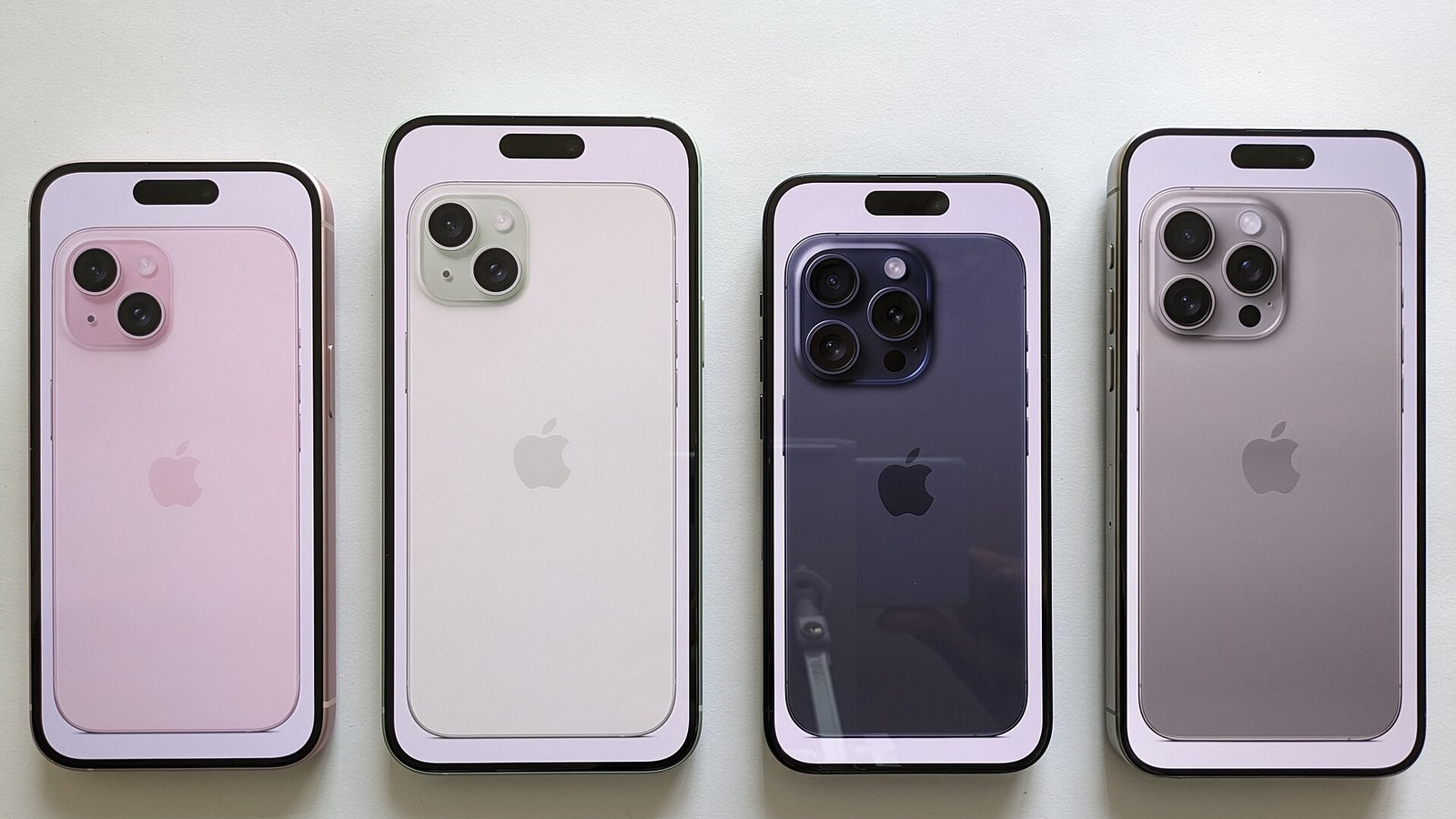








In November 2026, every official way to reset an iPhone without its passcode still works on the current software. Most iPhones run iOS 27.2, and iOS 27 still supports models as old as the iPhone 11 and the second-generation iPhone SE. The iPhone 7 and iPhone 6s stay on iOS 15 and get only occasional security patches, most recently iOS 15.8.8 in May 2026, while older models such as the iPhone 6 are limited to even earlier versions. If you buy a used iPhone, check that it is fully erased and that the seller has signed out of their Apple Account, because Activation Lock will block a phone that is still linked to someone else.
Resetting an iPhone or iPad erases all of your data and returns the device to factory settings. Try a simple restart or a force restart first, because those keep your data and settings. If you know your passcode, the full reset is in Settings > General > Transfer or Reset iPhone > Erase All Content and Settings. If you don’t, this guide covers how to reset iphone without password and how to reset iphone passcode using Apple’s own methods. It also covers what to do before you erase, and why deleted data can’t be recovered without a backup.
Why would you need to restore your iPhone’s factory settings?
A factory reset fixes software problems that nothing else fixes. It is also a key step in preparing a phone for a new owner, along with unpairing any Apple Watch, signing out of your Apple Account and removing the device from your account. If your iPhone keeps crashing, freezing or stalling and a restart doesn’t help, erasing it gives the software a clean start.
Phones are complex, and the software can get into a tangle now and then. A reset clears problems that leave a device stuck in a loop, running slowly or performing badly.
Selling the phone or giving it to someone is the other big reason. If you don’t erase it, the next person could get into your social media, your banking apps, and your private photos and videos, or even use your details to steal your identity.
Back up your iPhone before you reset it
A reset deletes everything, so back up first. A separate guide explains how to reset iphone 7 models step by step, but here is the short version. Before any iphone factory reset, make a backup with iCloud, with Finder on a Mac, or with iTunes or the Apple Devices app on a Windows PC.
- iCloud: Go to Settings > [your name] > iCloud > iCloud Backup and turn on Back Up This iPhone. The date and time of the last backup appear under Back Up Now.
- Back up now: If you haven’t backed up recently, tap Back Up Now and stay on Wi-Fi until it finishes.
- Computer: Connect the iPhone to your Mac or PC with a cable. Select the device in Finder (macOS Catalina and later), or in iTunes or the Apple Devices app on Windows, then choose Back Up Now.
If you have forgotten your passcode, you can’t make a new backup. Apple says that without a backup made before you forgot the passcode, there is no way to save the data on the device.
Reset your iPhone to its factory settings
Once your backup is done, you can erase the device. This wipes it completely, which is why the backup comes first.
How to reset an iPhone or iPad to factory settings
The method depends on one thing: whether you still know your passcode. If you do, use Settings. If you don’t, use the lock screen, a computer, or iCloud.
Erase from Settings (you know the passcode)
- Go to Settings > General > Transfer or Reset iPhone, then tap Erase All Content and Settings. (Older guides said “Settings > General > Reset”. That path changed in iOS 15.)
- If iCloud Backup is on, iOS offers to finish a backup before erasing so you don’t lose recent data. Taking that option is a good idea.
- Enter your passcode, then your Apple Account password. The Apple Account password turns off Find My and Activation Lock.
- If your phone has an eSIM, choose whether to keep it or delete it. If you are selling the phone, delete it. You may need to contact your carrier to move the plan to a new phone.
- Confirm with Erase iPhone.
The phone erases itself and shows the Hello screen you saw when you first set it up. After that, it is ready to sell or give away.
Reset a forgotten passcode on the iPhone itself
If your iPhone runs iOS 15.2 or later, you can erase it from the lock screen without a computer. After too many wrong passcode attempts, the iPhone Unavailable or Security Lockout screen appears.
- Tap Forgot Passcode? at the bottom of the screen. On older iOS 15 versions this button is labelled Erase iPhone.
- Tap Start iPhone Reset.
- Enter your Apple Account password to sign out, then confirm the erase.
The phone must be connected to Wi-Fi or a cellular network, and you must have been signed in to your Apple Account on it. On iOS 17 and later, if you changed your passcode in the past 72 hours, you can enter the old passcode instead and set a new one without erasing anything.
Reset with a computer using recovery mode
Recovery mode works on any iPhone, even when the lock-screen option isn’t available. You can use a Mac with Finder or a PC with iTunes or the Apple Devices app. This is also how to reset iphone 11 and other models when you don’t have the passcode.
- Connect the iPhone to the computer with a cable.
- Press the buttons for your model (see the table below). Keep holding the last button until the recovery mode screen appears, not just the Apple logo.
- On the computer, find the iPhone and choose Restore, not Update.
- The computer downloads the software and erases the phone. If the download takes more than about 15 minutes, the phone leaves recovery mode. If that happens, repeat step 2.
| iPhone model | Button sequence for recovery mode |
|---|---|
| iPhone 8 and later, iPhone SE (2nd generation and later) | Press and release Volume Up, press and release Volume Down, then press and hold the side button |
| iPhone 7 and iPhone 7 Plus | Press and hold the side button and Volume Down together |
| iPhone 6s and earlier, iPhone SE (1st generation) | Press and hold the Home button and the side (or top) button together |
If the buttons are broken, or the restore fails again and again, contact Apple Support or visit an Apple Store or Apple Authorized Service Provider.
Erase remotely with Find My
If Find My was turned on and the phone is online, you can erase it from another device. Sign in at iCloud.com, open Find My, pick the iPhone, and choose Erase This Device. This removes the passcode along with everything else.
None of these methods removes Activation Lock. After the erase, the phone asks for the Apple Account that was signed in before. If you have forgotten that password, use Apple’s account recovery. If you bought the phone used, ask the seller to remove it from their account.
Forgot to back up your iPhone before wiping it?
You may have a backup without knowing it, because iCloud Backup runs automatically on many phones. Go to Settings > [your name] > iCloud, then open Manage Storage (or Manage Account Storage) and tap Backups. Every iPhone and iPad backup in your account is listed there, sometimes including old phones you could delete to free up space. The current device is labelled This iPhone or This iPad. Tap it to see what is included.
Every Apple Account comes with 5GB of free iCloud storage. You can turn off backups for some apps to stay under that limit, or pay for more. In the US, iCloud+ costs $0.99 a month for 50GB, $2.99 for 200GB, $9.99 for 2TB, $29.99 for 6TB and $59.99 for 12TB. You might think apps don’t need backing up because you can download them again from the App Store. But their data includes game saves, settings and preferences you probably want to keep.
To check when your iPhone last backed up, go to Settings, tap your name at the top, then iCloud > iCloud Backup, and look at the date and time. Backups happen by themselves when the phone is locked, connected to power and on Wi-Fi.
If you don’t use iCloud Backup yet, turn it on now. Go to Settings > [your name] > iCloud > iCloud Backup and switch on Back Up This iPhone. It is the easiest kind of backup, and you can restore from it anywhere with an internet connection.
How to recover data from an iPhone or iPad that has been erased
Without a backup, data you have erased is almost certainly gone for good. iPhones encrypt their storage automatically. Erasing the device destroys the encryption keys, so the old data can’t be read even if traces of it are still on the chip.
You can ask Apple Support in an emergency, but don’t expect much. This only applies to a full erase. For data corruption or a faulty device that hasn’t been erased, a technician may be able to help. Either way, it is one more reason to back up regularly.
How to restore your iPhone from a backup
To keep using the phone after the reset, restore your data from a backup during setup. Turn the iPhone on, choose your language and region, and join Wi-Fi. Keep going until you reach the screen that asks how to bring over your apps and data.
Choose how to set up your iPhone again
Recent versions of iOS give you several choices on the Transfer Your Apps & Data screen:
- From iCloud Backup: Sign in with your Apple Account and pick the most recent backup.
- From Mac or PC: Connect to the computer that holds your Finder, iTunes or Apple Devices backup.
- Directly from another iPhone: Use Quick Start if your old phone is nearby.
- From Android: Move your data across with Apple’s Move to iOS app.
- Don’t Transfer Anything: Set the phone up as new.
Older iOS versions, like the ones current when this guide was first written, showed just three options: Set Up as New iPhone, Restore from iCloud Backup and Restore from iTunes Backup.
If you choose iCloud, agree to the terms after you sign in, and the phone starts restoring your data. A large backup or a slow connection can make this take a long time, so don’t start it when you’re in a hurry. Once the backup is restored, the iPhone restarts and keeps downloading your apps in the background. Stay on Wi-Fi and power until it finishes.
FAQ
Can you reset an iPhone without the passcode and without a computer?
Yes, if the iPhone runs iOS 15.2 or later and is connected to Wi-Fi or a cellular network. On the lock screen, tap Forgot Passcode? (or Erase iPhone on early iOS 15 versions), then Start iPhone Reset, and enter your Apple Account password. You can also erase it from iCloud.com if Find My was on.
Does resetting an iPhone remove the Apple Account and Activation Lock?
Not by itself. Activation Lock stays on until the owner’s Apple Account password is entered, or until the owner removes the device from their account. If you buy a used iPhone, check that the seller has done this before you pay.
Will you lose your photos if you reset a locked iPhone?
Yes, unless they were in a backup or synced to iCloud Photos. Apple says there is no way to save the data on a device whose passcode you have forgotten. Anything already in iCloud Photos or a recent backup comes back when you sign in again.
Does the iPhone 7 still get updates?
The iPhone 7 can’t install anything newer than iOS 15. Apple still releases occasional iOS 15 security patches for it, most recently iOS 15.8.8 in May 2026, but no new features. All the reset methods in this guide still work on it, including recovery mode, which on the iPhone 7 uses Volume Down and the side button held together.
Is the iPhone 11 still supported in 2026?
Yes. Apple lists the iPhone 11, 11 Pro and 11 Pro Max as compatible with iOS 27. They don’t get Apple Intelligence features, though, so if you want those, look at a newer model.
What is the difference between Reset All Settings and Erase All Content and Settings?
Reset All Settings returns settings such as Wi-Fi, keyboard and privacy options to their defaults, and keeps your apps, photos and files. Erase All Content and Settings deletes everything and returns the phone to the Hello screen. Use the second one before selling the phone or when fixing serious software problems.
Sources
- Apple Support: How to factory reset your iPhone, iPad or iPod touch
- Apple Support: If you forgot your iPhone passcode or your iPhone is disabled
- Apple Support: If you’ve forgotten your iPhone passcode (118430)
- Apple: iOS 27 compatible devices
- Apple Support: iCloud+ plans and pricing
- Mac Observer: iCloud+ pricing tiers from $0.99 to $59.99
- 9to5Mac: iOS 27.2 now available
- AppleInsider: New iOS and iPadOS security updates for older Apple hardware
- iFixit: How to put an iPhone into recovery mode
About this article
- Fact-checked before publication.
- Published · Updated