Blog

  • iPhone 13 Specs and Features: What You Get and Who It Suits

    iPhone 13 Specs and Features: What You Get and Who It Suits

    The iPhone 13 launched in September 2021 and is still one of the most common iPhones in use. This review covers its full specs, how each feature holds up years later, and who should still buy one now that Apple only sells it through refurbished and secondhand channels.

    The Short Verdict

    The iPhone 13 is still a good phone to buy used or refurbished, at the right price. The A15 Bionic chip remains quick, battery life was a real step up over the iPhone 12, and the dual 12MP cameras still take reliable photos in daylight and decent ones at night. Apple also supports it with current software: it runs iOS 26.

    It has limits. The screen is stuck at 60Hz, there is no telephoto lens, it charges through Lightning instead of USB-C, and it cannot run Apple Intelligence. Buy it if you want a dependable, compact-feeling iPhone for the least money. Skip it if you plan to keep your next phone for five or more years.

    ChipA15 Bionic
    Display6.1 in OLED, 60 Hz
    BatteryUp to 19 hrs video
    PriceFrom $799 at launch

    Pros and cons

    Pros
    – A15 Bionic still handles everyday apps, games and editing smoothly
    – Battery life is noticeably better than the iPhone 12
    – 128GB base storage, double the iPhone 12’s 64GB
    – Sensor-shift stabilization on the main camera, usually a Pro feature at the time
    – IP68 water resistance and a Ceramic Shield front
    – Supported by iOS 26

    Cons
    – 60Hz display feels dated next to 120Hz phones
    – No telephoto camera, so zoom beyond 2x looks soft
    – Lightning port with USB 2 transfer speeds
    – No Apple Intelligence support
    – Older units often need a battery replacement

    iPhone 13 Key Specs

    Spec iPhone 13
    Chip A15 Bionic (6-core CPU, 4-core GPU, 16-core Neural Engine)
    RAM 4GB (Apple doesn’t publish RAM; figure from teardowns)
    Storage 128GB, 256GB, 512GB
    Display 6.1-inch Super Retina XDR OLED, 2532 x 1170, 460 ppi, 60Hz
    Brightness 800 nits typical max, 1,200 nits peak HDR
    Rear cameras 12MP wide (f/1.6, sensor-shift OIS), 12MP ultrawide (f/2.4, 120°)
    Front camera 12MP TrueDepth (f/2.2)
    Video Up to 4K at 60fps, Dolby Vision HDR, Cinematic mode at 1080p 30fps
    Battery 3,227mAh (per regulatory filings), up to 19 hours video playback
    Charging Lightning, up to 50% in about 30 min with a 20W adapter; MagSafe up to 15W; Qi 7.5W
    Connectivity 5G, Wi-Fi 6, Bluetooth 5.0, NFC, Ultra Wideband
    SIM Nano-SIM and eSIM, or dual eSIM
    Durability IP68 (6 m for 30 minutes), Ceramic Shield front
    Size and weight 146.7 x 71.5 x 7.65 mm, 173 g
    Launch software iOS 15
    Colors Midnight, Starlight, Blue, Pink, (PRODUCT)RED, Green (added 2022)

    iPhone 13 Overview: What Was New in 2021

    Apple announced the iPhone 13 family on September 14, 2021, at its California Streaming event. There were four models: the iPhone 13 mini, iPhone 13, iPhone 13 Pro and iPhone 13 Pro Max. The standard iPhone 13 sat in the middle at $799, the same starting price as the iPhone 12 the year before.

    The headline upgrades over the iPhone 12 were practical rather than flashy:

    • A smaller notch. The Face ID cutout shrank by 20 percent.
    • A brighter screen. Typical max brightness went from 625 to 800 nits.
    • Better cameras. A larger main sensor, sensor-shift stabilization, Photographic Styles and Cinematic mode.
    • Longer battery life. Apple claimed up to 2.5 more hours of daily use than the iPhone 12.
    • More storage. The base model jumped from 64GB to 128GB.
    • The A15 Bionic. A faster chip with a stronger Neural Engine.

    None of these changes were dramatic alone. Together, they made the iPhone 13 a more comfortable phone to live with than the 12, and that is why it sold so well.

    Design and Build

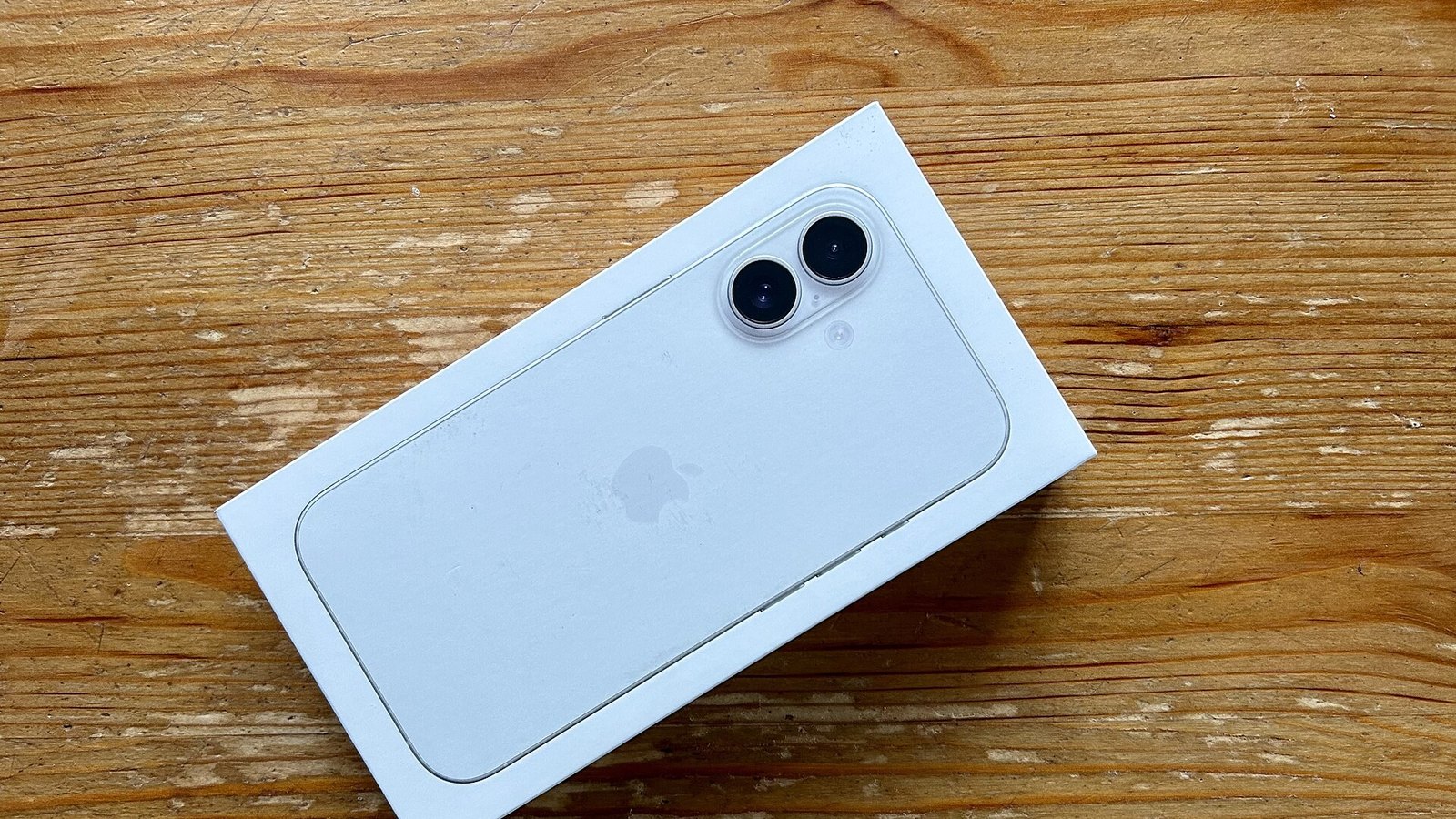
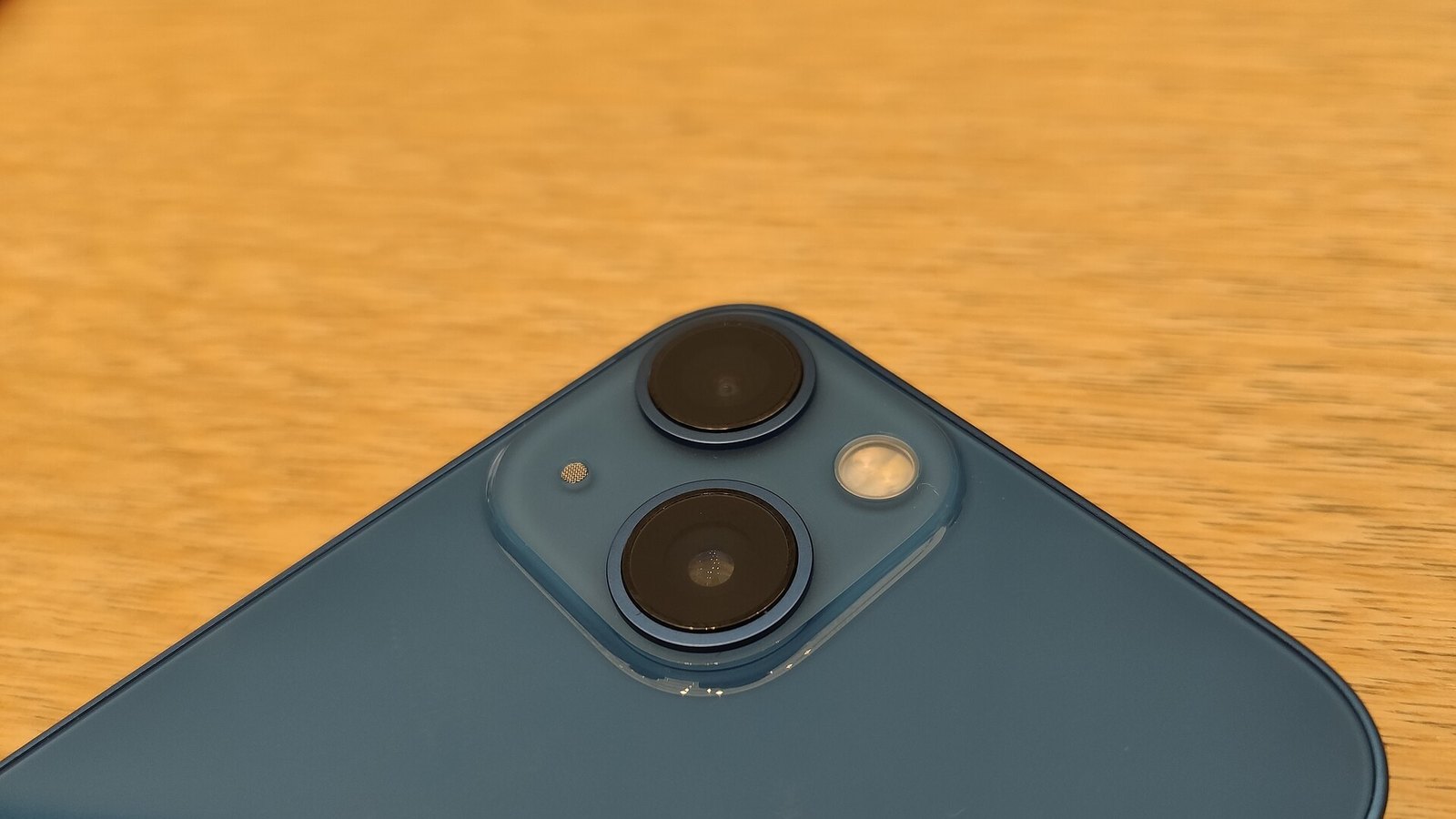
    From the front, the iPhone 13 looks almost identical to the iPhone 12. It keeps the flat aluminum edges, the flat glass back and the 6.1-inch footprint. The giveaway is on the back: the two cameras now sit diagonally instead of stacked vertically, inside a slightly larger camera bump.

    It’s a little thicker and heavier than the iPhone 12, at 7.65 mm and 173 g. The extra bulk mostly went to the bigger battery. You’ll notice the larger camera bump more than the weight, because older iPhone 12 cases won’t fit properly.

    The front uses Ceramic Shield glass, which Apple introduced on the iPhone 12 to improve drop resistance. The back is regular glass, so a case is still a smart idea. IP68 rating means the phone is rated to survive 6 meters of water for up to 30 minutes, though Apple’s warranty doesn’t cover liquid damage.

    Colors

    The iPhone 13 launched in five colors: Midnight, Starlight, Blue, Pink and (PRODUCT)RED. Midnight is a very dark blue-black. Starlight is a warm off-white with a hint of gold. Blue is deeper than the iPhone 12’s blue, while Pink is pale and subtle. Apple added a Green option in March 2022, so you’ll see six colors on the used market.

    Display: Brighter, With a Smaller Notch

    The 6.1-inch Super Retina XDR panel is an OLED with 2532 x 1170 resolution at 460 pixels per inch. Colors are accurate, blacks are true black, and text is sharp. Outdoors, the jump to 800 nits typical brightness makes the screen easier to read in direct sun than the iPhone 12. HDR video can peak at 1,200 nits.

    The notch is 20 percent smaller, mainly because it is narrower. In practice, you gain a little horizontal room in the status bar, though not enough for Apple to show the battery percentage at launch. That arrived later through a software update.

    The big weakness is the refresh rate. The iPhone 13 runs at 60Hz, while the iPhone 13 Pro got 120Hz ProMotion. Scrolling looks fine if you’ve never used a high refresh rate phone. If you have, the difference is obvious within minutes. Many Android phones at a similar price now offer 90Hz or 120Hz, so this is the spec that has aged worst.

    Watch out

    If you’re coming from any 120Hz phone, the iPhone 13’s 60Hz screen will feel slower when scrolling. Try one in person first if you can.

    Camera and Video Performance

    The iPhone 13 has two rear cameras and one front camera, all rated at 12 megapixels. If you’ve ever wondered whether a higher mega pixel count would help, the answer here is that sensor size and processing matter more, and Apple spent its effort there.

    Main wide camera

    The 12MP wide camera uses a bigger sensor with 1.7µm pixels and an f/1.6 aperture. Apple said it gathers 47 percent more light than the iPhone 12’s main camera. More importantly, it uses sensor-shift optical image stabilization, which moves the sensor rather than the lens. Apple first used this on the iPhone 12 Pro Max, and bringing it to the standard model was a meaningful upgrade.

    In practice, that means sharper low-light shots and steadier handheld video. Daylight photos are detailed and natural-looking, with Smart HDR 4 balancing skies and shadows well. Night mode is available on both rear cameras and the front camera.

    Ultrawide camera

    The 12MP ultrawide has an f/2.4 aperture and a 120-degree field of view. Apple fitted a new sensor that gathers more light than the iPhone 12’s ultrawide, which helps in dim rooms. It’s useful for landscapes, architecture and group shots. It doesn’t support macro photography, which was limited to the 13 Pro models.

    Zoom

    There’s no telephoto lens. You get 2x optical zoom out (switching to the ultrawide) and up to 5x digital zoom. Digital zoom past 2x loses detail quickly, so if you shoot concerts, sports or wildlife, the iPhone 13 is a weak choice.

    Photographic Styles

    Photographic Styles let you set a preferred look (Rich Contrast, Vibrant, Warm or Cool) that applies at capture. Unlike a filter, the processing is smart enough to leave skin tones mostly untouched. It’s a small feature you set once, but it’s handy if you find Apple’s default processing too flat.

    Video and Cinematic mode

    Video has long been the iPhone’s strongest camera trait, and the 13 continues that. You can record in Dolby Vision HDR at up to 4K 60fps, and the stabilization is excellent for a phone.

    Cinematic mode was the big new video feature. It simulates shallow depth of field and automatically shifts focus between subjects, for example when someone turns their head or walks into frame. You can also change the focus point after recording. On the iPhone 13, it records at 1080p and 30fps. The effect can stumble around hair and edges, but for casual clips of people it looks impressive.

    Front camera

    The 12MP TrueDepth camera handles selfies, FaceTime and Face ID. It supports Night mode, 4K video and Cinematic mode, which makes it a solid choice for video calls and social clips.

    Performance: A15 Bionic

    The A15 Bionic uses a 6-core CPU (two performance cores and four efficiency cores), a 4-core GPU and a 16-core Neural Engine. The iPhone 13 Pro uses the same chip with a 5-core GPU, so the Pro is slightly stronger in graphics-heavy games.

    In everyday use, the A15 still feels fast. Apps open quickly, multitasking is smooth, and photo and video editing in apps like iMovie or Lightroom is comfortable. Demanding games run well, though the 4GB of RAM means apps get reloaded from memory more often than on newer iPhones with 8GB.

    To put its age in context, Apple used the A15 again in the iPhone 14 and iPhone 14 Plus (with the 5-core GPU). That tells you how much headroom the chip had at launch.

    The one place it falls short is AI. Apple Intelligence requires an iPhone 15 Pro or later, largely because of RAM. On an iPhone 13, you won’t get features like Writing Tools, Genmoji or the ChatGPT integration in Siri.

    Battery Life and Charging

    Battery life was one of the clearest upgrades. The iPhone 13 has a 3,227mAh battery according to regulatory filings, up from roughly 2,815mAh on the iPhone 12. Apple doesn’t list capacities officially, but it rates the phone for:

    • Up to 19 hours of video playback
    • Up to 15 hours of streamed video
    • Up to 75 hours of audio playback

    Apple pitched this as up to 2.5 hours more daily use than the iPhone 12. Launch reviews broadly agreed that a full day of mixed use was realistic, and that the 13 lasted noticeably longer than its predecessor.

    On a used phone, those numbers depend heavily on battery health. A battery that’s dropped to around 80 percent capacity will feel much weaker than the launch figures suggest.

    Charging options:

    • Wired: Lightning port, up to 50 percent in about 30 minutes with a 20W or higher USB-C adapter
    • MagSafe: up to 15W with Apple’s MagSafe charger
    • Qi wireless: up to 7.5W

    There’s no charger in the box. Apple stopped including them with the iPhone 12, and the iPhone 13 shipped with only a USB-C to Lightning cable.

    Buying tip

    Before you buy a used iPhone 13, ask the seller for a screenshot of Settings > Battery > Battery Health & Charging. Anything below 85 percent maximum capacity means you should budget for a replacement.

    Software, Options and Additional Features

    Software support

    The iPhone 13 launched with iOS 15 and now runs iOS 26, released in September 2025. Apple doesn’t publish an official support window. Recent history is encouraging, though: the iPhone XS and XR received updates for seven years before being dropped with iOS 26. If the iPhone 13 follows a similar pattern, it should get security updates for a while yet, but you shouldn’t count on new major versions forever.

    Storage options

    You can choose from 128GB, 256GB or 512GB. For most people, 128GB is enough, especially with iCloud. If you shoot a lot of 4K video, take 256GB, because 4K 60fps footage fills storage quickly.

    Connectivity

    The iPhone 13 supports 5G (US models include both sub-6GHz and mmWave), Wi-Fi 6, Bluetooth 5.0 and NFC for Apple Pay. It also has Apple’s U1 Ultra Wideband chip for precise AirTag finding.

    It was the first iPhone to support dual eSIM. US models still include a physical nano-SIM tray too, which makes it easy to move between networks, including prepaid wireless carriers that don’t support every eSIM setup smoothly.

    Audio

    Stereo speakers are loud and clear for a phone this size. There’s no headphone jack. Spatial audio works with compatible Apple headphones, so pairing it with something like the AirPods Pro 2 gets you head-tracked surround sound in supported apps.

    Face ID

    Face ID handles unlocking and payments. iOS 15.4 added the ability to unlock while wearing a mask, which the iPhone 12 and later support.

    Build Quality and Things to Look Out For

    Most iPhone 13 units hold up well, but if you’re buying used or refurbished, there are specific issues worth checking.

    Battery wear. This is the most common issue on a phone this age. Check battery health and look for a “Service” warning.

    Non-genuine parts. iOS shows a parts and service history in Settings > General > About. If a screen, battery or camera was replaced with a non-Apple part, it will usually say so. That isn’t automatically a dealbreaker, but it should lower the price.

    Face ID after screen repairs. Early on, replacing an iPhone 13 screen without transferring a small chip could disable Face ID. After criticism, Apple removed that restriction in a later iOS 15 update. Still, test Face ID on any used unit before paying.

    Screen burn-in or tint. OLED panels can show faint burn-in from static elements like the keyboard. Open a plain gray or white image at full brightness and look closely.

    Camera rattle or focus issues. Open the camera, switch between 1x and 0.5x, and check that focus locks quickly.

    Repairs. The iPhone 13 was included in Apple’s Self Service Repair program when it launched in the US in April 2022, so genuine parts and manuals are available. It’s still not as easy to fix as a dedicated repairable phone, but it’s better supported than many older models.

    Watch out

    Make sure any used iPhone 13 is signed out of the previous owner’s Apple Account and Find My is off. A phone that’s still linked to someone else’s account isn’t one you should buy.

    iPhone 13 Release Date and Price History

    • Announced: September 14, 2021
    • Preorders opened: September 17, 2021
    • Released: September 24, 2021

    Launch prices in the US were $799 for 128GB, $899 for 256GB and $1,099 for 512GB. In the UK it started at £779, and in India at ₹79,900.

    Apple cut the US starting price to $699 when the iPhone 14 arrived in September 2022, then to $599 when the iPhone 15 launched in 2023. It removed the iPhone 13 from its lineup in September 2024 after the iPhone 16 launch. Today you’ll find it through refurbishers, carriers, trade-in stores and private sellers, typically for far less than its original price.

    iPhone 13 vs 13 mini, 13 Pro and iPhone 14

    iPhone 13 mini iPhone 13 iPhone 13 Pro iPhone 14
    Display 5.4 in, 60Hz 6.1 in, 60Hz 6.1 in, 120Hz ProMotion 6.1 in, 60Hz
    Chip A15 (4-core GPU) A15 (4-core GPU) A15 (5-core GPU) A15 (5-core GPU)
    RAM 4GB 4GB 6GB 6GB
    Rear cameras 12MP wide + ultrawide 12MP wide + ultrawide 12MP wide, ultrawide, 3x telephoto 12MP wide (f/1.5) + ultrawide
    Video playback Up to 17 hrs Up to 19 hrs Up to 22 hrs Up to 20 hrs
    Weight 140 g 173 g 203 g 172 g
    US launch price $699 $799 $999 $799

    iPhone 13 mini: Same cameras and chip in a much smaller body, with shorter battery life. Pick it only if one-handed use matters more than stamina.

    iPhone 13 Pro: The 120Hz display and 3x telephoto are real upgrades, plus macro mode and ProRAW. If a used 13 Pro costs only a little more, it’s the better buy.

    iPhone 14: Nearly the same phone. It adds a slightly bigger main sensor, Action mode for video, Crash Detection and Emergency SOS via satellite, plus 6GB of RAM. If the price gap is small, the 14 gives you a bit more longevity.

    Newer models: Phones like the iPhone 17 bring a 120Hz display, USB-C, Apple Intelligence and far better zoom. They also cost several times more than a used iPhone 13.

    Who Should Buy the iPhone 13

    Buy it if:
    – You want an iPhone on a tight budget and plan to keep it two or three years
    – You’re upgrading from an iPhone 11, XR or older and want better battery and cameras
    – You need a reliable phone for a teen or a secondary line
    – You care more about video quality than zoom or AI features

    Skip it if:
    – You’re used to a 120Hz screen
    – You want Apple Intelligence
    – You shoot a lot of zoomed photos
    – You want USB-C to share chargers with a laptop or Android devices
    – You plan to keep the phone five years or more

    Verdict

    The iPhone 13 was Apple’s most sensible standard iPhone of its era. It didn’t reinvent anything, but it fixed the iPhone 12’s two biggest complaints, battery life and base storage, while adding a better main camera and a brighter screen. Years later, the A15 chip and solid video recording keep it relevant.

    The case for buying one today rests entirely on price. At a low used or refurbished price with healthy battery capacity, it’s one of the best value iPhones you can get. If the gap to an iPhone 14 or a newer model is small, spend the extra and get more years of support.

    FAQ

    Is the iPhone 13 still worth buying?

    Yes, if you can get one with good battery health at a low price. It runs iOS 26, handles everyday tasks well and takes strong photos and video. It’s less sensible if an iPhone 14 or 15 costs only a little more.

    How much RAM does the iPhone 13 have?

    It has 4GB of RAM. Apple doesn’t list RAM on its spec pages, so this figure comes from teardowns. The iPhone 13 Pro and Pro Max have 6GB.

    Does the iPhone 13 support Apple Intelligence?

    No. Apple Intelligence requires an iPhone 15 Pro or newer. The iPhone 13 still gets other iOS 26 features, but not Apple’s AI tools.

    Does the iPhone 13 have USB-C?

    No. It uses Lightning. Apple switched to USB-C starting with the iPhone 15 lineup.

    Is the iPhone 13 waterproof?

    It’s water resistant, not waterproof. The IP68 rating covers depths up to 6 meters for 30 minutes, but resistance can weaken over time and Apple’s warranty doesn’t cover liquid damage.

    What colors does the iPhone 13 come in?

    Midnight, Starlight, Blue, Pink and (PRODUCT)RED at launch, with Green added in March 2022.

    What is the difference between the iPhone 13 and iPhone 13 Pro?

    The Pro adds a 120Hz ProMotion display, a third 3x telephoto camera, macro photography, a 5-core GPU, 6GB of RAM and a stainless steel frame. It’s heavier and launched at $999.

  • What Is a Personal Digital Assistant and How PDAs Led to Smartphones

    What Is a Personal Digital Assistant and How PDAs Led to Smartphones

    A personal digital assistant (PDA) is a handheld computer built to manage your calendar, contacts, notes and to-do lists, usually with a stylus and a small touchscreen. PDAs peaked between the mid-1990s and mid-2000s. Then they merged with mobile phones and became the smartphones we carry today.

    What a PDA actually is

    At its core, a PDA was a digital replacement for the paper organiser. It held four main apps: date book, address book, memo pad and to-do list. Everything else was a bonus.

    Most PDAs shared a few traits:

    • A pocket-sized body with a monochrome or, later, colour touchscreen
    • Pen input via a stylus, often with handwriting recognition
    • Syncing with a desktop PC through a cradle or cable
    • Long battery life, often weeks on two AAA cells

    Early models had no wireless connection at all. You plugged them into your computer to back up and update your data. That sync step was the whole workflow.

    Personal data assistant or personal digital assistant?

    Many people search for “what is personal data assistant.” It is the same device. The correct term is personal digital assistant, but “data” became a common slip because PDAs mostly stored personal data. Both phrases point to the same category of gadget.

    The official name came from Apple. CEO John Sculley used “personal digital assistant” at the Consumer Electronics Show in January 1992 while previewing the Newton. The label stuck for the whole category.

    A short history of PDAs

    Handheld organisers existed before the name did. British company Psion released its Organiser in 1984, and many historians count it as the first PDA. It looked more like a chunky calculator than a computer.

    The table below covers the devices that shaped the category.

    Year Device Maker Why it mattered
    1984 Organiser Psion Widely seen as the first PDA
    1993 Newton MessagePad Apple Coined the category; ambitious handwriting recognition
    1994 Simon Personal Communicator IBM / BellSouth Combined phone and PDA features
    1996 Pilot 1000 Palm Computing Made PDAs affordable and simple
    1996 Nokia 9000 Communicator Nokia Clamshell phone with a keyboard and organiser
    1999 Visor Handspring Palm OS with expansion modules
    2000 iPaq Compaq Popular Pocket PC with a colour screen
    2002 Treo 180 Handspring Early phone and Palm OS hybrid
    2003 Treo 600 Palm Mainstream PDA phone with a keyboard

    The Newton: right idea, too early

    The Apple Newton MessagePad launched in August 1993 at around $699. It was big, pricey and famous for poor handwriting recognition in its first version. Doonesbury and The Simpsons both mocked it.

    Later Newton models improved a lot. It didn’t matter. Steve Jobs cancelled the line in early 1998 after returning to Apple.

    The PalmPilot: the one that worked

    Palm got the formula right in 1996. The Pilot 1000 sold for $299 and fit in a shirt pocket. It did fewer things than the Newton, but it did them fast.

    Its secret weapon was Graffiti, a simplified alphabet you wrote with the stylus. Instead of the device learning your handwriting, you learned its shorthand. Most users picked it up in an afternoon.

    ChipMotorola DragonBall, 16 MHz
    Display160 x 160 monochrome
    BatteryTwo AAA cells
    Price$299 at launch

    Types of PDAs and their platforms

    By the early 2000s, PDAs split into a few camps based on operating system. Each one had a different sweet spot.

    Platform Key devices Best known for
    Palm OS PalmPilot, Palm V, Handspring Visor, Treo Simplicity, speed, huge app library
    Windows CE / Pocket PC / Windows Mobile Compaq iPaq, HP Jornada, Dell Axim Office file support, colour screens, multimedia
    EPOC / Symbian Psion Series 5, Nokia Communicator Keyboards, strong productivity apps
    Newton OS Apple MessagePad, eMate 300 Handwriting recognition
    BlackBerry OS RIM 850, BlackBerry 5810 Push email and a thumb keyboard
    Linux Sharp Zaurus Open platform for tinkerers

    Palm dominated the consumer side for years. Microsoft’s Pocket PC devices appealed to business users who wanted Word and Excel files on the go. Microsoft renamed the platform Windows Mobile in 2003.

    How PDAs turned into smartphones

    The PDA had one big weakness: it couldn’t talk to anyone. You carried a PDA and a mobile phone, two chargers, two devices. Merging them was the obvious next step.

    The first hybrids

    IBM’s Simon, sold by BellSouth in 1994, is often called the first smartphone. It had a touchscreen, calendar, address book and email. It was also heavy and short on battery, and sales were modest.

    Nokia’s 9000 Communicator in 1996 took a different route. It opened like a clamshell to reveal a keyboard and an organiser. Business users loved it.

    Email changed everything

    Research In Motion pushed the shift further. Its early pagers delivered email instantly, and the BlackBerry 5810 added voice calls in 2002. Our piece on BlackBerry phones covers how that thumb keyboard won over offices worldwide.

    Palm answered with the Treo line. The Treo 600 in 2003 put a phone, keyboard and Palm OS into one compact body. At that point, the standalone PDA started to look pointless.

    The iPhone ends the PDA era

    Apple announced the iPhone in January 2007 and released it that June, starting at $499. It dropped the stylus for a finger-friendly multitouch screen. The App Store arrived a year later and turned the phone into a full pocket computer.

    Android followed in 2008. Palm tried a comeback with webOS in 2009, and HP bought the company in 2010 for about $1.2 billion. Standalone PDAs had faded from the market well before then.

    Watch out

    Many early PDAs stored data in RAM. If the batteries died for too long, everything on the device was wiped.

    PDA vs a modern smartphone

    The gap between a 1996 Pilot and a current phone is staggering. Here is the original PalmPilot next to the iPhone 17, Apple’s base model announced in September 2025. Our iPhone 17 guide covers the full spec list.

    Spec Palm Pilot 1000 (1996) iPhone 17 (2025)
    Display 160 x 160 monochrome 6.3 in OLED, up to 120 Hz
    Processor DragonBall, 16 MHz Apple A19
    Memory 128 KB RAM 8 GB RAM
    Storage Shared with RAM From 256 GB
    Connectivity Serial cable sync 5G, Wi-Fi 7, Bluetooth
    Camera None 48 MP dual rear, 18 MP front
    Launch price (US) $299 $799

    Every core PDA app survives on that iPhone. Calendar, Contacts, Notes and Reminders are the direct descendants of the Palm’s four buttons. What changed is everything around them: cameras, maps, payments and constant connectivity. You can point a camera at a street sign with Google Lens, something no PDA owner could have imagined.

    Even the word “assistant” lived on. Siri, Google Assistant and Gemini now carry the name, though they handle voice requests rather than memo pads.

    Are there modern PDAs?

    Strictly speaking, no one sells PDAs in the classic sense anymore. Some devices fill the same role, though.

    • E-ink notetakers like the reMarkable and Kindle Scribe offer stylus notes without notifications.
    • Minimalist phones like the Light Phone strip a phone back to calls, texts and a few tools.
    • Older iPod touch units and other Wi-Fi-only devices work as offline organisers.

    These appeal to people who want focus over feeds. If you’re weighing that trade-off, our guide on how to choose a phone covers which features actually matter day to day.

    Buying tip

    Buying a vintage Palm or Pocket PC? Check the battery compartment for corrosion, as leaking AAA cells killed many units.

    FAQ

    What does PDA stand for?

    PDA stands for personal digital assistant. Some people say personal data assistant, but the original term from Apple in 1992 uses “digital.”

    What was the first PDA?

    The Psion Organiser from 1984 is usually credited as the first PDA. The Apple Newton in 1993 was the first device marketed under the name.

    What was the most popular PDA?

    The Palm line was the best known. The PalmPilot and later Palm models defined the category for most consumers in the late 1990s.

    Why did PDAs disappear?

    Smartphones absorbed them. Once phones like the Treo, BlackBerry and iPhone offered the same organiser tools plus calls and internet, carrying a separate PDA made no sense.

    Is a smartphone a PDA?

    In function, yes. A smartphone does everything a PDA did and much more. We just stopped using the old name once phone calls became part of the package.

  • T Mobile Home Internet Review: Speeds, Pricing and Who It Suits

    T Mobile Home Internet Review: Speeds, Pricing and Who It Suits

    T-Mobile Home Internet is a 5G fixed wireless service that typically delivers about 133 to 498 Mbps downloads for $50 to $70 a month with AutoPay. There’s no annual contract, no data cap, and no installer visit. It’s a strong pick if cable is overpriced or unavailable where you live. It’s a weak pick if you upload huge files daily or your address sits at the edge of T-Mobile’s coverage.

    Technology5G fixed wireless
    Download133 to 498 Mbps
    UploadRoughly 12 to 56 Mbps
    PriceFrom $50/mo
    ContractNone

    How T-Mobile Home Internet works

    T-Mobile ships you a gateway, a box that combines a 5G modem and a Wi-Fi router. It pulls signal from the same cell towers that serve T-Mobile phones and turns it into a Wi-Fi network in your home. You plug it in, scan a QR code in the T-Mobile Internet app, and most people are online in under 20 minutes.

    That simplicity is the big draw. Nobody drills holes in your walls, and you don’t wait a week for an appointment. The trade-off is that your speed depends on radio conditions: how far you are from the tower, how busy that tower is, and what sits between the gateway and the outside world.

    T-Mobile had signed up roughly 8.5 million broadband customers this way by the end of 2025, which makes it one of the largest home internet providers in the US. Verizon 5G Home and AT&T Internet Air sell the same kind of service. T-Mobile has the largest footprint of the three.

    Fixed wireless vs other connection types

    Fixed wireless sits between cable and satellite on most measures. Here’s how the connection types compare in practice.

    Connection type Typical download Typical upload Latency Install
    Fiber 300 Mbps to 5 Gbps+ Matches download Very low Technician, often days
    Cable 100 Mbps to 1+ Gbps 10 to 50 Mbps (some higher) Low Self or technician
    5G fixed wireless (T-Mobile) 133 to 498 Mbps About 12 to 56 Mbps Moderate, varies Self, same day
    DSL 10 to 100 Mbps 1 to 20 Mbps Moderate Self or technician
    Satellite (LEO) Around 50 to 250 Mbps 10 to 40 Mbps Moderate Self-mounted dish

    If fiber reaches your street, it beats T-Mobile Home Internet on every technical measure. T-Mobile also sells fiber in some markets through its Lumos and Metronet partnerships. Check that option first if your address qualifies.

    Plans and pricing

    T-Mobile reworked its 5G home internet lineup into three tiers: Rely, Amplified and All-In. Prices below are what T-Mobile lists with AutoPay as of 2025. Expect about $5 more per month without it. Taxes and fees may be extra depending on your state.

    Plan Price with AutoPay Typical download Typical upload Key extras
    Rely Internet $50/mo 133 to 415 Mbps 14 to 56 Mbps Gateway included, no data cap
    Amplified Internet $60/mo 170 to 498 Mbps 12 to 55 Mbps Faster speed tier, Advanced Cyber Security
    All-In Internet $70/mo 170 to 498 Mbps 12 to 55 Mbps Mesh access point, streaming perks

    T-Mobile cuts these prices if you also have an eligible T-Mobile voice line. The bigger discounts go to the premium phone plans. On those plans, the cheapest tier can drop into the $30s. The discount applies to postpaid T-Mobile lines. If your phone runs on one of the prepaid wireless carriers that borrow T-Mobile’s network, such as Mint, you won’t get it.

    Buying tip

    Check the Broadband Facts label for your exact address and plan before you order. It lists the typical speeds T-Mobile expects there, plus any fees.

    Which tier should you pick?

    For most households, Rely is enough. A 4K Netflix stream needs around 15 Mbps. Even the low end of Rely’s range handles several streams, video calls and gaming downloads at once.

    Amplified makes sense when your home has a lot of heavy users. T-Mobile gives the higher tiers better network treatment, so their speeds tend to hold up better at busy times. The security add-on is a nice bonus but not a reason to pay extra on its own.

    All-In is worth it mainly if your home is large or oddly shaped and you’d otherwise buy a mesh system. A mesh point bought separately costs $100 or more. Getting one bundled, plus streaming perks you’d otherwise pay for, can cover the $10 to $20 gap over the cheaper tiers.

    Speeds: what to realistically expect

    The headline range is wide on purpose. Two neighbors on the same plan can see very different numbers depending on which side of the house the gateway sits and how many people share their local tower.

    A few patterns hold up across user reports and independent testing from outlets like Ookla and PCMag:

    • Download speeds are good for the price. Most customers land between 100 and 300 Mbps, which is enough for streaming, remote work and large game downloads.
    • Upload speeds are the weak spot. Uploads in the 15 to 50 Mbps range are fine for Zoom. They’re slow if you back up terabytes of photos or upload video to YouTube daily.
    • Latency is higher than cable or fiber. Expect ping in the 30 to 60 ms range. Competitive gamers will feel it in fast shooters. Casual players mostly won’t.
    • Evenings can dip. When a cell site gets crowded, home internet traffic can be slowed before phone traffic. T-Mobile’s own network management disclosures say so.

    Watch out

    Home internet customers can be deprioritized behind phone users when a tower is busy. If your area is congested, prime-time speeds can drop well below what you see in the morning.

    Why 5G band matters

    T-Mobile’s best home internet results come from its mid-band 2.5 GHz spectrum, which it markets as Ultra Capacity 5G. If your gateway connects to that, you’re likely at the high end of the range. If it falls back to low-band 600 MHz or 4G LTE, speeds can drop below 100 Mbps.

    The T-Mobile Internet app shows signal strength for the 5G and 4G connections. A quick check during setup tells you a lot about the service you’ll get.

    Coverage and availability

    Availability is set address by address, not just by coverage map. T-Mobile caps how many home internet customers it adds in each area so the network doesn’t get overloaded. A neighbor might have service while your address shows as unavailable, or sits on a waitlist.

    Enter your exact address on T-Mobile’s site. You’ll get one of three answers: available, unavailable, or a waitlist. If you’re waitlisted, sign up anyway. T-Mobile adds capacity over time and does open slots in previously full areas.

    You can’t take the standard plan with you. The gateway is registered to your service address, and moving it can cut or degrade service. T-Mobile sells separate options for that:

    • Home Internet Away is a portable plan for RVs and travelers.
    • Home Internet Backup is a low-cost plan with a monthly data allowance. It acts as a failover if your main cable or fiber connection drops.

    Setup and the gateway

    Setup takes three steps. Download the T-Mobile Internet app, find the best spot using the app’s placement guide, and then name your Wi-Fi network and set a password. The app also lets you see connected devices, pause access for kids, and restart the gateway.

    Newer gateways support Wi-Fi 6 and include Ethernet ports for a desktop, console or extra router. You can’t swap the gateway for your own modem. You can turn off its Wi-Fi in some models, or plug your own mesh system into its Ethernet port and use that for coverage.

    Equipment is included in the monthly price. There’s no separate rental fee like cable companies often charge.

    Tips to make your T-Mobile Internet faster

    Most speed complaints come down to placement. The gateway is a radio, and small moves change a lot.

    Fix Why it helps How much it can matter
    Move the gateway near a window facing the nearest tower Glass blocks less signal than walls Often the biggest single gain
    Place it high, on a shelf or upper floor Fewer obstructions between gateway and tower Moderate to large
    Keep it away from metal, mirrors and appliances Metal reflects and absorbs signal Moderate
    Shorten the distance from the gateway to your devices Wi-Fi weakens with every wall Large for far rooms
    Use Ethernet for consoles and desktops Removes Wi-Fi interference entirely Lower, steadier latency
    Add a mesh access point Spreads Wi-Fi across large homes Fixes dead zones
    Restart the gateway weekly Can reconnect it to a better cell or band Small but free

    Distance from the gateway

    There are two separate links in your connection. One is the 5G signal from the tower to the gateway. The other is the Wi-Fi from the gateway to your phone or laptop. A great 5G signal won’t help if your bedroom is three walls away.

    Run a speed test standing next to the gateway, then again in the room you use most. If the first number is good and the second is poor, the problem is Wi-Fi coverage. A mesh point or Ethernet cable will fix it. If both numbers are poor, move the gateway.

    Connected devices and services

    Every phone, TV, camera and smart plug on your network shares the same connection. Most don’t use much data on their own. A cloud backup, a console update and two 4K streams running together will still squeeze a slower connection.

    Use the app to see what’s connected. Schedule big downloads overnight, and turn off automatic backups during work calls if uploads are tight.

    Extras and perks

    T-Mobile adds value around the connection itself. Some extras come with every plan. Others depend on your tier.

    • Advanced Cyber Security is included on the higher tiers. It screens for malicious sites and offers some privacy protection. It’s useful for less tech-savvy households, but it doesn’t replace good passwords and updates.
    • Streaming perks come with All-In, and with some phone plan bundles. T-Mobile rotates which services it includes, so check the current lineup before you count on a specific one.
    • T-Mobile Tuesdays is the weekly rewards program in the T-Life app. It offers free items, discounts and occasional bigger giveaways. Home internet customers can use it too.
    • Support options include the T-Life app, phone support and live chat. T-Mobile has also tested video assistance and screen sharing so an agent can see your setup during a call or in a store.

    None of these should decide the purchase on its own. Judge the service on whether it works well at your address, and treat the perks as a bonus.

    Downsides to weigh

    T-Mobile Home Internet is good value, but it isn’t flawless.

    1. Variable performance. Speeds depend on tower load and placement, and can change from month to month as more people join your local cell.
    2. Modest upload speeds. Content creators and anyone who works with large files will notice them.
    3. Higher latency than wired service. Fine for most gaming, but not ideal for competitive play.
    4. Limited router control. You can’t fully swap the gateway, and advanced settings like custom DNS on the gateway itself have historically been limited.
    5. Address-locked service. Your standard plan works only at the registered address.

    Who T-Mobile Home Internet suits

    It suits you if:

    • Your only wired option is a slow DSL line or an expensive cable plan.
    • You want a predictable bill with no data caps, no equipment rental and no annual contract.
    • You’re a T-Mobile phone customer and can stack the voice line discount.
    • You’re a renter who doesn’t want an installer drilling walls.
    • Your household mostly streams, browses, works remotely and video calls.

    Look elsewhere if:

    • Fiber is available at your address at a similar price.
    • You upload large files daily or run a home server.
    • You play competitive online games and care about every millisecond of latency.
    • The app shows weak 5G signal at your address, or your area is known for evening slowdowns.

    Trying it and canceling

    T-Mobile has long offered a test drive window for new home internet customers. During that time you can return the gateway and cancel with no penalty if the service doesn’t work out. Use those first days to run speed tests at different times, especially weekday evenings, before you cancel your old provider.

    If you cancel later, there’s no early termination fee on the plan itself. You do have to return the gateway, or T-Mobile can charge you for it. If you bought a phone or other device on a payment plan tied to a bundle discount, check how canceling affects that before you call.

    Buying tip

    Keep your current internet active until you’ve run speed tests on several evenings. Peak-time speed is the real test.

    The verdict

    For around $50 a month, T-Mobile Home Internet beats most cable plans on value and smashes DSL on speed. You can set it up in minutes, and you can leave whenever you like. Its limits are real: uploads are average, latency is higher than wired service, and performance depends on where you live. Check your address, use the trial window to test peak hours, and keep fiber at the top of your list if it reaches your street.

    FAQ

    Is T-Mobile Home Internet fast enough for streaming and working from home?

    Yes, for most households. Typical speeds of 133 to 498 Mbps handle multiple 4K streams and video calls at once. Uploads are the main limit if you share large files often.

    Does T-Mobile Home Internet have a data cap?

    No. All three main 5G plans include unlimited data. During congestion, though, home internet traffic can be slowed before T-Mobile phone traffic.

    Can I use T-Mobile Home Internet in a different location?

    Not on the standard plans. Service is tied to your registered address. T-Mobile sells a separate Away plan for RVs and travel use.

    Can I use my own router with T-Mobile Home Internet?

    You must keep the T-Mobile gateway, but you can connect your own router or mesh system to its Ethernet port. Many users do this to get better Wi-Fi coverage and more control over settings.

    How much is T-Mobile Home Internet with a phone line?

    As of 2025, the base plans run $50 to $70 a month with AutoPay. Eligible T-Mobile voice lines bring that down, with the biggest discounts on premium phone plans. Check T-Mobile’s site for the current discount on your plan.

    Is gaming good on T-Mobile Home Internet?

    Casual and console gaming works well for most people. Expect latency around 30 to 60 ms, which competitive players in fast shooters will notice. A wired Ethernet connection to your console helps keep it steady.

  • The Most Repairable Phones You Can Buy and Why It Matters

    The Most Repairable Phones You Can Buy and Why It Matters

    The most repairable phone you can buy right now is the Fairphone 6. You can swap its battery, screen, cameras and USB-C port at your kitchen table with a single screwdriver. Below we rank seven phones by how easily you can fix them, explain what makes a repairable cell phone different from the rest, and cover why it matters for your wallet, the planet and how long your phone stays useful.

    What actually makes a phone repairable

    Every phone is technically “repairable” if a skilled technician has enough heat, suction cups and patience. That is not what you care about. A truly repairable phone is one where the common failures (dead battery, cracked glass, worn charging port) can be fixed quickly, cheaply and without destroying something else in the process.

    When we judge repairability, these factors carry the most weight:

    • How you get inside. Standard screws beat glue. A back you can pop off beats a glass sandwich you have to heat to 80°C.
    • Battery access. The battery is the part you are most likely to replace. Phones that use screws, stretch-release tabs or electrically released adhesive are far kinder than ones that bond the cell straight to the frame.
    • Modular design. If the USB-C port sits on its own small board, replacing it costs a few euros. If it is soldered to the main board, the same fault can write off the phone.
    • Parts availability. A brilliant design means nothing if you cannot buy the screen. Official parts stores, iFixit partnerships and long parts commitments matter.
    • Parts pairing. Some manufacturers serialize components, so a genuine replacement screen or camera throws warnings or loses features unless the manufacturer’s software “approves” it.
    • Repair documentation. Free, official repair guides make a huge difference for you and for independent shops.
    • Software support. A phone you can physically fix but that stopped getting security updates three years ago is still headed for the drawer.

    That last point is the one most repairability rankings skip, and we think it belongs in the score. Hardware longevity and software longevity are two halves of the same question: how long can you keep this phone?

    The 7 most repairable phones at a glance

    Phone Chipset Display Battery Battery swap Software support
    Fairphone 6 Snapdragon 7s Gen 3 6.31 in, 10 to 120 Hz 4,415 mAh Screws, minutes Updates to 2033
    Fairphone 5 Qualcomm QCM6490 6.46 in, 90 Hz 4,200 mAh Tool-free Security updates to 2031
    HMD Skyline Snapdragon 7s Gen 2 6.55 in, 144 Hz 4,600 mAh Screws and pull tabs 2 OS upgrades, 3 years security
    Samsung Galaxy XCover 7 MediaTek Dimensity 6100+ 6.6 in LCD 4,050 mAh Removable, no tools Samsung enterprise schedule
    iPhone 17 / iPhone 16 A19 / A18 6.3 in / 6.1 in Not published Back opens, tools needed Apple typically gives 6+ years
    iPhone Air A19 Pro 6.5 in, 120 Hz Not published Metal-cased cell, tools needed Apple typically gives 6+ years
    Google Pixel 10 Tensor G5 6.3 in, 120 Hz 4,970 mAh Tools and adhesive 7 years

    Now the detail on each one, starting with the phone that sets the benchmark.

    1. Fairphone 6: the most repairable phone you can buy

    ChipSnapdragon 7s Gen 3
    Display6.31 in, 10 to 120 Hz
    Battery4,415 mAh
    Price€599 / £499

    Fairphone announced its sixth-generation phone in June 2025, and it keeps the Dutch company’s reputation as the reference point for repairability. iFixit awarded it a perfect 10 out of 10, matching the Fairphone 5 before it. If you only read one section of this article, this is the phone to look at.

    Design and display

    The Fairphone 6 is noticeably smaller and lighter than its predecessor, which was one of the most common complaints about the Fairphone 5. The 6.31-inch LTPO pOLED panel scales from 10 to 120 Hz, so you get smooth scrolling without the battery penalty of a fixed high refresh rate. It is protected by Corning Gorilla Glass 7i.

    The body is built from swappable sections rather than a sealed slab. Fairphone also added accessory mounting points on the back so you can screw on a lanyard, a card holder or a stand. It sounds gimmicky until you realize the same screw system is what keeps the internals so easy to reach.

    A physical slider switch triggers Fairphone Moments, a stripped-back mode that limits you to a handful of chosen apps. It is a nice touch if you are trying to use your phone less, and it costs nothing in repairability.

    Hardware and what’s in the box

    Inside, the Snapdragon 7s Gen 3 chipset is a big step up from the Fairphone 5’s ageing Qualcomm chip. You get 8GB of RAM and 256GB of storage, plus a microSD slot, which has become rare above the budget tier.

    The main camera uses a 50MP Sony Lytia 700C sensor, paired with a 13MP ultrawide and a 32MP selfie camera. That is a modest setup next to a Pixel or iPhone, and photography remains the area where Fairphone trails rivals at the same price.

    The box is minimal. Fairphone does not include a charger, and you should expect to supply your own USB-C cable and power brick.

    Repairability in practice

    This is where the Fairphone 6 earns its place. Twelve modules are designed to be replaced by you, including the battery, display, USB-C port, cameras, speaker and SIM/microSD tray. Every one uses the same Torx screws, so one screwdriver handles all of it.

    Fairphone sells every module through its own store, at prices that make DIY repair genuinely worthwhile. A new battery costs a fraction of what a third-party shop would charge to replace a glued-in cell on a flagship.

    One change from the Fairphone 5 is worth knowing about. The older phone let you pull the battery out by hand after removing the back. The Fairphone 6 secures it with screws instead. It adds a minute to the job, but the swap is still trivial.

    Software and performance

    The Fairphone 6 shipped with Android 15, and Fairphone promises seven Android version upgrades and security updates through 2033. That is eight years of support, on par with Google and Samsung flagships and better than almost every mid-range phone.

    The software is close to stock Android, with a few Fairphone additions. If you want to avoid Google services entirely, a de-Googled version running /e/OS is sold through Murena, Fairphone’s long-term partner.

    Performance is solid mid-range. The Snapdragon 7s Gen 3 handles everyday apps, video streaming and casual games without trouble. Heavy 3D gaming is not its strength, and you will notice it next to a Snapdragon 8 Elite phone.

    Battery life and charging

    The 4,415 mAh battery is replaceable, which matters more than its raw capacity. When it degrades in three or four years, you swap it in a few minutes instead of replacing the phone. Fairphone rates the phone for 30W wired charging with a compatible charger.

    Availability, network and pricing

    The Fairphone 6 launched at €599 in Europe and £499 in the UK, sold directly by Fairphone and through selected European retailers and carriers. North American availability has historically come through Murena’s /e/OS models rather than Fairphone’s own store, and US carrier band support is narrower than on phones built for that market.

    Watch out

    Check band support with your carrier before importing a Fairphone. A phone that cannot reach your carrier’s main LTE and 5G bands is not a bargain, however repairable it is.

    Who should buy it: anyone in Europe or the UK who wants to keep a phone for six to eight years and is happy with a mid-range camera in exchange.

    2. Fairphone 5: still the easiest battery swap

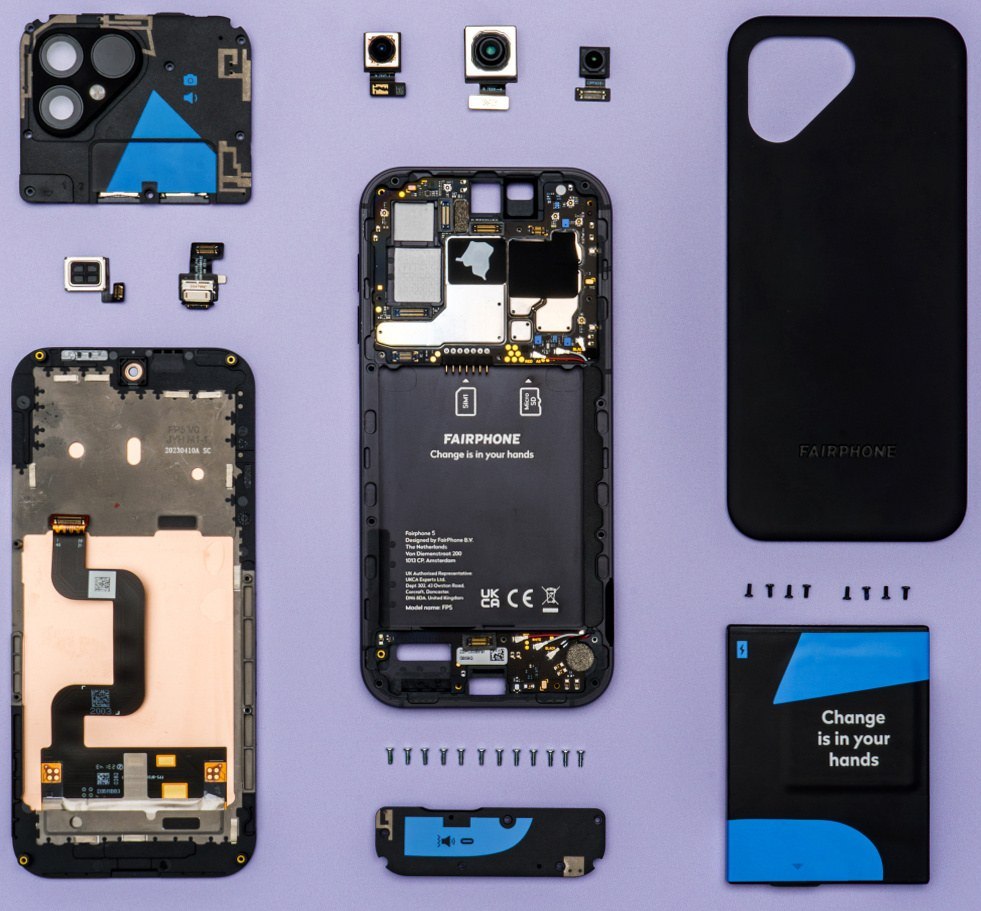
    Teardown of Fairphone 5, showing internal components of the phone. (Fairphone 5)
    Photo: Fairphone / Wikimedia Commons, CC BY-SA 2.0
    ChipQualcomm QCM6490
    Display6.46 in, 90 Hz
    Battery4,200 mAh
    Launch price€799

    The Fairphone 5 launched in September 2023 and also scored 10 out of 10 with iFixit. It remains on sale, often discounted, and it is still one of the best repairable phones available.

    Its party trick is the battery. You pry off the plastic back with a fingernail, lift the battery out and drop a new one in, no tools required. It is the closest any modern phone gets to old BlackBerry phones and other early-2010s handsets with snap-off backs.

    The Qualcomm QCM6490 is an industrial version of a Snapdragon chip, chosen because Qualcomm commits to supporting it for far longer than consumer chips. That choice let Fairphone promise security updates through 2031, and the company has said it wants to stretch support even further.

    The trade-offs are real. The Fairphone 5 is chunky and heavy, the 90 Hz OLED is fine rather than impressive, and the camera lags well behind similarly priced phones. It is also rated only IP55, so it handles rain and dust but not a dunk in the bath.

    Who should buy it: you want the absolute simplest DIY repairs, you find it at a good discount, and you care more about longevity than performance.

    3. HMD Skyline: a mainstream phone designed to be fixed

    ChipSnapdragon 7s Gen 2
    Display6.55 in, 144 Hz
    Battery4,600 mAh
    Price£399 / €499

    HMD, the Finnish company that made Nokia-branded phones for years, launched the Skyline in July 2024. It is the best example of a repairable phone that does not ask you to compromise on looks. The squared-off design nods to the old Nokia Lumia line, and it feels like a normal mid-range phone in the hand.

    The spec sheet is competitive for its price. You get a 6.55-inch 144 Hz pOLED display, the Snapdragon 7s Gen 2, a 108MP main camera, a 13MP ultrawide and a 50MP 2x telephoto. Charging runs at 33W wired and 15W wireless with Qi2 magnets.

    HMD calls this its “Gen 2” repairability design, developed with iFixit. The back panel comes off with a handful of screws, and the battery uses pull tabs rather than permanent glue. HMD says you can replace the screen in around 20 minutes. Parts and repair kits are sold through iFixit.

    The weak spot is software. HMD promises two Android OS upgrades and three years of security updates. That is short next to the seven or eight years Fairphone, Google and Samsung now offer, and it undercuts the long-life promise of easy hardware repair. Our view: a phone you can fix for six years but that only gets patches for three is a three-year phone for most people.

    Who should buy it: you want easy repairs and a strong camera at a lower price, and you plan to upgrade within three or four years.

    4. Samsung Galaxy XCover 7: the removable battery survivor

    ChipDimensity 6100+
    Display6.6 in LCD
    Battery4,050 mAh, removable
    RuggedIP68, MIL-STD-810H

    Samsung’s XCover line is built for warehouses, building sites and delivery drivers, and it keeps a feature mainstream phones abandoned a decade ago: a user-removable battery. Launched in early 2024, the Galaxy XCover 7 lets you pop the back off and swap the battery in seconds, while still carrying an IP68 rating and MIL-STD-810H drop testing.

    That combination is unusual. Most manufacturers argued that removable batteries made waterproofing impossible. The XCover proves it can be done, at the cost of a thicker body.

    The hardware is modest. The MediaTek Dimensity 6100+ is an entry-level 5G chip, the 6.6-inch screen is an LCD rather than OLED, and charging tops out at 15W. A microSD slot, a programmable side key and glove-friendly touch sensitivity point to its work-phone roots. Samsung also sells a Pro version with a stronger chip and better screen.

    Batteries are easy. Screens and ports are less so, because once you go beyond the battery you are into a conventional Samsung teardown. Samsung’s own self-repair parts program covers some Galaxy models, though the company’s earlier partnership with iFixit ended in 2024 amid disagreements over parts pricing and batteries glued to display assemblies.

    Who should buy it: you are hard on phones, you value a hot-swappable battery for long shifts, and you do not need flagship power or camera quality.

    5. iPhone 17 and iPhone 16: Apple’s quiet repairability turnaround

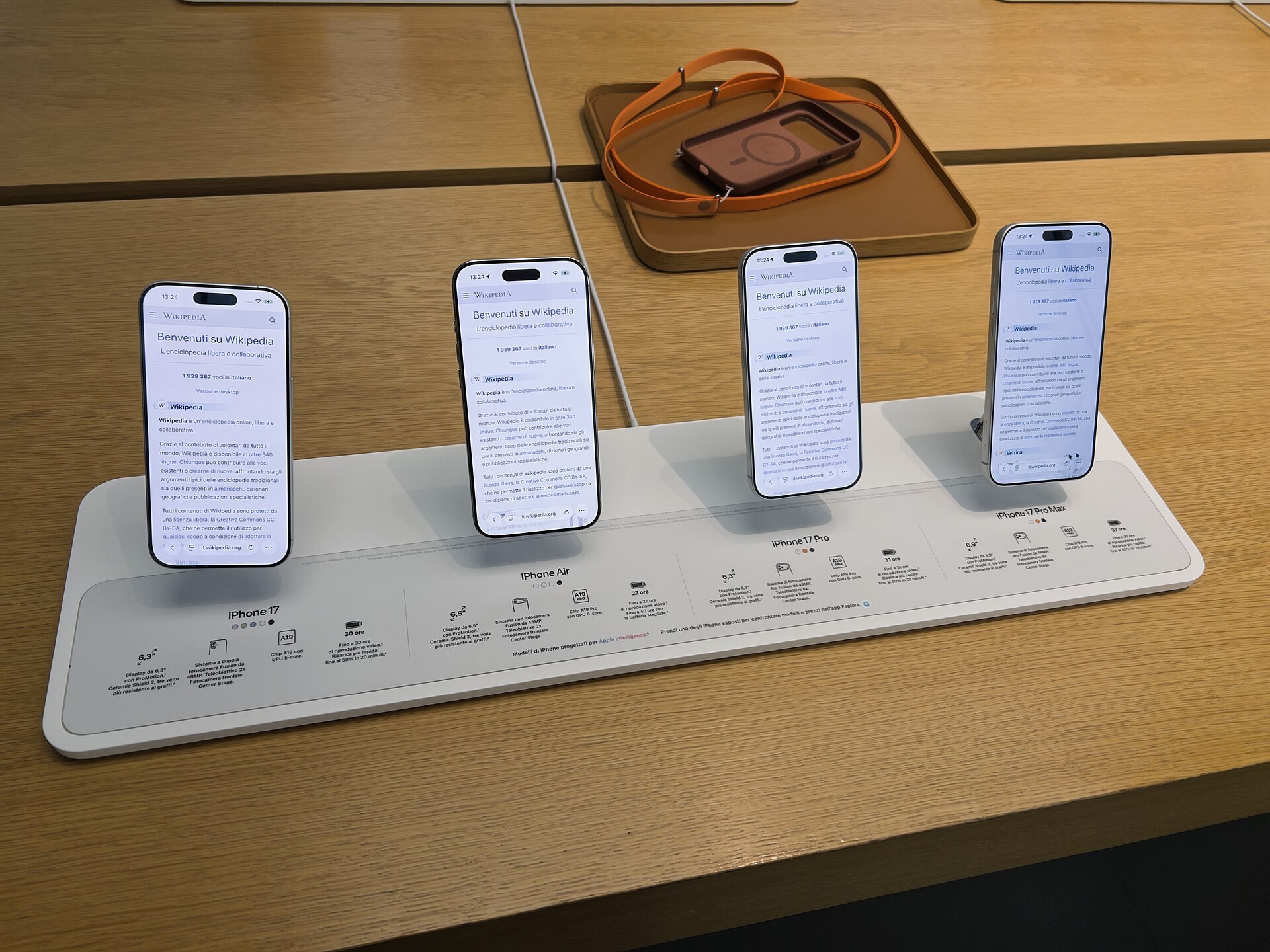
    The iPhone 17, Air, 17 Pro, and Pro max side by side (IPhone 17)
    Photo: Premeditated / Wikimedia Commons, CC BY-SA 4.0
    ChipA19 (iPhone 17)
    Display6.3 in, 120 Hz
    StorageFrom 256GB
    PriceFrom $799

    Apple was the villain of the right-to-repair movement for years, and you will still hear that reputation repeated. It is out of date. The iPhone 15, 16 and 17 series are meaningfully easier to fix than the phones that came before them.

    The design changes that matter

    The shift started with the iPhone 14, whose redesigned internal frame let technicians open the phone from the front or the back. That matters because the back glass is one of the most commonly cracked parts. Before, a broken back often meant swapping the entire housing, a repair that cost close to the price of a new screen.

    The iPhone 16 and 16 Plus then introduced a battery adhesive that releases when you apply a low-voltage electrical current. Instead of prying a bonded cell out with plastic picks and isopropyl alcohol, a technician (or a careful owner) can loosen it cleanly. iFixit rated the iPhone 16 a 7 out of 10, a big jump for an iPhone.

    The iPhone 17, released in September 2025, keeps the dual-entry design. It is also a strong phone in its own right, with a 6.3-inch 120 Hz ProMotion display (a first for the base model), the A19 chip and 256GB of storage as standard.

    Parts, tools and pairing

    Apple’s Self Service Repair program, launched in the US in 2022 and since expanded to more countries, sells genuine parts and repair manuals directly to you. You can buy the tools or rent a full repair kit for a week instead of paying for heavy equipment you will use once.

    Parts pairing used to be the bigger problem. Apple serializes many components, and swapping in a genuine screen or battery from another iPhone used to trigger warnings or disable features. Since iOS 18, the Repair Assistant built into Settings can calibrate genuine used parts on the device itself, and the phone tells you when a third-party part is installed rather than blocking it outright. It is still more controlled than Android, but far more workable than it was.

    Apple’s own out-of-warranty battery service for recent models costs about $99 in the US. That is a reasonable price for a phone you are likely to keep for five or six years, especially since Apple historically supports iPhones with iOS updates for six years or more.

    Buying tip

    If you want the most repair-friendly iPhone on a budget, the iPhone 16 has dropped to $699 and has the electrically released battery adhesive that makes battery swaps so much easier.

    Who should buy it: you are staying in Apple’s ecosystem and want a phone that independent shops and Apple can both fix without drama for years.

    6. iPhone Air: thin, but not a repair nightmare

    ChipA19 Pro
    Display6.5 in, 120 Hz
    Thickness5.64 mm
    PriceFrom $999

    When Apple unveiled the iPhone Air in September 2025, repair advocates braced for the worst. Ultra-thin phones usually mean more glue, more fragile parts and less room to work. The Air turned out better than expected.

    Apple moved most of the logic board into the camera plateau at the top of the phone, leaving the flat lower section mostly for the battery. iFixit’s teardown found the battery sits in a metal casing, which protects it from bending during removal and makes it far less risky to pull out than a soft pouch cell. The rigid case also reduces the chance of puncturing the cell, a real fire risk with traditional glued batteries.

    The trade-offs are elsewhere. The Air has a single 48MP rear camera, a smaller battery than the iPhone 17 Pro, and it is eSIM-only in every market. Its thin titanium frame is also more exposed to bending forces than a thicker phone, though Apple and early durability testers have shown it holds up to normal use.

    It ranks below the iPhone 17 mainly on value and because the thinner body leaves less margin for clumsy DIY work. For a shop technician, it is a straightforward job.

    Who should buy it: you want the thinnest iPhone and accept compromises on battery and camera, without giving up repairability.

    7. Google Pixel 10: excellent support, average teardown

    ChipTensor G5
    Display6.3 in, 120 Hz
    Battery4,970 mAh
    PriceFrom $799

    Google’s case for repairability rests more on support than on screwdrivers. The Pixel 10, launched in August 2025, carries seven years of Android OS and security updates, the same commitment Google has offered since the Pixel 8. That is the longest promise in the US market alongside Samsung’s flagships.

    Google also partners with iFixit to sell genuine Pixel parts and publish official repair guides, so you can buy a real screen, battery or charging port rather than gambling on unbranded parts from a marketplace.

    The hardware is a strong all-rounder. The Tensor G5 is the first Google chip built by TSMC, and the base Pixel 10 finally adds a 5x telephoto camera alongside its 48MP main and 13MP ultrawide sensors. Built-in Qi2 magnets mean MagSafe-style accessories attach without a case.

    The teardown is where it falls behind. Like most flagships, the Pixel 10 opens through an adhesive-sealed screen, and recent Pixels have drawn criticism from repairers for stubborn battery adhesive. It is fixable, especially with official parts and guides, but it is not a ten-minute job for a first-timer. The phone’s IP68 rating depends on that seal, so a DIY repair needs fresh adhesive to keep water out.

    As for the Pixel 11, Google has not announced it at the time of writing. Based on Google’s usual schedule it would arrive in late summer, but we will not guess at its design until there is official information or credible reporting.

    Who should buy it: you want the cleanest Android experience and the longest support window, and you are happy to use a repair shop rather than fixing it yourself.

    The least repairable phones: what to avoid

    The worst performers share a few traits. Foldables top the list. Their inner folding screens are expensive, delicate and tightly integrated with the hinge, and a replacement can cost a large share of the phone’s price. They are improving, but you should budget for screen protection plans if you buy one.

    Ultra-premium flagships with batteries bonded to the display assembly are next. When the battery and screen come as one part, a simple battery swap becomes a costly screen replacement. iFixit criticized Samsung for exactly this pattern on several Galaxy models.

    Phones from brands with no official parts channel round out the list. Many budget brands sell great hardware for the money, but if you cannot buy a genuine screen two years later, your options shrink to whatever unbranded part a marketplace seller happens to stock.

    Why repairability matters

    It saves you real money

    A new mid-range phone costs $400 to $600, and a flagship costs $800 to well over $1,000. A replacement battery, by contrast, costs tens of dollars on a Fairphone and around $99 through Apple for recent iPhones. A charging port module can cost less than a takeaway meal.

    Batteries are the single most common reason people replace working phones. Lithium-ion cells lose capacity with every charge cycle, and after two or three years many phones struggle to last a day. If you can swap the battery cheaply, a three-year phone becomes a six-year phone.

    It keeps devices out of landfill

    Most of a phone’s lifetime carbon footprint comes from manufacturing, not from charging it. Mining the metals, making the chips and assembling the device generate far more emissions than years of daily use. Keeping a phone in service longer is one of the most effective things you can do to reduce its impact, and repairability is what makes that practical.

    E-waste is also a growing problem. The UN’s Global E-waste Monitor has repeatedly found that only a fraction of discarded electronics are formally collected and recycled. A phone that stays in your pocket for six years is a phone that does not need recycling yet.

    It protects your independence as an owner

    When only the manufacturer can fix your phone, the manufacturer sets the price and decides when your phone is “too old” to service. Repairable designs and fair parts access let independent shops compete, which keeps repair prices honest. It also means a cracked screen on holiday can be fixed in a local shop the same day.

    The repair math: when fixing beats replacing

    Here is a simple way to decide what makes sense for your situation. Compare the cost of the repair to how many more years of software support your phone has left.

    Scenario Fix it? Why
    Battery worn, 4+ years of updates left Yes Cheapest way to add years
    Cracked screen, 4+ years of updates left Usually yes Even a pricey screen beats a new phone
    Cracked screen, under 1 year of updates left Probably not You will replace it soon anyway
    Charging port faulty on a modular phone Yes Often a cheap, quick module swap
    Water damage on a sealed flagship Get a quote first Can affect the board, not just one part

    A useful rule of thumb: if the repair costs less than a quarter of the price of a comparable new phone, and you have at least two years of updates left, fix it. This is also why we weigh software support so heavily in our rankings. The Fairphone 6’s 2033 support window makes every repair over its life easy to justify.

    When you are weighing up how to choose a phone in the first place, put “years of updates” and “battery replacement cost” near the top of the list, next to price and camera.

    Right to repair: how the rules are changing

    Repairability is no longer just a brand choice. Laws in Europe and several US states are forcing manufacturers to make phones easier and cheaper to fix.

    European Union

    Since 20 June 2025, EU ecodesign rules apply to smartphones and tablets sold in the bloc. Manufacturers must keep spare parts available for seven years after a model stops being sold, provide operating system updates for at least five years after that point, and meet minimum battery durability standards (at least 800 charge cycles while keeping 80% of capacity).

    Phones sold in the EU must also carry an energy label that includes a repairability class from A to E, alongside drop resistance, battery endurance and water resistance information. It is the easiest way for European buyers to compare repairability in a shop.

    The EU Battery Regulation goes further. From February 2027, portable batteries in devices like phones are meant to be removable and replaceable by the user, although the rules include exemptions for phones with highly durable batteries and strong water resistance. How manufacturers respond to those exemptions will shape phone design for the rest of the decade.

    United States

    There is no federal right-to-repair law for phones, but several states have passed their own. New York’s Digital Fair Repair Act took effect in 2024. California’s law requires manufacturers to provide parts, tools and documentation for seven years on products that cost more than $100. Minnesota and Oregon went further, with Oregon specifically targeting parts pairing on devices made from 2025 onward.

    Because manufacturers rarely build separate phones for individual states, these laws tend to improve repair access for everyone in the US. Apple’s expansion of Self Service Repair and its looser parts-pairing rules arrived in the same period these laws were being debated, and that is not a coincidence.

    The honest downside of repairable phones

    Read the Fairphone community forums for long enough and you will find owners who are frustrated with their phones. The complaints are worth taking seriously because they reveal something the marketing does not.

    Repairable is not the same as reliable. A phone that is easy to fix can still need fixing more often than a sealed flagship. Some owners report replacing modules more than once, dealing with software bugs, or waiting longer for updates than they would on a Pixel. Others are unhappy that they paid flagship-adjacent money for a mid-range camera.

    There are structural reasons for this. A small company like Fairphone has a fraction of the engineering budget of Apple, Google or Samsung. Modular designs use more connectors, and every connector is a potential point of failure. Screws and seams also make it harder to achieve top-tier water resistance, which is why both recent Fairphones are rated IP55 rather than IP68.

    None of this makes Fairphone a bad choice. It means you should go in with clear expectations. You are buying a phone that will be cheap and easy to keep alive for many years, not one that will never give you trouble. If having a phone that simply works with zero fuss matters more to you than fixing it yourself, an iPhone 17 or Pixel 10 with an affordable official repair channel may suit you better.

    How to check repairability before you buy

    You do not need a teardown video to make a smart decision. Run through this checklist before you buy any phone:

    1. Look up the iFixit repairability score. iFixit publishes scores out of 10 for most major phones after its teardowns. Anything 7 or above is good for a modern phone.
    2. Check the EU label if you are in Europe. The A to E repairability class on the energy label gives you a standardized comparison.
    3. Search the manufacturer’s site for a parts store or self-repair program. Apple, Google, Samsung, Fairphone and HMD all offer some form of official parts access. Many budget brands do not.
    4. Find the software support end date. Look for a specific year, not vague promises. Seven years or more is now the standard to aim for.
    5. Price a battery replacement. Check what the manufacturer charges out of warranty. This is the repair you are most likely to need.
    6. Check for parts pairing restrictions. Search for owner reports on whether genuine replacement parts lose features.
    7. Consider your local repair options. A well-known model from a major brand will have far more independent shop support than a niche import.

    Buying tip

    Before you buy, search for the official price of a replacement battery and screen for that exact model. If the manufacturer will not tell you, that tells you something too.

    Our verdict

    The Fairphone 6 is the most repairable phone you can buy and the one to get if you live in Europe or the UK and want to keep a phone for close to a decade. The Fairphone 5 is a cheaper route to the same philosophy, with the easiest battery swap on the market.

    If you want a mainstream phone with easy repairs and a better camera for the money, the HMD Skyline is a smart pick, as long as you accept its shorter software support. Hard-working users who want a battery they can swap mid-shift should look at the Galaxy XCover 7.

    In the US, the most practical repair-friendly choices are the iPhone 17 (or the discounted iPhone 16) and the Google Pixel 10. Neither matches Fairphone for DIY simplicity, but both combine long software support with genuine parts, official guides and wide repair-shop coverage. For most people, that combination is what really keeps a phone alive.

    FAQ

    What is the most repairable phone in 2026?

    The Fairphone 6 is the most repairable phone currently available. It earned a 10 out of 10 repairability score from iFixit, has 12 user-replaceable modules that all use the same screwdriver, and comes with software support through 2033.

    Is a repairable cell phone worth it if I’m not good with tools?

    Yes. Repairable phones are also cheaper and faster for repair shops to fix, so you still benefit even if you never open the phone yourself. Shorter labor time and cheaper parts mean lower repair bills.

    Are iPhones repairable now?

    Much more than they used to be. The iPhone 14 and later can be opened from the front or back, the iPhone 16 introduced a battery adhesive that releases with electrical current, and Apple sells genuine parts and manuals through Self Service Repair. iPhones still use parts pairing, but the Repair Assistant in iOS 18 and later makes genuine replacements much easier to calibrate.

    Which phones still have removable batteries?

    The Fairphone 5 lets you remove the battery by hand after taking off the back cover. Samsung’s Galaxy XCover 7 and XCover 7 Pro also have user-removable batteries while keeping IP68 water resistance. The Fairphone 6 battery is replaceable in minutes but secured with screws.

    Are repairable phones waterproof?

    Some are, but usually less so than sealed flagships. The Fairphone 5 and Fairphone 6 are rated IP55, which covers rain and splashes but not submersion. The Galaxy XCover 7 shows a removable battery and IP68 can coexist, though the phone is thicker as a result.

    Do repairable phones get software updates for as long as flagships?

    It depends on the brand. Fairphone leads with support through 2031 for the Fairphone 5 and 2033 for the Fairphone 6. HMD offers much less on the Skyline, with two OS upgrades and three years of security patches. Always check the end date before you buy, because software support decides how long a repair stays worthwhile.

    Will EU rules make all phones repairable?

    They are pushing hard in that direction. Since June 2025, phones sold in the EU must have spare parts available for seven years after sales end, minimum battery durability and a repairability label. From 2027, the EU Battery Regulation aims to make batteries user-replaceable, with some exemptions for highly durable, water-resistant designs.

  • AirPods Pro 2 features, battery life and whether they are still worth it

    AirPods Pro 2 features, battery life and whether they are still worth it

    The AirPod Pro 2 was Apple’s best-selling premium earbud for three years. Then AirPods Pro 3 arrived in September 2025 with heart rate sensing, longer battery life and a $249 price. We break down what the second generation still does well, how its battery holds up, and when the cheaper older model is the smarter buy.

    ChipApple H2
    Battery6 hrs (30 with case)
    ChargingUSB-C, MagSafe, Qi
    Water resistanceIP54
    Launch price$249

    What the AirPods Pro 2 actually are

    Apple’s official name is “AirPods Pro (2nd generation).” Search for apple airpods pro 2, airpods pro 2nd gen or air pod pro 2 and you land on the same product. Apple announced it in September 2022 at $249, replacing the original 2019 AirPods Pro.

    There are two versions, and they matter when you shop used or on clearance:

    • Lightning case (2022): The original release. It charges over Lightning, MagSafe, Qi pads and Apple Watch chargers.
    • USB-C case (2023): Announced alongside the iPhone 15 lineup in September 2023. The earbuds stayed the same apart from one addition: support for lossless audio with ultra-low latency on Apple Vision Pro. The case swapped Lightning for USB-C and kept MagSafe and Qi.

    Both versions use the same H2 chip and the same earbud design, and both get the same firmware features. If you own a USB-C iPhone, the USB-C model saves you from carrying a second cable. That is the main practical difference.

    Buying tip

    Check the port on the case before you pay. Some clearance listings still bundle old Lightning stock at the same price as the newer USB-C model.

    Key features that still hold up

    The H2 chip is the reason the AirPods Pro 2 aged better than most earbuds from 2022. Apple kept adding features through software updates, so a pair bought at launch does far more today than it did out of the box.

    Noise cancellation and Transparency

    Apple rated the active noise cancellation at up to 2x the original AirPods Pro. Adaptive Transparency, added at launch, softens sudden loud noises like sirens or construction while still letting you hear your surroundings.

    A 2023 update brought Adaptive Audio, which blends noise cancellation and Transparency based on your environment. It also brought Conversation Awareness, which lowers your music and boosts voices when you start talking to someone. Personalized Volume learns your listening preferences over time.

    Hearing health

    This is the biggest late-life upgrade. In September 2024 the FDA authorized the AirPods Pro 2 to work as an over-the-counter hearing aid for adults with perceived mild to moderate hearing loss. With iOS 18.1 or later, you can take a hearing test on your iPhone in about five minutes and apply the results directly to the earbuds.

    Hearing Protection also reduces exposure to loud environmental noise across all listening modes. The hearing aid feature’s availability depends on your country, so check Apple’s regional list before buying for that reason alone.

    Everyday conveniences

    • Touch controls: Press the stem to play or pause, and swipe up or down on it to change volume.
    • Head gestures: Nod or shake your head to answer or decline calls (iOS 18).
    • Voice Isolation: Cuts background noise from your voice on calls.
    • Personalized Spatial Audio: Dynamic head tracking for movies and supported music.
    • iOS 26 additions: Live Translation (on an Apple Intelligence iPhone), camera remote control, and studio-quality voice recording.

    The case

    The charging case has a built-in speaker and supports Find My with Precision Finding. When you misplace it, your iPhone can guide you to it and the case plays a sound. It also has a lanyard loop on the side, a small touch Apple dropped on the Pro 3 case.

    The earbuds and the case are both rated IP54 for dust, sweat and water resistance. That is fine for workouts and rain. It is not swim-proof.

    AirPods Pro 2 battery life: the real numbers

    Apple’s official figures for the AirPods Pro 2:

    Battery metric AirPods Pro 2
    Listening time, ANC on Up to 6 hours
    Total with charging case Up to 30 hours
    Quick charge About 1 hour from 5 minutes in case
    Charging options USB-C or Lightning, MagSafe, Qi, Apple Watch charger

    Six hours covers most commutes and a full workday of on-and-off listening. Long-haul flyers will want to drop the buds in the case midway through, though a quick top-up goes a long way.

    Battery wear is the part buyers overlook. Lithium-ion cells in earbuds are tiny and degrade faster than phone batteries. A pair used daily since 2022 will often fall noticeably short of six hours. This is one reason we lean toward new stock over used pairs, and why our guide to AppleCare for AirPods is worth reading if you plan to keep them for years. AppleCare+ covers battery service when capacity drops below 80 percent.

    Watch out

    Apple stopped selling AirPods Pro 2 on its own store after the Pro 3 launched. Remaining stock comes from third-party retailers, and supply will keep shrinking.

    AirPods Pro 3 vs AirPods Pro 2: side-by-side specs

    Apple announced the AirPods Pro 3 on September 9, 2025, during the same event that introduced the iPhone 17. They went on sale September 19 at $249, the same launch price as the Pro 2.

    Spec AirPods Pro 2 (USB-C) AirPods Pro 3
    Launch date Sept 2022 (USB-C: Sept 2023) Sept 2025
    Launch price (US) $249 $249
    Chip H2 H2
    Noise cancellation 2x original Pro Up to 2x Pro 2 (Apple claim)
    Listening time, ANC Up to 6 hours Up to 8 hours
    Total with case Up to 30 hours Up to 24 hours
    Heart rate sensing No Yes
    Ear tip sizes 4 (XS to L) 5 (XXS to L), foam-infused
    Water resistance IP54 IP57
    Hearing aid feature Yes Yes
    Live Translation Yes (iOS 26) Yes (iOS 26)
    Case charging USB-C, MagSafe, Qi USB-C, MagSafe, Qi
    Lanyard loop on case Yes No

    The comparison is closer than the generation gap suggests. Both run on the H2 chip, both get Apple’s hearing health tools, and both support Live Translation. The Pro 3 wins on noise cancellation, per-charge battery, fit options, durability and fitness tracking.

    Where the Pro 3 pulls ahead

    Heart rate sensing. The Pro 3 earbuds have a built-in heart rate sensor that works with the Fitness app and third-party workout apps. If you run without an Apple Watch, this is a real reason to upgrade. If you already wear a Watch, it adds little.

    Stronger noise cancellation. Apple says the Pro 3 delivers up to twice the noise cancellation of the Pro 2. Reviewers at major outlets broadly agreed the improvement is noticeable, especially on low-frequency rumble like aircraft cabins.

    Better fit. The new foam-infused tips and the extra XXS size help people with smaller ears. That fixes a common complaint we see about the Pro 2.

    More battery per charge. Eight hours of ANC listening beats six. The trade-off is total case capacity, which drops from 30 hours to 24.

    IP57. Rated for temporary immersion. The IP54 rating on the Pro 2 covers splashes, not dunks.

    Where the Pro 2 still competes

    The Pro 2 keeps a bigger total battery reserve in the case. It has the lanyard loop. Most importantly, it costs less wherever it is still sold, and the core experience is nearly identical. Spatial audio, Adaptive Audio, Conversation Awareness, hearing tests and Find My all work the same way on both.

    Pros and cons

    AirPods Pro 2

    Pros
    – Usually discounted well below the $249 launch price
    – 30 hours of total battery with the case
    – FDA-authorized hearing aid feature
    – Still receives new software features (iOS 26 added Live Translation)
    – Case has a speaker, Precision Finding and a lanyard loop

    Cons
    – Only 6 hours per charge with ANC
    – IP54 is less durable than the Pro 3’s IP57
    – No heart rate sensor
    – Discontinued at Apple, so stock is limited
    – Four ear tip sizes may not fit very small ears

    AirPods Pro 3

    Pros
    – Strongest noise cancellation Apple has shipped in earbuds
    – 8 hours of listening per charge
    – Heart rate tracking for workouts
    – Five ear tip sizes, including XXS
    – IP57 rating

    Cons
    – Full $249 price with fewer deep discounts so far
    – Total case battery drops to 24 hours
    – Same H2 chip as the Pro 2
    – Lanyard loop removed from the case

    Should you consider AirPods 4 instead?

    Apple’s AirPods 4 with Active Noise Cancellation launched in September 2024 at $179. They use the H2 chip and support Adaptive Audio and Conversation Awareness, but they have an open-fit design with no silicone tips.

    That open design means the noise cancellation is weaker than either Pro model, since there is no seal. The AirPods 4 also lack the FDA-authorized hearing aid feature. For people who find in-ear tips uncomfortable, AirPods 4 are a reasonable choice. For everyone else, a discounted AirPods Pro 2 at a similar price is the better earbud.

    AirPods Pro 2 on Android and other devices

    AirPods Pro 2 connect to Android phones, Windows PCs and other devices over Bluetooth 5.3 like any wireless earbud. Noise cancellation and Transparency still work, and you can toggle between them with a stem press.

    You lose a lot, though. There is no automatic switching, no hearing aid setup, no Adaptive Audio controls, no Personalized Spatial Audio, no battery widget and no firmware updates without an Apple device. The audio codec is AAC, which Android handles less consistently than iPhone does. If you are on Android, earbuds built for your platform make more sense. We cover how to choose a phone with the whole ecosystem in mind in our buying guide.

    Price and where to buy

    Apple’s list price for the AirPods Pro 2 was $249 for the entire run. Since the Pro 3 launch, Apple no longer sells them directly. Major US retailers like Amazon, Best Buy, Walmart and Target have continued selling remaining stock, and prices regularly dipped under $200, with sale events going lower. Prices change weekly, so treat any figure you see as a snapshot.

    When shopping, look at who the listing says the item is sold and shipped by. Stick to listings sold directly by the retailer or by Apple-authorized resellers. Third-party marketplace sellers are where most counterfeit AirPods Pro turn up, and convincing fakes even pop up a fake pairing animation on iPhone.

    Buying tip

    After pairing, open Settings on your iPhone, tap the AirPods name, and check the firmware version and serial number. Run the serial through Apple’s coverage check page. Fakes usually fail one of these checks.

    Which should you choose?

    Buy the AirPods Pro 2 if you find them at a meaningful discount from an authorized seller, you already own an Apple Watch for fitness tracking, and six hours per charge covers your day. At $170 to $200 they remain one of the best value noise-cancelling earbuds for iPhone owners.

    Buy the AirPods Pro 3 if you fly often, want the best noise cancellation Apple makes, need a smaller ear tip size, or want heart rate tracking without a smartwatch. The price difference shrinks every time the Pro 2 sells out somewhere.

    Upgrade from Pro 2 to Pro 3 if your current pair’s battery has faded badly or the fit never worked for you. If your Pro 2 still lasts five-plus hours and seals well, the upgrade is a nice-to-have, not a need. You already have the hearing features, Live Translation and spatial audio.

    Skip both if you use Android. You will pay for features you cannot access.

    FAQ

    Are AirPods Pro 2 and AirPods Pro 2nd generation the same thing?

    Yes. Apple’s official name is AirPods Pro (2nd generation). “AirPods Pro 2,” “AirPods Pro 2nd gen” and “AirPods Pro 2nd generation” all refer to the same product, sold first with a Lightning case and later with a USB-C case.

    How long does the AirPods Pro 2 battery last?

    Apple rates them at up to 6 hours of listening with noise cancellation on, and up to 30 hours total with the charging case. Five minutes in the case gives about an hour of playback. Real-world runtime drops as the battery ages.

    Did Apple discontinue the AirPods Pro 2?

    Apple stopped selling them on its own store after the AirPods Pro 3 launched in September 2025. Third-party retailers still carried remaining stock afterward, often at a discount.

    Do AirPods Pro 2 work as hearing aids?

    Yes. The FDA authorized the feature in September 2024 for adults with perceived mild to moderate hearing loss. It requires iOS 18.1 or later on a compatible iPhone or iPad, and availability depends on your country.

    Can the AirPods Pro 2 case charge on MagSafe?

    Yes. Both the Lightning and USB-C versions of the case support MagSafe chargers, Qi wireless pads and Apple Watch chargers, plus wired charging through their port.

    Is the AirPods Pro 3 noise cancellation much better?

    Apple claims up to 2x the noise cancellation of the AirPods Pro 2, and major reviewers reported a clear improvement, especially on low engine and cabin noise. For commuting and office use, the Pro 2 remains very good.

  • What Is a Megapixel and Does It Matter for Phone Cameras

    What Is a Megapixel and Does It Matter for Phone Cameras

    A mega pixel (written megapixel, or MP) is one million pixels, the tiny dots that make up a digital photo. More megapixels give you more resolution, which means more room to crop, zoom and print large, but they don’t guarantee better photos. Sensor size, lens quality and processing matter just as much, and that explains why a 48 MP iPhone can match or beat a 200 MP rival.

    1 MP1,000,000 pixels
    12 MP photo4000 x 3000 pixels
    4K video frameAbout 8.3 MP
    Phone sweet spot48-50 MP sensor

    What a megapixel actually is

    A digital image is a grid. Every cell in that grid is a pixel, and each pixel stores one color value. Multiply the width of the grid by its height and you get the total pixel count. Divide that by one million and you have the megapixel figure.

    Here is the math for the most common phone photo size:

    • 4000 pixels wide x 3000 pixels tall = 12,000,000 pixels
    • 12,000,000 ÷ 1,000,000 = 12 MP

    That 4000 x 3000 grid has a 4:3 shape, the native aspect ratio of almost every phone camera sensor. Switch to 16:9 and the phone crops the top and bottom, so your “12 MP” camera now saves roughly 9 MP files.

    The term describes two related things, and they get blurred together a lot:

    1. Sensor megapixels. The number of light-sensitive sites (photosites) on the camera chip.
    2. Image megapixels. The number of pixels in the file you actually save.

    On older phones, those two numbers matched. On modern phones they rarely do, for reasons covered in the pixel binning section below.

    Common resolutions and what they equal

    Megapixels Pixel dimensions (4:3) Where you see it
    2 MP 1632 x 1224 Macro and depth cameras on budget phones
    8 MP 3264 x 2448 Older main cameras, some telephotos
    12 MP 4000 x 3000 Default photo size on most flagships
    24 MP 5712 x 4284 Default photo size on iPhone 15 and later
    48-50 MP about 8000 x 6000 Main sensors on current flagships
    108 MP 12000 x 9000 Galaxy S20 Ultra to S22 Ultra era
    200 MP 16320 x 12240 Galaxy S Ultra main, some periscopes

    Notice how slowly the dimensions grow. Doubling the megapixel count only increases width and height by about 41%. To double the linear detail (twice as wide, twice as tall), you need four times the megapixels. This single fact explains why a jump from 12 MP to 48 MP looks noticeable while 50 MP to 64 MP barely registers.

    What “MP” means on a phone spec sheet

    When you see “MP” in a mobile spec list, it means megapixels. A line like “50 MP main, 12 MP ultrawide, 10 MP telephoto” lists the sensor resolution of each rear camera.

    A few things the spec sheet does not tell you:

    • Default output. A 200 MP camera usually saves 12 MP files unless you change a setting.
    • Sensor size. Two 50 MP sensors can differ hugely in physical size.
    • Lens quality. A sharp lens on a 12 MP sensor beats a soft lens on a 50 MP one.
    • Which cameras get the good sensor. Many budget phones advertise “four cameras” where two are 2 MP macro and depth units that add almost nothing.

    That last point is worth stressing. A “108 MP quad camera” label on a cheap phone typically means one decent main camera plus filler. The total megapixel count across all lenses is a marketing number, not a quality score.

    Buying tip

    Before you buy, check the main camera’s sensor size (for example 1/1.3-inch or 1-inch type) next to the megapixel figure. Size tells you more about low-light quality than the MP number does.

    Total vs. effective pixels

    Dedicated cameras often list two numbers: total pixels and effective pixels. The gap between them confuses a lot of buyers, so here is what each one means.

    Total pixels counts every photosite on the sensor chip. That includes pixels around the edges that never become part of your picture.

    Effective pixels counts only the photosites that actually record image data in the final file.

    Why would a sensor have pixels it doesn’t use? A few reasons:

    • Black-level calibration. Some edge pixels are masked from light. The camera reads them to measure electronic noise, then subtracts that noise from the real image.
    • Image stabilization margin. Electronic stabilization in video needs a buffer zone around the frame to shift into.
    • Processing overhead. Demosaicing (rebuilding full color from the sensor’s color filter pattern) needs neighboring pixels at the edges, so a thin border gets trimmed.

    The difference is usually small, a few percent. For buying decisions, effective pixels is the number that matters. Phone makers generally quote a rounded sensor figure (“50 MP,” “200 MP”) and rarely publish both numbers.

    A quick word on color

    Each photosite only sees one color. A grid of red, green and blue filters (the Bayer pattern) sits over the sensor, with twice as many green filters as red or blue, because human eyes are most sensitive to green. The processor estimates the two missing colors at every pixel from its neighbors.

    So a 12 MP sensor doesn’t capture 12 million full-color samples. It captures 12 million single-color samples and interpolates the rest. This is one reason high-resolution sensors that downsample to a smaller file can produce cleaner color than a sensor shooting at its native size.

    How megapixels affect image quality

    Resolution is one ingredient in image quality, not the whole recipe. Here is where more pixels genuinely help, and where they quietly stop mattering.

    Where more megapixels help

    Cropping. This is the biggest real-world benefit. Shoot a 48 MP photo, crop to the middle quarter, and you still have a 12 MP image. Shoot at 12 MP and crop the same way, and you are left with 3 MP.

    Large prints. A 12 MP file prints cleanly up to roughly 13 x 10 inches at photo-lab quality. Beyond that, extra pixels help.

    Fine texture in good light. In bright daylight, a high-res sensor can render foliage, fabric, brickwork and distant signage with more definition. Pixel-peeping on a monitor shows it clearly.

    Digital zoom quality. Phones use high-res sensors to deliver “optical-quality” 2x zoom by cropping the center of the sensor, with no telephoto lens involved.

    Where more megapixels don’t help (or hurt)

    Low light. Packing more pixels onto the same size sensor makes each pixel smaller. Smaller pixels catch less light each, which means more noise. Binning (covered below) solves much of this, but at the cost of the very resolution you paid for.

    Dynamic range. The ability to hold detail in bright skies and dark shadows at the same time depends on sensor size, pixel design and multi-frame processing. Raw pixel count plays a minor role.

    Motion. Full-resolution modes often read out the sensor more slowly and skip some multi-frame processing. Moving kids, pets and sports can come out blurrier at 200 MP than at 12 MP.

    Viewing on a phone screen. Your phone’s display shows roughly 3 million pixels. Even a 12 MP photo gets scaled down by about 75% to fit. On screen, you will not see the difference between 12 MP and 200 MP until you zoom in.

    Why sensor size matters more than pixel count

    If one spec deserves your attention more than megapixels, it is sensor size. A bigger sensor collects more total light, and light is what every photo is made of.

    Phone sensor sizes are listed in an odd legacy format: “1/1.3-inch,” “1/1.28-inch,” “1-inch type.” The bigger the second number, the smaller the sensor. A 1/2.55-inch sensor is small. A 1-inch type sensor is huge by phone standards. These “inch” labels come from old video tube sizing and don’t match any actual measurement on the chip, so treat them as a ranking, not a ruler.

    The other key figure is pixel pitch, measured in micrometers (µm). It describes the width of each individual photosite. Bigger pitch means each pixel gathers more light.

    Here is how the main cameras on current flagships compare. Specs are from manufacturer pages and launch coverage for phones released in 2025.

    Phone (2025) Main camera Sensor and pixel size Other rear cameras Front camera
    iPhone 17 48 MP Fusion Not published in µm by Apple 48 MP ultrawide 18 MP
    iPhone 17 Pro 48 MP Fusion Quad-pixel design 48 MP ultrawide, 48 MP 4x tele 18 MP
    Samsung Galaxy S25 Ultra 200 MP 1/1.3-inch, 0.6 µm 50 MP ultrawide, 10 MP 3x, 50 MP 5x 12 MP
    Google Pixel 10 Pro 50 MP 1/1.31-inch, 1.2 µm 48 MP ultrawide, 48 MP 5x tele 42 MP
    Xiaomi 15 Ultra 50 MP (Sony LYT-900) 1-inch type, 1.6 µm 50 MP ultrawide, 50 MP 3x, 200 MP 4.3x 32 MP

    Look at the Galaxy S25 Ultra and Pixel 10 Pro rows. Their sensors are almost exactly the same physical size. Samsung divides that area into 200 million photosites at 0.6 µm each. Google divides it into 50 million at 1.2 µm each. Each Pixel photosite is twice as wide and catches about four times the light.

    Neither approach is wrong. Samsung bets on flexibility (bin down in the dark, use full resolution in daylight). Google bets on bigger native pixels and heavy computational processing. In head-to-head reviews from major outlets, the two trade wins depending on the scene, which tells you megapixels alone don’t settle the question.

    The Xiaomi 15 Ultra makes the opposite trade from Samsung on its main camera. It uses a 1-inch type sensor with only 50 MP, giving it 1.6 µm pixels. That choice prioritizes light gathering and natural background blur over raw resolution.

    Pixel binning: why a 200 MP camera saves 12 MP photos

    Pixel binning is the trick that makes high-megapixel phone sensors work. The sensor groups neighboring photosites and combines their signals into one larger “virtual” pixel.

    Here is how it plays out on common sensors:

    • 48 MP sensor, 4-to-1 binning: Four pixels in a 2×2 block act as one. Output is 12 MP.
    • 50 MP sensor, 4-to-1 binning: Output is 12.5 MP.
    • 200 MP sensor, 4-to-1 binning: Output is 50 MP.
    • 200 MP sensor, 16-to-1 binning: A 4×4 block acts as one. Output is 12.5 MP.

    Samsung’s ISOCELL HP2 sensor, used in the Galaxy S23, S24 and S25 Ultra, shows the effect clearly. Its native 0.6 µm pixels become effective 1.2 µm pixels at 50 MP and 2.4 µm pixels at 12.5 MP. That last figure is larger than the native pixels on almost any phone sensor.

    To make binning possible, the color filters are arranged differently from a standard Bayer pattern. Instead of alternating red-green-blue every pixel, the filters come in clusters: four reds together, four greens together, and so on. Sony calls this Quad Bayer. Samsung uses names like Tetrapixel and Tetra²pixel. Apple calls its version a quad-pixel sensor.

    What you actually get by default

    Most phones save binned photos unless you ask otherwise. This is the answer to a question that comes up constantly on forums like r/GooglePixel: “My phone has a 50 MP camera, so why are my photos 12 MP?”

    Phone Sensor Default photo size Full-res option
    Galaxy S25 Ultra 200 MP 12 MP 50 MP or 200 MP mode
    Pixel 10 Pro 50 MP About 12 MP 50 MP in Pro settings
    iPhone 17 / 17 Pro 48 MP 24 MP 48 MP in camera format settings

    Apple’s 24 MP default is a clever middle ground. The iPhone captures at both 12 MP (binned, for light and low noise) and 48 MP (for detail), then merges the data into a 24 MP file. You get a step up in detail over 12 MP without the large files and slower capture of full 48 MP.

    The bottom line on binning: a high-megapixel sensor is best understood as a flexible sensor. It can act like a large-pixel 12 MP camera in the dark and a high-detail camera in daylight. The headline number describes its best case, not its everyday output.

    The diffraction ceiling: why phone lenses limit megapixels

    Here is a part of the story most explainers skip. Even with perfect sensors, physics caps how much detail a tiny phone lens can deliver.

    Light passing through a lens opening spreads out slightly. This is called diffraction. Instead of focusing to a perfect point, each point of light lands as a small blurry disc (the Airy disk). Its diameter is roughly 2.44 x wavelength x f-number.

    Run the numbers for a typical phone main camera:

    • Green light wavelength: about 0.55 µm
    • Aperture: f/1.7 (the Galaxy S25 Ultra’s main lens)
    • Blur disc diameter: 2.44 x 0.55 x 1.7 ≈ 2.3 µm

    Now compare that to the pixel size. The S25 Ultra’s native pixels are 0.6 µm wide. The diffraction blur from a perfect f/1.7 lens is nearly four pixels across. Neighboring pixels are essentially recording overlapping versions of the same blurred point.

    Real phone lenses aren’t perfect either. Tiny plastic and glass elements add their own softness on top of diffraction, especially toward the corners.

    This doesn’t make 200 MP useless. Oversampling (having more pixels than the lens can strictly resolve) still helps:

    • Demosaicing gets more accurate, so colors and edges look cleaner.
    • Binning gives the processor more data to reduce noise.
    • Aliasing artifacts like moiré on fabric and screens become less likely.

    But it does mean a 200 MP phone photo contains far less than 200 MP worth of real detail. Reviewers who compare full-resolution crops typically find a 200 MP shot only modestly sharper than a good 50 MP shot. Phone makers have no incentive to explain this, which is why it rarely appears on spec pages.

    The diffraction limit is also why telephoto cameras can benefit from high resolution more than you might expect. Longer focal lengths project a larger image of the subject onto the sensor, so the 200 MP periscope cameras on phones like the Xiaomi 15 Ultra and vivo’s X-series flagships use that resolution to crop into extra zoom levels.

    Watch out

    A “200 MP” label does not mean 200 MP of detail. Lens size and diffraction cap real sharpness well below the sensor’s pixel count.

    Megapixels vs megabytes

    People mix up megapixels and megabytes all the time. They measure completely different things.

    • Megapixels (MP) measure how many pixels are in an image.
    • Megabytes (MB) measure how much storage the file takes up.

    The two are linked, but compression breaks any simple ratio. An uncompressed 12 MP image with 8 bits per color channel would take about 36 MB (12 million pixels x 3 bytes). A typical 12 MP JPEG or HEIC from a phone takes only a few megabytes, because compression throws away data your eyes are unlikely to notice.

    File format changes the size more than you might expect:

    • HEIC/HEIF (default on iPhone and many Android phones): roughly half the size of an equivalent JPEG at similar quality.
    • JPEG: universal compatibility, larger files.
    • RAW/DNG: keeps all sensor data for editing, very large files.

    Apple gives useful reference figures for its ProRAW format: about 25 MB for a 12 MP ProRAW image and about 75 MB for a 48 MP one. Shoot 1,000 full-resolution ProRAW photos on a vacation and you have used roughly 75 GB.

    That cost travels. Large files fill phone storage faster, take longer to back up, and eat into cloud plans like iCloud+ and Google One. If you upload over mobile data, they can also burn through a capped plan, which matters on budget prepaid wireless carriers with tight data allowances.

    Buying tip

    If you plan to shoot at full resolution or in RAW often, buy at least 256 GB of storage. Base 128 GB models fill up fast with 50 MP and 200 MP files.

    How many megapixels do you actually need?

    The honest answer depends on what you do with your photos. For most people, a well-processed 12 MP image covers everything.

    For screens and social media

    Screens show far fewer pixels than modern cameras capture:

    • A 6.3-inch iPhone 17 screen: about 3.2 million pixels (2622 x 1206)
    • A 1080p laptop or monitor: about 2.1 million pixels
    • A 4K TV: about 8.3 million pixels

    Social platforms shrink your photos further. Instagram displays images at up to 1080 pixels wide, so a 1080 x 1350 portrait post is about 1.5 MP. Messaging apps compress photos too unless you choose an HD or original-quality option.

    If your photos live on screens and social apps, anything above 12 MP is invisible at normal viewing size.

    For prints

    Printing is where resolution starts to count. Photo labs typically aim for 300 pixels per inch (ppi) for sharp prints viewed up close. Large prints hung on a wall can drop to 150-200 ppi, because you view them from farther away.

    Print size (inches) Pixels needed at 300 ppi Megapixels at 300 ppi Megapixels at 200 ppi
    4 x 6 1200 x 1800 2.2 MP 1 MP
    5 x 7 1500 x 2100 3.2 MP 1.4 MP
    8 x 10 2400 x 3000 7.2 MP 3.2 MP
    11 x 14 3300 x 4200 13.9 MP 6.2 MP
    16 x 20 4800 x 6000 28.8 MP 12.8 MP
    24 x 36 7200 x 10800 77.8 MP 34.6 MP

    A 12 MP phone photo prints beautifully at 8 x 10 and acceptably at 16 x 20 for wall viewing. Above that, a 48-50 MP full-resolution capture in good light gives you real headroom.

    One caveat: those numbers assume the pixels contain real detail. A noisy, over-processed full-res night shot won’t print as well as a clean binned one, even if it has more pixels.

    For cropping

    This is the strongest argument for a high-megapixel sensor. Wildlife, kids’ sports, concerts, and any shot where you couldn’t get close enough all benefit from crop room.

    The rule of thumb: every 2x crop (in each direction) divides your megapixels by four.

    • 48 MP → 2x crop → 12 MP
    • 200 MP → 2x crop → 50 MP → 4x crop → 12.5 MP

    If you crop heavily, a 48-50 MP main sensor is the practical sweet spot. If you rarely crop, the megapixel count barely matters.

    Megapixels and zoom

    Phone makers lean on high-resolution sensors to fill the gaps between their physical lenses.

    In-sensor zoom (sensor cropping). Apple’s 2x option on 48 MP iPhones uses the middle 12 MP of the sensor at full native resolution. No interpolation, no binning, just the center pixels. Apple calls it optical-quality 2x. On the iPhone 17 Pro, the same approach applied to the 48 MP 4x telephoto gives an 8x option.

    Samsung does similar crops on the Galaxy S25 Ultra’s 200 MP main sensor for its 2x setting. The 50 MP 5x periscope then crops to deliver a 10x option.

    Hybrid zoom. Between and beyond lens steps, phones combine cropping with multi-frame processing and AI upscaling. Google’s Pro Res Zoom on the Pixel 10 Pro pushes this to 100x using generative processing. Results at extreme zoom levels are partly reconstructed, so treat them as illustrations rather than records.

    Pure digital zoom. Upscaling a small crop of a small sensor. This is where quality falls apart.

    The takeaway: a high-megapixel telephoto camera gives you more usable zoom levels than a low-megapixel one. That is why 2024 and 2025 flagships moved from 10-12 MP telephotos to 48-200 MP units.

    Megapixels in video

    Video needs far fewer megapixels than stills. Every frame is a still image, and even 8K is modest by photo standards.

    • 1080p (Full HD): 1920 x 1080 = about 2.1 MP per frame
    • 4K UHD: 3840 x 2160 = about 8.3 MP per frame
    • 8K: 7680 x 4320 = about 33.2 MP per frame

    So any 12 MP sensor can record 4K. Recording 8K needs a sensor with at least about 33 MP, which is one practical reason Samsung moved to 108 MP and then 200 MP main sensors. The Galaxy S25 Ultra records 8K at 30 fps.

    Higher-resolution sensors also help video stabilization. The phone can crop into a larger readout to stabilize footage while still delivering a full 4K frame.

    For most people, 4K at 30 or 60 fps is the useful ceiling. 8K files are enormous, and few people own screens that can show the difference.

    A short history of phone megapixels

    Watching the megapixel race unfold shows how the industry learned, slowly, that more isn’t always better.

    Year Phone Main camera Why it mattered
    2000 Sharp J-SH04 (Japan) 0.11 MP Widely cited as the first mass-market camera phone
    2007 Original iPhone 2 MP Mainstreamed phone photography
    2012 Nokia 808 PureView 41 MP Early pixel oversampling on a large sensor
    2015 iPhone 6s 12 MP Started a long 12 MP era at Apple
    2017 Google Pixel 2 12.2 MP Proved processing could beat higher resolution
    2019 Xiaomi Mi Note 10 108 MP First 108 MP phone camera
    2021 Google Pixel 6 50 MP Google moved to a high-res binning sensor
    2022 Motorola Edge 30 Ultra (X30 Pro in China) 200 MP First 200 MP phone camera
    2022 iPhone 14 Pro 48 MP Apple’s first quad-pixel sensor
    2023 Samsung Galaxy S23 Ultra 200 MP Samsung’s first 200 MP flagship
    2024 vivo X100 Ultra 200 MP periscope 200 MP arrives in telephoto cameras

    The Google chapter is the most instructive. Pixel 2 through Pixel 5 phones used 12.2 MP main sensors while rivals chased 48, 64 and 108 MP. Reviewers still regularly rated Pixel photos among the best of each year, thanks to HDR+ multi-frame processing. Google only moved to 50 MP with the Pixel 6, and even then saved 12.5 MP binned photos by default.

    The Nokia 808 PureView deserves credit too. Back in 2012, it used a large 41 MP sensor mainly to oversample down to 5 MP or 8 MP images with less noise. That is essentially the binning strategy every flagship uses today.

    What matters more than megapixels when you choose a phone

    When you choose a phone for its camera, use the megapixel number as one line in a longer checklist. In rough order of importance:

    1. Main sensor size. Bigger sensors gather more light, produce less noise, and give more natural background blur.
    2. Image processing. HDR, noise reduction, color science and skin tones vary a lot between brands. Google, Apple, Samsung, Xiaomi and vivo each have a distinct look.
    3. Lens quality and aperture. A wider aperture (lower f-number) lets in more light. Lens sharpness affects edges and corners.
    4. Optical image stabilization (OIS). Critical for low light and video. Check that it covers the telephoto too, not just the main camera.
    5. Telephoto setup. A real optical telephoto (3x, 4x or 5x) beats any amount of main-sensor cropping at those focal lengths.
    6. Ultrawide quality. Many phones pair a strong main camera with a weak ultrawide. A 48-50 MP ultrawide is now common at the top end.
    7. Megapixels. Useful for cropping and printing, as covered above.

    A practical example: the base iPhone 17 uses a 48 MP main camera and a 48 MP ultrawide, the same resolution on both rear lenses. That matters more for consistent photos across zoom levels than any single headline number.

    Also be wary of extra cameras in the budget segment. A 2 MP macro camera rarely beats a crop from a decent main sensor. A 2 MP depth sensor mostly exists to pad the camera count, since modern phones estimate depth with software.

    How to shoot at full resolution on your phone

    If you bought a high-megapixel phone and want the extra detail, you usually have to switch it on. The exact menus vary by software version, but the general paths are:

    • iPhone 15 and later (including iPhone 17): Go to Settings, then Camera, then Formats. Under Photo Mode, choose 24 MP or 48 MP. Pro models can also enable ProRAW at 48 MP. A toggle for resolution then appears in the Camera app.
    • Samsung Galaxy S Ultra: In the Camera app, tap the aspect ratio and resolution control at the top of the viewfinder. Pick the 3:4 option labeled 50 MP or 200 MP.
    • Google Pixel Pro models: Open camera settings and the Pro tab, then set resolution to 50 MP instead of 12 MP.

    Use full resolution when you have:

    • Bright daylight
    • A still subject (landscape, architecture, product shot)
    • A reason to crop or print large

    Stay at the default resolution for low light, moving subjects, quick snaps and anything headed straight to social media. You get faster capture, better noise handling, and smaller files.

    A side benefit: higher-resolution captures give visual search tools more to work with if you later crop into a sign, a label or a plant. If you use Google Lens on Android to identify things in your shots, a sharp 50 MP crop of a distant object gives it a better chance of a correct match than a blurry digital zoom.

    So, does the megapixel count matter?

    Yes, but less than the marketing implies, and only up to a point.

    Megapixels matter if you crop often, print large, or want sharper zoom levels. A 48-50 MP main sensor on a decent-sized chip gives you all of that, with binning for clean low-light shots.

    Past roughly 50 MP on a phone, returns shrink fast. Diffraction from small lenses, smaller individual pixels and heavier files all eat into the gains. A 200 MP sensor is a flexible tool, not a sharper camera by a factor of four.

    If you are comparing two phones, look at sensor size, processing quality and telephoto hardware first. Use megapixels to break a tie.

    FAQ

    What are the best megapixels for a camera?

    For a phone, a 48-50 MP main sensor that saves 12-24 MP photos by default is the sweet spot in 2025. It gives you crop room in daylight and binned, low-noise shots at night. For a dedicated camera, 24 MP covers most hobby photography, while landscape and studio shooters benefit from 45-60 MP bodies.

    What is MP in mobile?

    MP stands for megapixels, meaning one million pixels. On a phone spec sheet, “50 MP main camera” means the main camera sensor has about 50 million light-sensitive photosites. The photos it saves by default are often smaller, typically 12 MP, because of pixel binning.

    Is 200 megapixels better than 48 megapixels?

    Not automatically. A 200 MP sensor captures more detail in bright light and allows deeper cropping, but its individual pixels are smaller and phone lenses can’t resolve anywhere near 200 MP of real detail. A 48 MP sensor with larger pixels and strong processing often produces photos that look just as good, and Apple’s 48 MP iPhones regularly compete head to head with Samsung’s 200 MP Galaxy S Ultra in reviews.

    How many mega pixel cameras are there?

    There is no fixed list, because sensor makers produce many resolutions. On current phones, the most common camera sizes are 2 MP (macro and depth), 5 and 8 MP (budget ultrawides), 10-13 MP (older telephotos and selfies), 12 MP, 48-50 MP (most current main, ultrawide and telephoto cameras), 64 MP, 108 MP and 200 MP. The 200 MP sensors from Samsung’s ISOCELL line are the highest resolution in mass-market phones as of 2025.

    Do more megapixels mean better low-light photos?

    No. Low-light quality depends mostly on sensor size, pixel size, lens aperture, stabilization and multi-frame processing. High-megapixel sensors handle the dark by binning pixels together, which brings the output back down to around 12 MP.

    Why does my 50 MP phone take 12 MP photos?

    Your phone bins four pixels into one by default to reduce noise and keep file sizes manageable. That turns 50 MP into about 12.5 MP. You can usually switch to full 50 MP in the camera settings, which works best in good light with still subjects.

  • How to Use and Customize the Samsung One UI App Drawer

    How to Use and Customize the Samsung One UI App Drawer

    Samsung’s app drawer changed noticeably with One UI 7. The search bar moved to the bottom, and a vertical scrolling layout became available but stays hidden behind a menu most people never open. This guide covers how the One UI app drawer works now, how to set it up the way you want, and how to fix the most common problems, including the missing app drawer icon.

    Works onOne UI 7 and 8
    Time neededAbout 10 minutes
    Main menuHome screen settings
    Optional extraGood Lock Home Up

    What you need before you start

    Most of these changes take a couple of taps, but they depend on a few conditions. Check these first so the menus match what you see on your phone.

    • A Samsung Galaxy phone or tablet on One UI 7 or later. Go to Settings > About phone > Software information and look at the One UI version line. One UI 7 shipped on the Galaxy S25 series in early 2025 and reached older flagships from April 2025. One UI 8 arrived on the Galaxy Z Fold7 and Z Flip7 in July 2025, then came to the S25 series from September 2025.
    • One UI Home set as your default launcher. If you installed another launcher, Samsung’s drawer settings won’t do anything. Check under Settings > Apps > Choose default apps > Home app.
    • An up-to-date One UI Home app. Samsung updates its launcher separately from the main firmware, and drawer fixes often arrive this way. You can check it under Settings > Home screen > About Home screen.
    • A Samsung account (if you use the Galaxy Store). The Galaxy Store requires one for any download, including icon packs and Good Lock. Good Lock is also available on Google Play, so you can skip the Samsung account if that’s all you need.
    • A few minutes and a clear idea of what bothers you. Some people only want vertical scrolling. Others want fewer apps or an app drawer icon in the dock. Fix the thing that annoys you most first.

    On One UI 6 or older, most of the settings below still exist. The vertical scrolling option and the bottom search bar are the two big exceptions, because both arrived with One UI 7.

    How the One UI app drawer works now

    Samsung calls the app drawer the Apps screen in its menus. That matters, because searching your settings for “app drawer” often finds nothing, while “Apps screen” takes you to the right toggles.

    By default, you open the Apps screen by swiping up anywhere on your Home screen. You close it by swiping down or pressing the Home gesture. Your installed apps sit in a grid. A search field sits at the bottom of the screen in One UI 7 and later, close to your thumb. A three-dot menu next to that field holds the sorting and layout options.

    The drawer has two sorting modes, and each changes the layout:

    • Custom order keeps the classic horizontal pages. You swipe left and right between screens of icons, and you can drag apps anywhere, leave gaps, and build folders in whatever order you like.
    • Alphabetical order sorts every app and folder by name. On One UI 7 and later, it also switches the drawer to a single vertical scrolling list, so you flick up and down instead of sideways.

    That link between sorting and scrolling direction confuses a lot of people. No separate “vertical scrolling” switch exists in the standard settings. Sorting alphabetically gets you vertical scrolling, and custom order gets you pages.

    The menus described here are largely the same in One UI 8. The steps work the same on a Galaxy S25, an S24 updated to One UI 8, or a Z Flip7.

    Step 1: Open Home screen settings

    Nearly every app drawer setting lives in one place, and you can reach it two ways.

    1. From the Home screen: Long-press an empty spot on your Home screen until the editing view appears. Tap Settings at the bottom.
    2. From the Settings app: Open Settings and tap Home screen.

    Both routes open the same page. You’ll see entries such as Home screen layout, Home screen grid, Apps screen grid, Folder grid, Add new apps to Home screen, Lock Home screen layout, Show Apps screen button on Home screen, and Hide apps on Home and Apps screens. The exact order shifts slightly between One UI versions and devices, but the names have stayed consistent.

    Keep this page in mind. You’ll come back to it in most of the steps below.

    Buying tip

    Before you change anything, take a screenshot of your Home screen and Apps screen. If you dislike the result, you’ll know exactly how to put it back.

    Step 2: Switch to a vertical scrolling app drawer

    This change matters most to people who come from Pixel phones or older Android launchers, where the drawer scrolls as one long list. On One UI 7 and later, it takes four taps.

    1. Swipe up on your Home screen to open the Apps screen.
    2. Tap the three-dot menu beside the search field at the bottom.
    3. Tap Sort.
    4. Choose Alphabetical order.

    The drawer reorganizes into an A to Z list that scrolls vertically. Folders slot into that list by name as well. A folder called “Banking” sits among your B apps, for example.

    Getting the vertical drawer back if it disappears

    Many people find the vertical layout reverts to horizontal pages without warning. The usual cause is hand-arranging apps. Dragging an icon to a new spot in the drawer tells One UI that you want a custom arrangement, and custom order means pages. To restore vertical scrolling, repeat the four steps above and pick Alphabetical order again.

    When you want vertical scrolling and some control over grouping, use folders instead of manual placement. Name the folders so they land where you want in the alphabet. Some people put a number or symbol at the start of a folder name to push it to the top of the list. Test this on your phone first, because sorting rules for special characters vary by language setting.

    Switching back to pages

    If you prefer swiping between screens, open the same three-dot menu, tap Sort, and choose Custom order. Your apps return to a paged grid. You can then drag them into any arrangement you like.

    Step 3: Change the Apps screen grid

    The grid controls how many icons fit across and down each page or row. A denser grid fits more apps on screen at once. A looser grid gives you bigger targets and easier-to-read labels.

    1. Open Home screen settings as in Step 1.
    2. Tap Apps screen grid.
    3. Pick a layout from the options along the bottom. On most Galaxy phones you’ll see 4×5, 4×6, 5×5, and 5×6.
    4. Check the preview, then tap Done.

    The Apps screen grid is separate from the Home screen grid, so you can run a roomy 4×5 Home screen with a dense 5×6 drawer. That combination suits many people. Your Home screen holds a handful of daily apps at a comfortable size, while the drawer packs in everything else.

    Tablets and foldables show different options because the screen is wider. On a Galaxy Z Fold, the cover screen and the main screen can have separate layouts. Look for Cover screen mirroring in Home screen settings. With mirroring on, the inner screen copies your cover screen layout. With it off, each screen keeps its own arrangement.

    Buying tip

    If your eyesight isn’t great, try 4×5 for the drawer and raise the font size under Settings > Display. Bigger icons and bigger labels together beat a dense grid you have to squint at.

    Step 4: Add the app drawer icon to your Samsung Home screen

    People searching for “samsung app drawer icon” usually want one of two things. They either want a visible button that opens the drawer, or they want the drawer back because it seems to have vanished. Here’s how to fix both.

    Show a dedicated Apps button

    Samsung can place an Apps button on the Home screen, which you can tap instead of swiping up. It’s off by default.

    1. Open Home screen settings.
    2. Turn on Show Apps screen button on Home screen.
    3. Go back to your Home screen. An Apps icon (a grid of dots) now appears, usually in the dock.
    4. Long-press the button and drag it if you want it in a different spot in the dock.

    The button suits people who struggle with gestures, people who set up a phone for an older relative, and anyone who keeps swiping up by accident when they meant to reach the notification shade. It takes up one dock slot. On a crowded dock, think about whether you’d rather keep a fifth app there.

    If the drawer has disappeared entirely

    When swiping up does nothing and no Apps button setting appears, your phone probably uses the Home screen only layout. In that mode, every app sits on the Home screen pages and the drawer is switched off. Here’s how to bring it back:

    1. Open Home screen settings.
    2. Tap Home screen layout.
    3. Choose Home and Apps screens.
    4. Tap Apply.

    The Show Apps screen button option reappears after you switch, because it only makes sense when a drawer exists.

    On tablets

    On Galaxy Tab devices and the inner screen of the Z Fold series, the taskbar along the bottom includes its own Apps button. It opens the drawer over whatever app you’re using. If you don’t see the taskbar, check Settings > Display > Taskbar and make sure it’s turned on.

    Step 5: Organize the drawer with folders

    Folders do more than any other setting to make a crowded drawer usable. They work in both custom and alphabetical order.

    Create a folder

    1. Open the Apps screen.
    2. Long-press an app until it lifts off the grid.
    3. Drag it onto another app you want in the same group, then let go.
    4. One UI creates a folder and offers a name field. Type a name, or keep the suggested one.

    To grab several apps at once, long-press an app and tap Select. Tick every app you want in the group, then use the option to create a folder from the selection. This beats dragging fifteen apps one at a time.

    Customize a folder

    1. Tap the folder to open it.
    2. Tap the folder name at the top to rename it.
    3. Tap the palette icon to change the folder’s background color. You can pick a preset color or a custom shade.
    4. Drag apps out of the folder to remove them. If you remove all but one app, the folder dissolves.

    Folder grid in Home screen settings controls how many apps a folder shows per page when it’s open. If your folders hold a lot of apps, raise it so you scroll less.

    Folder schemes that actually work

    Folders only help if you can find things quickly. Here are three ways to organize them, ranked from simplest to most deliberate:

    • By task: Money, Travel, Photo, Shopping, Health. This matches how most people think when they reach for an app.
    • By owner: Samsung, Google, Carrier. This works well for preinstalled apps you rarely open but can’t uninstall.
    • By frequency: a “Rarely used” folder for everything you open once a month. Combined with alphabetical sorting, this hides a lot of clutter while keeping your regular apps visible.

    The Carrier folder deserves a mention. Phones bought through carriers often arrive with extra apps for account management, visual voicemail, and partner services. That includes phones from many prepaid wireless carriers. Lumping them into one folder keeps them out of your way without breaking anything they handle in the background.

    Step 6: Hide apps you never use

    Some apps you can’t uninstall, and some you’d rather not see while you keep them installed. Samsung lets you hide them from both the Home screen and the drawer.

    1. Open Home screen settings.
    2. Tap Hide apps on Home and Apps screens.
    3. Tap each app you want to hide. Selected apps move to a row at the top.
    4. Tap Done.

    To unhide an app, go back to the same screen and tap the minus sign on its icon in the hidden row.

    Hidden apps still run, still send notifications, and still take up storage. You can open their settings under Settings > Apps at any time. Hiding is purely cosmetic.

    Watch out

    Hiding an app is not a privacy feature. Anyone who opens your Settings can see it. If you want to keep apps or files private, use Secure Folder, which locks them behind separate authentication.

    Hide, disable, or uninstall?

    You have three ways to deal with an unwanted app, and each one does something different:

    Action Where to find it What happens Best for
    Hide Home screen settings Icon disappears, app still runs Apps you need but rarely open
    Disable Settings > Apps > app name App stops running, icon disappears, updates removed Preinstalled apps you can’t uninstall
    Uninstall Long-press icon > Uninstall App and its data removed Anything you installed yourself

    Not every preinstalled app offers a Disable button. Core system apps usually don’t, and disabling the wrong thing can break features that depend on it. If you’re unsure what an app does, hide it rather than disable it.

    Step 7: Tune search in the app drawer

    With One UI 7, Samsung moved the drawer’s search field from the top of the Apps screen to the bottom. On tall phones, the thumb reaches the bottom field much more easily. People with years of muscle memory still find it jarring. The Reddit thread asking how to put the search bar back at the top ranks for this topic for a reason.

    Can you move the search bar back to the top?

    The standard Home screen settings have no toggle to move it. Samsung sometimes adds launcher tweaks to its Good Lock modules before they reach the main settings, so check Home Up (see Step 9) after each update. Don’t count on it appearing, though. The more practical fix is changing how you use search, so its position matters less.

    Use search as your main way to open apps

    Typing the first two or three letters of an app’s name usually beats scrolling. It works in any sort order and with any grid size. Here’s how to make it fast:

    1. Swipe up to open the Apps screen.
    2. Tap the search field at the bottom. The keyboard opens right below it, so your thumb barely moves.
    3. Type the first letters of the app. Results appear as you type.
    4. Tap the result.

    The same search also finds settings pages, contacts, messages, files, and content inside some apps. Typing “bluetooth” takes you straight to the Bluetooth settings page, which is often quicker than opening Settings and drilling down.

    Control what search returns

    If search fills up with results you never want, such as random files or app content, narrow its scope.

    1. Open the Apps screen and tap the search field.
    2. Tap the three-dot menu in the search view and open Settings.
    3. Review the list of apps and sources that search can look through, and turn off the ones you don’t need.

    Fewer sources means a cleaner list and usually quicker results. Samsung’s search is a different tool from Circle to Search and Google Lens. Those two identify things on screen or through the camera, while drawer search looks only at what’s stored on your phone.

    Step 8: Stop the drawer and Home screen from getting messy again

    A tidy drawer stays tidy only when new installs and stray taps don’t undo your work. Two settings handle most of it.

    Keep new apps out of your Home screen

    By default, One UI places a shortcut on your Home screen every time you install an app. If you prefer a clean Home screen with everything else in the drawer, turn that off.

    1. Open Home screen settings.
    2. Turn off Add new apps to Home screen.

    New apps now appear only in the Apps screen. In alphabetical order, they slot into the right place automatically. In custom order, they’re added at the end, usually on the last page.

    Lock your layout

    1. Open Home screen settings.
    2. Turn on Lock Home screen layout.

    This stops icons and widgets on the Home screen from being moved or removed by accident. It’s ideal for kids’ phones and for the phone of a relative who keeps deleting the Phone icon. The downside: while the lock is on, you can’t drag apps out of the drawer onto the Home screen. Many “drag and drop broke” complaints come down to this setting.

    Clean up pages in custom order

    When you sort the drawer in custom order and delete or move a lot of apps, you end up with gaps and half-empty pages.

    1. Open the Apps screen.
    2. Tap the three-dot menu beside the search field.
    3. Tap Clean up pages.

    One UI shuffles your icons forward to fill the gaps, keeping their relative order. Alphabetical order doesn’t need this, because the list rebuilds itself whenever something changes.

    Step 9: Go further with Good Lock and Home Up

    Good Lock is Samsung’s official customization app, made up of separate modules that each handle one part of the interface. It’s free in the Galaxy Store, though availability has varied by region over the years. Home Up is the module that controls the launcher, so it’s the one that matters for the drawer.

    Install Home Up

    1. Open the Galaxy Store and search for Good Lock.
    2. Install it, then open it.
    3. Find Home Up in the module list and tap to install it.
    4. Open Home Up from inside Good Lock and turn on the main switch.

    What Home Up adds for the drawer

    The exact options change between versions, and Samsung sometimes moves a Home Up feature into the main settings after a while. Expect tweaks along these lines:

    • Larger grid choices for the Home screen, Apps screen, and folders, beyond the four standard sizes
    • Icon label controls, such as hiding app names in the drawer for a cleaner look
    • Folder layout and style options with more control than the stock folder grid
    • Recents screen styles that change how your recent apps appear (not strictly part of the drawer, but you’ll find it in the same module)

    Go through the module menu after installing, because new versions sometimes add drawer settings without much announcement. If a change makes the drawer look wrong, turn off Home Up’s main switch. Your phone falls back to the standard One UI behavior.

    Watch out

    Home Up updates sometimes trail One UI releases by a few weeks. Right after a major update, the module may be missing features or behave oddly until Samsung catches up.

    Change how the app icons look

    The other half of searches for “app drawer icon samsung” comes from people who want different-looking icons, not a button. One UI gives you three official routes.

    Galaxy Themes icon packs

    1. Long-press an empty spot on the Home screen.
    2. Tap Themes.
    3. Open the Icons tab and browse. Some packs are free, others are paid.
    4. Download a pack and tap Apply.

    The icons change on both the Home screen and the Apps screen. Coverage depends on the pack. Most packs theme Samsung’s own apps and popular third-party ones, while less common apps keep their original icon, often placed on a tile so they match the shape.

    Theme Park

    Theme Park is another Good Lock module. It lets you build your own icon pack from a base shape, background color, and icon style. It suits people who want a uniform look without paying for packs, and it’s handy for matching icons to a wallpaper.

    Third-party themes and launchers

    Samsung’s launcher doesn’t load the icon packs sold on Google Play for other launchers. To use those, you need a third-party launcher, which we cover below. Stick with launchers and icon packs from Google Play or the Galaxy Store. Skip modified launcher files from random websites, which can carry malware.

    App icon badges

    Badges are the small dots or numbers that show unread notifications on an icon. They appear in the drawer as well as on the Home screen.

    1. Open Home screen settings and tap App icon badges (on some versions, the option lives under Settings > Notifications > Advanced settings).
    2. Choose between a plain dot and a number, or turn badges off entirely.

    A number badge helps for messaging apps. On a drawer full of shopping and news apps, it creates a lot of nagging red. Turning badges off for specific apps in their notification settings gives you the middle ground.

    Turn the app drawer off completely

    Some people would rather not use a drawer at all. If you’re coming from an iPhone, including an iPhone 17 with Apple’s App Library tucked behind the last page, an Android drawer can feel like an extra step. One UI handles this natively.

    1. Open Home screen settings.
    2. Tap Home screen layout.
    3. Choose Home screen only.
    4. Tap Apply.

    Every app now lives on your Home screen pages, much like an iPhone without the App Library. Swiping up no longer opens a drawer. New apps land on the last Home screen page.

    This works best for people with fewer than about 40 apps. Beyond that, you’ll swipe through a lot of pages. Folders and search become essential. You can still search by swiping down on the Home screen if you’ve set that gesture to open search, or by using a search widget.

    When a third-party launcher makes more sense

    One UI Home is a good launcher, and Samsung keeps it tightly integrated with features such as Good Lock, folders, and foldable screen handling. Some people still want things it doesn’t offer, such as gesture shortcuts on individual icons, app drawer tabs, or full icon pack support.

    To switch:

    1. Install a launcher from Google Play.
    2. Open Settings > Apps > Choose default apps > Home app.
    3. Select the new launcher.

    To go back, return to the same menu and pick One UI Home. Your Samsung layout stays saved in the meantime.

    Third-party launchers have real downsides on Galaxy phones. Some Samsung features, including certain gesture and Recents screen behaviors, work best or only with One UI Home. You also lose access to Home Up. If the drawer is the only thing you dislike about your Galaxy, try the steps in this guide before you switch. And if you’re shopping for a new handset because of a launcher you don’t like, launcher quality is worth weighing when you choose a phone. Remember that Samsung’s launcher is easy to replace, while the hardware isn’t.

    A setup that works for most people

    After all the options, you might want a starting point. This configuration suits most Galaxy owners, and you can adjust from there.

    1. Home screen layout: Home and Apps screens
    2. Home screen grid: 4×5 for comfortable tap targets
    3. Apps screen grid: 5×6 to fit more apps per screen
    4. Sort: Alphabetical order, for vertical scrolling and automatic placement of new apps
    5. Add new apps to Home screen: Off
    6. Folders: Three to six task-based folders, plus one “Rarely used” folder for preinstalled apps
    7. Hidden apps: Anything you can’t uninstall and never open
    8. Search: Narrowed to apps, settings, and contacts

    What you should end up with

    Your Home screen holds one page of the apps and widgets you use every day. Swiping up opens a clean, vertically scrolling list where apps appear in alphabetical order, with a few clearly named folders mixed in. New installs drop into the right spot in the list without touching your Home screen. Anything you don’t recognize is either in a folder or hidden. To open almost anything, you swipe up, tap the search field at the bottom, and type two letters, without moving your thumb much at all.

    Common mistakes and troubleshooting

    My drawer keeps going back to horizontal pages

    You’re almost certainly switching to custom order by dragging apps around in the drawer. Re-select Sort > Alphabetical order from the three-dot menu, and use folders instead of manual placement from then on.

    I can’t find the vertical scrolling option in settings

    It isn’t in Home screen settings. It’s tied to sorting, which lives in the three-dot menu inside the Apps screen. Also check that you’re on One UI 7 or later, because older versions only offer horizontal pages without Good Lock.

    Swiping up does nothing

    Your Home screen layout is set to Home screen only. Switch it to Home and Apps screens. If that’s already set, check whether a third-party launcher is your default Home app.

    The Show Apps screen button option is missing

    It only appears when the layout is Home and Apps screens. Switch the layout, then look again.

    I can’t drag apps from the drawer to my Home screen

    Lock Home screen layout is on. Turn it off, place your apps, then turn it back on if you want the protection.

    An app vanished from my drawer

    Check Hide apps on Home and Apps screens first, since it’s easy to tap an app there by accident. If the app isn’t hidden, look under Settings > Apps to see whether it was disabled, or check inside your folders. Disabled apps show a “Disabled” label in the app list, and you can re-enable them from the same screen.

    My settings changed after a software update

    Big One UI updates sometimes reset launcher preferences, especially sorting and grid size. Make it a habit to check Home screen settings and the drawer’s sort order after each major update. Good Lock modules may also need an update from the Galaxy Store before they work properly again.

    The drawer feels laggy or icons look wrong

    Update One UI Home through Settings > Home screen > About Home screen. If that doesn’t help, open Settings > Apps, find One UI Home (you may need to show system apps through the filter or sort menu), and clear its cache. Clearing cache is safe. Clearing storage resets your Home screen layout, so do that only as a last resort and after taking screenshots.

    Icon pack changes didn’t apply to every app

    That’s a limit of the pack, not a fault. Galaxy Themes packs only include custom artwork for the apps their designers drew. Try another pack, or build your own in Theme Park.

    Where each app drawer setting lives

    Setting Location What it controls
    Sort (Custom or Alphabetical) Apps screen > three-dot menu Order of apps and horizontal vs vertical scrolling
    Clean up pages Apps screen > three-dot menu Removes gaps in custom order
    Apps screen grid Home screen settings Icons per row and column in the drawer
    Folder grid Home screen settings Icons per page inside open folders
    Home screen layout Home screen settings Turns the drawer on or off
    Show Apps screen button Home screen settings Adds an app drawer icon to the Home screen
    Hide apps Home screen settings Removes icons from Home and Apps screens
    Add new apps to Home screen Home screen settings Whether new installs get a Home screen shortcut
    Lock Home screen layout Home screen settings Prevents moving or removing Home screen items
    App icon badges Home screen or Notification settings Dot, number, or no badge on icons
    Search sources Apps screen search > three-dot menu > Settings What drawer search looks through

    FAQ

    What is the One UI app drawer called in Samsung’s settings?

    Samsung calls it the Apps screen. Searching your Settings for “Apps screen” finds the right options, while “app drawer” often returns nothing useful.

    How do I get a vertical app drawer on One UI 7?

    Open the Apps screen, tap the three-dot menu next to the search field, tap Sort, and choose Alphabetical order. The drawer switches to a single vertical scrolling list. Choosing Custom order brings back horizontal pages.

    How do I add the app drawer icon on a Samsung phone?

    Go to Settings > Home screen and turn on Show Apps screen button on Home screen. An Apps button appears on your Home screen, usually in the dock. If the option isn’t there, set Home screen layout to Home and Apps screens first.

    Why is the search bar at the bottom of my app drawer?

    Samsung moved it there in One UI 7 so it’s easier to reach with your thumb on tall phones. The standard settings don’t offer a toggle to move it back to the top. Check Good Lock’s Home Up module after updates, since Samsung sometimes adds launcher tweaks there first.

    Can I remove the app drawer completely?

    Yes. Set Home screen layout to Home screen only in Home screen settings. All apps then live on your Home screen pages, similar to an iPhone, and swiping up no longer opens a drawer.

    Do hidden apps still work?

    Yes. Hidden apps keep running, send notifications, and use storage. Hiding only removes their icons from the Home and Apps screens. For real privacy, use Secure Folder.

    Does Good Lock work on every Galaxy phone?

    Good Lock supports most recent Galaxy phones and tablets running current One UI versions, but availability in the Galaxy Store has varied by region. Module features also change between versions, so the options on your phone may differ slightly from what others describe.

    Will a third-party launcher replace the One UI app drawer?

    Yes. Setting another launcher as your default Home app replaces both the Home screen and the drawer. You lose Samsung-specific options such as Home Up, but you can switch back at any time under Settings > Apps > Choose default apps > Home app.

  • How to Use Google Lens on Android: Search What You See

    How to Use Google Lens on Android: Search What You See

    Google Lens lets you point your phone’s camera at something, or pick an existing image, and get search results about it. On Android, the fastest way in is the camera icon in the Google search bar. Lens is also built into Google Photos, Chrome, many camera apps and Circle to Search. It’s free, and on most phones it’s already installed.

    PriceFree
    First shownGoogle I/O 2017
    Lives inThe Google app
    Works onAndroid and iOS

    What Google Lens does

    Lens is Google’s visual search tool. Instead of typing words, you search with a picture. It reads the image, works out what’s in it, and returns matching results.

    That covers a lot of everyday jobs:

    • Naming a plant, dog breed, insect or landmark
    • Finding where to buy a jacket, lamp or pair of sneakers you spotted
    • Copying text from a sign, receipt or whiteboard into another app
    • Translating a menu or street sign through the camera
    • Getting step-by-step help with a math or science problem
    • Scanning QR codes and barcodes

    Plenty of people already use it. In October 2024, Google said Lens handles nearly 20 billion visual searches every month.

    Where to find the Google Lens app

    Many people search for the “Google Lens app” expecting a separate download. On most Android phones, you don’t need one. Lens sits inside the Google app, which comes preinstalled on nearly every phone that ships with Google services. A standalone Google Lens listing still exists on the Play Store. On phones that already have the Google app, it mostly works as a shortcut to the same feature.

    Here are the six main entry points:

    Where How to open it Best for
    Google search widget Tap the camera icon on the right Quick live camera searches
    Google app Tap the camera icon in the search box Live searches plus recent screenshots
    Circle to Search Long-press the home button or navigation handle Anything on your screen
    Google Photos Open a photo, tap Lens Pictures you already took
    Chrome Long-press an image, tap Search image with Google Lens Images on web pages
    Camera app Lens button or mode, varies by brand Point-and-shoot searches

    The camera app option depends on who made your phone. Some brands put a Lens shortcut in the stock camera. Samsung also offers Bixby Vision, its own visual search, inside the camera’s menu.

    How to use Google Lens with your camera

    The steps are the same on almost every Android phone:

    1. Open the Google app, or tap the camera icon in the home screen search widget.
    2. Allow camera access the first time you use it.
    3. Point the camera at the item and tap the shutter button.
    4. Drag the corners of the selection box to frame just the part you care about.
    5. Scroll up to see the results.

    Along the bottom of the screen you’ll see a few modes. Google used to offer separate Shopping, Places and Dining filters. It has since folded those into a single Search mode.

    Mode What it does Real example
    Translate Overlays translated text on the image Reading a menu abroad
    Search Identifies objects, products, places, plants and animals Naming a houseplant
    Homework Explains problems step by step Checking an algebra answer

    Translate is the one travelers lean on. Lens can translate between more than 100 languages, and the translated words sit right on top of the original sign or page. You get the meaning immediately, without typing a thing.

    Copy text from the real world

    Point Lens at printed text and tap the words. You can select text, copy it, have it read aloud, translate it or search it. This works well for Wi-Fi passwords, serial numbers and phone numbers. It also saves you from typing out a long paragraph from a book.

    Add words or your voice to a picture

    Google calls combining a picture and text in one search multisearch, and it arrived in 2022. After Lens shows results, tap the option to add to your search and type a refinement. Snap a green dress and add “in blue.” Photograph a dish and add “near me” to find a restaurant that serves it.

    Since late 2024, you can also press and hold the shutter button to ask a question out loud. In supported regions, holding it records a short video so you can ask about something moving, like fish in a tank. Answers to these questions often open with an AI Overview at the top of the results.

    Circle to Search: Lens for whatever is on your screen

    Circle to Search launched in January 2024 on the Galaxy S24 series and the Pixel 8 and 8 Pro. It brings Lens to anything on your display, in any app.

    Long-press the home button or navigation handle. The screen freezes. Then you circle, tap, highlight or scribble over whatever you want to search. That could be a pair of shoes in an Instagram post, a landmark in a YouTube video, or a word in a chat you don’t understand.

    It’s quicker than taking a screenshot and opening Lens yourself. Google has since added full-screen translation and song identification. Support has spread to many recent Samsung, Pixel and other Android phones, but not every device has it.

    Buying tip

    If you search with images a lot, confirm Circle to Search support before you choose a phone. It’s mainly found on recent mid-range and flagship models.

    Search photos you already have

    Lens doesn’t need a live camera. You can run it on any picture saved to your phone.

    • Google Photos: Open the photo and tap the Lens button at the bottom.
    • Google app: Open Lens and pick from the recent screenshots shown under the viewfinder, or tap the gallery icon.
    • Chrome: Long-press any image on a web page and choose Search image with Google Lens.

    This is the easiest way to track down a product from an old screenshot. It’s also handy for identifying a vacation landmark months after the trip.

    How Google Lens grew

    Year Milestone
    2017 Announced at Google I/O, debuts on Pixel phones
    2018 Standalone app reaches Google Play; built into other brands’ camera apps
    2021 Replaces the old reverse image search in desktop Chrome
    2022 Multisearch lets you add text to an image search
    2024 Circle to Search arrives in January; voice and video questions follow in October

    Tips to get better results

    Lens works best on a clear picture, so small habits make a real difference.

    • Fill the frame. Get close enough that the item takes up most of the shot.
    • Crop to one thing. A cluttered image confuses the results. Drag the selection box tight around a single item.
    • Use good light. Turn on the flash icon in dim rooms.
    • Shoot labels. For electronics and appliances, a model number on a sticker beats a photo of the whole device.
    • Refine with words. Add a color, brand or “near me” when the first results miss.
    • Try another angle. Plants and birds often need a second shot of the leaves, flower or wings.

    Watch out

    Lens can misidentify plants, mushrooms and insects. Never eat a wild plant or treat a bite based only on a Lens result.

    Lens, faces and your privacy

    Lens won’t put a name to a stranger’s face. Google has chosen not to offer face identification of people in Lens. Point it at a person and you’ll mostly get matches for their clothing, the setting or visually similar images from the web.

    Your searches can be saved to your Google account if Web & App Activity is on. You can review and delete them in My Activity in your account settings.

    FAQ

    Where is your Google Lens?

    On Android, look for the camera icon on the right side of the Google search bar or home screen widget. It’s also in Google Photos, in Chrome’s long-press menu and inside Circle to Search. On an iPhone, including the iPhone 17, Lens lives in the Google app and in Google Photos.

    How to use Google facial recognition?

    Google doesn’t offer facial recognition for identifying strangers in Lens. For your own pictures, Google Photos can group similar faces. Turn on Face Groups in the Photos settings, then label each group with a name so you can search for that person. Face Groups availability varies by country.

    How to use Google Lens effectively?

    Frame one item clearly in good light, crop tightly and choose the right mode. Translate works best for foreign text and Homework for problems. Use Search for everything else. Add words to refine the results, and photograph labels or model numbers whenever you can.

    How to install Google Lens?

    Most Android phones already have it through the Google app. Update the Google app from the Play Store to get the newest features. You can also install the Google Lens listing from the Play Store, which adds a shortcut. On iPhone, install the Google app from the App Store.

    Is Google Lens free?

    Yes. Lens costs nothing, has no subscription and shows no paywall. You only need a Google-supported device and a data connection for most searches.

    Is it “Google Lens” or “Google lenses”?

    The product is Google Lens, singular. “Google lenses” is a common search variation, but there’s only one tool. It just shows up in several places on your phone.

  • iPhone 17 base model features and what’s new

    iPhone 17 base model features and what’s new

    The iPhone 17 is Apple’s standard 2025 iPhone, priced from $799 with 256GB of storage, and it is the first base model to get a 120Hz ProMotion display, an always-on screen and a 48MP ultra wide camera. I think it is the most sensible iPhone Apple has sold in years, because it absorbs features that used to justify the Pro price without raising the entry cost.

    ChipApple A19
    Display6.3 in, 1-120 Hz
    Storage256GB or 512GB
    PriceFrom $799

    iPhone 17 specs compared with the iPhone 16

    Apple announced the iPhone 17 at its September 9, 2025 event alongside the iPhone Air, iPhone 17 Pro and iPhone 17 Pro Max. Preorders opened on September 12 and the phone went on sale on September 19, 2025. The table below sets the base model against the phone it replaced, using Apple’s published spec pages.

    Spec iPhone 17 iPhone 16
    Display 6.3 in OLED, ProMotion 1-120Hz, always-on 6.1 in OLED, 60Hz
    Peak outdoor brightness 3,000 nits 2,000 nits
    Chip A19 (6-core CPU, 5-core GPU) A18
    Base storage 256GB 128GB
    Main camera 48MP Fusion, f/1.6 48MP Fusion, f/1.6
    Ultra wide 48MP 12MP
    Front camera 18MP Center Stage 12MP
    Video playback (Apple claim) Up to 30 hours Up to 22 hours
    Wired fast charge 50% in 20 min (40W adapter) 50% in 30 min (20W adapter)
    Front glass Ceramic Shield 2 Ceramic Shield
    Launch price (US) $799 (256GB) $799 (128GB)

    Apple does not publish RAM figures. Developer tool reports and teardowns put the iPhone 17 at 8GB, the same amount the iPhone 16 needed to run Apple Intelligence.

    What’s new: the seven upgrades that matter

    1. A 120Hz ProMotion display with always-on

    For years the standard iPhone stayed at 60Hz while almost every Android phone at the same price moved to 120Hz. The iPhone 17 finally closes that gap with a ProMotion panel that scales from 1Hz to 120Hz, which also enables the always-on lock screen previously reserved for the Pro models. The screen grows from 6.1 to 6.3 inches thanks to slimmer bezels, and peak outdoor brightness rises to 3,000 nits, so the look and feel of scrolling is now on par with the Pro.

    2. Double the storage at the same price

    The base model now starts at 256GB for $799, with a 512GB option at $999. There is no 128GB tier anymore, which means Apple effectively removed a $100 upgrade most buyers ended up paying for anyway, especially anyone shooting 4K video or keeping a large photo library on the device.

    3. The A19 chip

    The A19 is built on TSMC’s third-generation 3nm process and pairs a 6-core CPU (two performance cores, four efficiency cores) with a 5-core GPU. Apple added Neural Accelerators to each GPU core, which matters for on-device Apple Intelligence features and for games that use hardware ray tracing. The Pro models get the A19 Pro with a 6-core GPU, while the standard chip handles messaging, browsing, photo editing and most games comfortably.

    4. Two 48MP rear cameras and a new selfie sensor

    The rear setup, which Apple calls Dual Fusion, now uses two 48MP sensors. The main camera carries over the f/1.6 aperture and sensor-shift stabilization, and it still produces a 2x optical-quality crop that works as a stand-in telephoto. The bigger change is the ultra wide, which jumps from 12MP to 48MP and should give sharper macro shots and better detail in wide landscapes.

    The front camera is the more interesting upgrade. It is an 18MP Center Stage camera with a square sensor, so you can take a landscape group selfie while still holding the phone upright, and the frame can widen automatically when more people step in. Dual Capture also lets you record from the front and rear cameras at the same time, a feature creators have wanted from Apple for a long time.

    5. Longer battery life and faster charging

    Apple rates the iPhone 17 for up to 30 hours of video playback, eight hours more than the iPhone 16 claim. Apple does not list battery capacity in mAh, so I treat the playback figure as the official benchmark rather than quoting unverified numbers. With a 40W or higher USB-C adapter, the phone reaches 50% in about 20 minutes, and MagSafe and Qi2.2 wireless charging run at up to 25W with a 30W adapter.

    6. Tougher front glass

    Ceramic Shield 2 covers the display and, according to Apple, offers three times better scratch resistance than the previous generation, along with a coating that reduces reflections. The phone keeps its IP68 rating, tested to 6 meters for up to 30 minutes, and an aluminum frame.

    7. Apple’s N1 wireless chip

    Every iPhone 17 model uses Apple’s own N1 chip for Wi-Fi 7, Bluetooth 6 and Thread. That gives better reliability for features like Personal Hotspot and AirDrop, plus faster local networking on a Wi-Fi 7 router. The cellular modem in the base iPhone 17 still comes from Qualcomm; only the iPhone Air uses Apple’s own C1X modem.

    Buying tip

    If you rely on a physical SIM card, check your region first: US iPhone 17 models are eSIM-only, and your carrier must support eSIM activation.

    Design, colors and iOS 26

    Physically, the iPhone 17 looks like a close follow-up to last year’s model, with a vertical camera pairing on the back, the Action button and the Camera Control button on the side. It measures 7.95mm thick and weighs 177 grams. Colors are Black, White, Mist Blue, Sage and Lavender, a softer palette than the Cosmic Orange that drew attention on the Pro.

    It ships with iOS 26 and its Liquid Glass interface, which uses translucent layered elements across the lock screen, controls and apps. The new design benefits from the 120Hz screen, since the animations and blur effects feel smoother at higher refresh rates. Apple Intelligence features such as Live Translation in Messages, FaceTime and Phone also run on the base model.

    What the base model still leaves out

    The standard model closes most of the gap with the Pro, but not all of it, and a few omissions are worth knowing before you buy.

    • No dedicated telephoto. The 2x crop is good, but the iPhone 17 Pro has a 48MP telephoto with 4x optical zoom and up to 8x optical-quality zoom.
    • USB 2 speeds. The USB-C port still transfers at USB 2 speeds, which slows large video offloads compared with the Pro’s USB 3.
    • No vapor chamber. Apple gave the 17 Pro models a vapor chamber cooling system for sustained performance; the base iPhone 17 relies on conventional heat dissipation, so long gaming sessions may throttle sooner.
    • No ProRes RAW or Log-focused pro video tools of the kind the Pro models target at filmmakers.

    Watch out

    US models have no SIM tray at all. If you travel with local physical SIMs, or switch carriers often, confirm eSIM support before you order.

    Where the iPhone 17 sits in the 2025 lineup

    The price ladder explains a lot about who each phone is for. At launch in the US, the iPhone 16e was the entry point at $599 (it has since been replaced by the iPhone 17e, which also launched at $599), the iPhone 17 started at $799, the iPhone Air at $999, the iPhone 17 Pro at $1,099 and the iPhone 17 Pro Max at $1,199. In the UK, the iPhone 17 starts at £799, and in India it launched at ₹82,900.

    The iPhone Air offers a taste of where Apple’s design is heading, at 5.6mm thin, but it has a single rear camera and a smaller battery claim than the iPhone 17. The Pro Max solves bigger problems for heavy users: the largest battery, the telephoto and the vapor chamber. The base iPhone 17 is the one that covers the most people, and the gap between it and the $1,099 Pro is now mostly zoom, cooling and video tools rather than everyday screen quality.

    There is no Plus model this year. If you want a bigger screen without paying Pro Max prices, the closest option is the 6.5-inch iPhone Air, which costs $200 more than the iPhone 17.

    Who should buy the iPhone 17

    I would point most iPhone 13, 14 and 15 owners toward the iPhone 17. The 120Hz display, the doubled storage and the battery claim add up to a substantial change in daily use, and the $799 price has not moved. Owners of an iPhone 16 Pro already have ProMotion and a telephoto, so the case for them is much weaker.

    Buyers coming from Android who are used to high refresh screens no longer have a reason to dismiss the standard iPhone on display grounds. If you are still deciding how to choose a phone across brands, the iPhone 17 is now a fair baseline for what a $799 flagship should offer.

    The iPhone 17 also works well on budget plans. It is unlocked-friendly and pairs fine with prepaid wireless carriers, provided the carrier you pick supports eSIM in the US. The only buyers I would steer to the Pro are those who need optical zoom for kids’ sports, concerts or wildlife, or who shoot serious video and transfer large files over cable.

    FAQ

    When was the iPhone 17 released?

    Apple announced the iPhone 17 on September 9, 2025, opened preorders on September 12 and released it in stores on September 19, 2025.

    How much does the iPhone 17 base model cost?

    The iPhone 17 costs $799 in the US for 256GB and $999 for 512GB. UK pricing starts at £799.

    Does the iPhone 17 have a 120Hz display?

    Yes. It is the first standard iPhone with a ProMotion display that adjusts from 1Hz to 120Hz, and it supports the always-on lock screen.

    What is the difference between the iPhone 17 and iPhone 17 Pro?

    The Pro adds the A19 Pro chip, a 48MP telephoto with 4x optical zoom, a vapor chamber for cooling, USB 3 speeds and pro video features. The two share a 6.3-inch 120Hz display size and the same 18MP Center Stage front camera.

    Does the iPhone 17 have a SIM card slot?

    Not in the US, where it is eSIM-only. Models sold in many other regions, including the UK and India, still include a physical SIM tray.

    How much RAM does the iPhone 17 have?

    Apple does not publish RAM figures, but developer tool reports and teardowns indicate 8GB.

  • BlackBerry Phones and the Rise and Fall of the Brand

    BlackBerry Phones and the Rise and Fall of the Brand

    BlackBerry no longer makes phones. The company stopped designing its own hardware in 2016, the licensed TCL models ended in 2020, and on January 4, 2022 BlackBerry switched off the services that its classic phones needed to work. BlackBerry Limited still exists as a Canadian software company focused on cybersecurity and its QNX operating system for cars. Here is how the brand went from pager to phone, then to dominance, and then out of the phone business entirely.

    Founded1984, Waterloo, Ontario
    First BlackBerry850 pager, 1999
    Peak usersabout 80 million
    Last flagshipKEY2, 2018
    Business todaySecurity and QNX software

    Is BlackBerry still around?

    Yes, but not as a phone maker. The company that built the BlackBerry phone was called Research In Motion (RIM) until 2013, when it renamed itself BlackBerry Limited. It still trades on the New York and Toronto stock exchanges under the ticker BB.

    What it sells now has nothing to do with keyboards. Its biggest growth business is QNX, a real-time operating system embedded in car infotainment, digital cockpits and driver-assistance systems. The other half is secure communications and endpoint management for governments and large enterprises.

    If you came here looking for a new BlackBerry phone to buy, there isn’t one. Any “BlackBerry” you find for sale today is old stock, refurbished, or a lookalike from another brand.

    From pager to phone: Research In Motion’s early years

    RIM was founded in 1984 by two engineering students, Mike Lazaridis and Douglas Fregin, in Waterloo, Ontario. For its first decade it did contract engineering and wireless data work, including point-of-sale terminals and products for the Mobitex wireless data network.

    Jim Balsillie, a Harvard MBA, joined in 1992 and became co-CEO alongside Lazaridis. That pairing defined the company for the next 20 years. Lazaridis ran engineering and product, while Balsillie handled sales, carriers and finance.

    The first hit was the Inter@ctive Pager. The 900 model arrived in the mid-1990s as a clamshell two-way pager, and the smaller 950 followed in 1998. It had a tiny QWERTY keyboard and could send and receive messages, which made it unusually capable for its time.

    In January 1999 RIM launched the BlackBerry 850. It was still a pager, running on a single AA battery, but it did one thing better than anything else: it pushed your corporate email to your belt in real time. You didn’t have to dial in or check. The mail simply arrived.

    Voice came later. The BlackBerry 5810 in 2002 could make calls, but only with a wired headset because it had no built-in speaker or microphone. The 6210 in 2003 fixed that, and from that point the BlackBerry was a phone in the full sense.

    Why it’s called BlackBerry

    RIM hired the naming firm Lexicon Branding to find something friendlier than “Inter@ctive Pager.” Lexicon’s team thought the small oval keys on the device looked like the drupelets on a blackberry fruit. The name was short, approachable and nothing like the cold technical names rivals used, and it stuck.

    That fruit connection is why search results for “blackberry” mix phones with gardening advice. The FAQ at the end answers a few of the fruit questions too, since so many people end up searching both.

    The BlackBerry phones that defined an era

    RIM released dozens of models, often in multiple carrier variants with slightly different numbers. These are the ones that mattered most, either because they sold in huge volumes or because they marked a turning point.

    Model Year Why it mattered
    Inter@ctive Pager 950 1998 Compact two-way pager with QWERTY keys
    BlackBerry 850 1999 First BlackBerry-branded device, push email
    BlackBerry 5810 2002 First BlackBerry with voice (headset needed)
    BlackBerry 6210 2003 Built-in mic and speaker, a true phone
    BlackBerry 7100t 2004 SureType keyboard aimed at consumers
    Pearl 8100 2006 Slim body, trackball, camera, media player
    Curve 8300 2007 Affordable full keyboard, a huge seller
    Bold 9000 2008 3G, sharp screen, premium build
    Storm 9530 2008 First touchscreen BlackBerry, SurePress
    Torch 9800 2010 Slider with touch and keyboard, OS 6
    Z10 2013 First BlackBerry 10 phone, all touch
    Q10 2013 BlackBerry 10 with a physical keyboard
    Passport 2014 Square 4.5-inch screen, wide keyboard
    Priv 2015 First Android BlackBerry, slider
    KEYone 2017 TCL-built Android phone with keyboard
    KEY2 2018 Last major BlackBerry flagship

    The Pearl and Curve were the models that took BlackBerry from Wall Street into high schools. The Pearl replaced the scroll wheel with a trackball and added a camera, and the Curve brought the full keyboard down to a price ordinary buyers would pay. By the late 2000s, the Curve was a common first smartphone for teenagers in North America, the UK, Indonesia and South Africa.

    Why BlackBerry ruled the 2000s

    It’s easy to look back and think BlackBerry won on keyboards alone. That undersells it. The company built an entire system that competitors took years to match.

    Push email that actually worked. BlackBerry devices didn’t poll a server every few minutes. Mail was pushed through RIM’s own network operations centers, compressed and encrypted. That kept data use low and battery life high on networks that were slow and expensive by today’s standards.

    BlackBerry Enterprise Server (BES). This was the real moat. BES sat inside a company’s network and let IT departments encrypt traffic, enforce passwords, push policies and wipe lost phones remotely. Banks, law firms and governments standardized on it because nothing else gave them that much control.

    BlackBerry Messenger (BBM). Launched in 2005, BBM let users message each other for free using a PIN instead of a phone number. It showed delivered and read receipts years before WhatsApp existed. For many younger users, BBM was the reason to own a BlackBerry at all.

    The keyboard. RIM’s keyboards were sculpted, clicky and fast. Heavy emailers could type with their thumbs without looking. Early touchscreens couldn’t come close for accuracy.

    Battery life. Low-resolution screens, efficient software and that compressed data meant a BlackBerry could last a couple of days. Early smartphones from other brands often struggled to get through one.

    The cultural grip was strong enough that “CrackBerry” became shorthand for compulsive email checking. Webster’s New World College Dictionary picked it as its word of the year in 2006. When Barack Obama took office in 2009, he fought to keep using a BlackBerry, and the device he ended up with was a specially secured model.

    The peak years in numbers

    BlackBerry’s growth curve through the late 2000s was steep, and the collapse was steeper. RIM’s fiscal year ended in late February or early March, so “FY2011” mostly covers calendar 2010.

    Fiscal year Revenue (US$) What was happening
    FY2008 $6.0 billion Curve and Pearl driving consumer sales
    FY2009 $11.1 billion Bold and Storm launch; iPhone 3G arrives
    FY2010 $15.0 billion Rapid global expansion
    FY2011 $19.9 billion All-time revenue peak
    FY2012 $18.4 billion PlayBook flop, 2011 outage
    FY2013 $11.1 billion BlackBerry 10 delays
    FY2014 $6.8 billion Z10 inventory writedown
    FY2015 $3.3 billion Passport and Classic
    FY2016 $2.2 billion Priv, shift to Android
    FY2017 $1.3 billion Hardware design ends

    Subscribers kept growing for a while after revenue started slipping, peaking close to 80 million around 2012 and 2013. That lag fooled some observers. Plenty of those users were on cheap Curves in emerging markets, paying little and ready to switch the moment an affordable Android phone showed up.

    The share price told the story faster. RIM’s market value topped roughly $80 billion in mid-2008. Five years later it was worth a small fraction of that.

    How the iPhone and Android caught BlackBerry flat-footed

    Apple unveiled the iPhone in January 2007. The first Android phone, the T-Mobile G1, followed in late 2008. Inside RIM, the early reaction was skepticism. The iPhone had no keyboard, weak battery life, no enterprise security to speak of and it ran only on AT&T in the US.

    All of that was true in 2007. None of it mattered by 2010.

    What RIM underestimated was where the value was moving. The iPhone made the web browser, apps and the screen the center of the phone. Once Apple launched the App Store in 2008 and Google’s Android spread across dozens of manufacturers, developers followed the users. BlackBerry’s app catalog never came close, and its Java-based BlackBerry OS was poorly suited to rich apps.

    The second miss was the “bring your own device” shift. RIM’s sales strategy ran through IT departments. When employees started showing up with iPhones and demanding email on them, companies gave in, and Microsoft Exchange ActiveSync made it easy. BES was no longer the only secure option, so BlackBerry lost its strongest selling point.

    The Storm and PlayBook misfires

    RIM’s first answer to the iPhone was the BlackBerry Storm, an exclusive for Verizon in the US in late 2008. Its SurePress screen physically clicked when you pressed it, which was a clever idea on paper. In practice, early units shipped with buggy software and a sluggish screen, and the Storm became a byword for a rushed product.

    The BlackBerry PlayBook tablet arrived in April 2011 at $499 for 16GB. It ran a new QNX-based operating system that was genuinely fast. But at launch it lacked a native email app unless you paired it with a BlackBerry phone, which is an astonishing omission from the email company. In late 2011 RIM took a writedown of roughly $485 million on PlayBook inventory.

    The 2011 outage

    In October 2011, a failure in RIM’s infrastructure knocked out email, BBM and browsing for BlackBerry users across Europe, the Middle East, Africa, Latin America and North America for about three days. The centralized network that made BlackBerry secure also made it fragile. For corporate customers already being pushed toward iPhones, the outage gave them a reason to finally switch.

    BlackBerry 10: the last in-house bet

    In January 2012, Lazaridis and Balsillie stepped down as co-CEOs, and Thorsten Heins took over. His job was to ship BlackBerry 10, a completely new operating system built on QNX, which RIM had bought in 2010.

    BlackBerry 10 finally launched on January 30, 2013, a year later than RIM had first suggested. On the same day the company renamed itself BlackBerry. The launch phones were:

    • BlackBerry Z10: 4.2-inch 1280 x 768 touchscreen, dual-core processor (Snapdragon S4 or TI OMAP depending on region), 2GB RAM, 16GB storage, 1,800 mAh removable battery, 8MP camera.
    • BlackBerry Q10: 3.1-inch 720 x 720 Super AMOLED screen with a full physical keyboard, 2,100 mAh battery.

    Reviewers liked BlackBerry 10’s gesture navigation and the BlackBerry Hub, a unified inbox that pulled email, texts and social messages into one place. The problem was timing. By 2013 the iPhone 5 and the Galaxy S4 had huge app libraries, and BlackBerry 10 couldn’t attract developers fast enough to close the gap.

    The Z10 sold badly. In September 2013 BlackBerry announced a pre-tax inventory charge of $934 million, largely tied to unsold Z10 phones, and said it would cut about 4,500 jobs. A $4.7 billion buyout offer led by Fairfax Financial was announced the same autumn and then collapsed. John Chen, who had turned around the database company Sybase, became CEO in November 2013.

    BlackBerry 10 produced two more interesting phones. The Passport (2014) had a square 4.5-inch 1440 x 1440 display and a wide three-row touch-sensitive keyboard aimed at reading documents and spreadsheets. The Classic (2014) brought back the trackpad and the familiar Bold-style layout for loyalists. Both found fans, but neither changed the trajectory.

    Android BlackBerry phones and the licensing era

    Chen’s strategy was clear: stop fighting the app war and turn BlackBerry into a software and security company. The phones would have to earn their place or go.

    In November 2015 BlackBerry launched the Priv, its first Android phone. It paired a curved 5.4-inch display with a slide-out keyboard and BlackBerry’s security tweaks on top of Android. The Priv was well built but expensive at $699 in the US, and sales were modest.

    In September 2016 BlackBerry announced it would stop designing phones in-house. From then on, partners would build BlackBerry-branded devices under license, and BlackBerry would supply the software and security layer. TCL Communication took the global license, while Optiemus held India and BB Merah Putih held Indonesia.

    Model Year Chip Display Battery Keyboard
    Priv 2015 Snapdragon 808 5.4 in curved AMOLED 3,410 mAh Slide-out
    DTEK50 2016 Snapdragon 617 5.2 in LCD 2,610 mAh None
    KEYone 2017 Snapdragon 625 4.5 in LCD, 3:2 3,505 mAh Fixed QWERTY
    KEY2 2018 Snapdragon 660 4.5 in LCD, 3:2 3,500 mAh Fixed QWERTY

    The KEYone was the most successful of the bunch. Its battery life was excellent, and the keyboard doubled as a touch-sensitive trackpad for scrolling. The KEY2 refined that formula with a dual camera and a thinner build, and it remains the phone most people mean when they ask about the “last real BlackBerry.”

    ChipSnapdragon 660
    Display4.5 in, 1620 x 1080
    Battery3,500 mAh
    Memory6GB RAM, 64/128GB
    Price$649 at US launch

    TCL announced in February 2020 that it would stop selling BlackBerry phones after August 31, 2020. A Texas startup called OnwardMobility then announced plans for a 5G Android BlackBerry with a keyboard for 2021. That phone never shipped. BlackBerry ended the license, and OnwardMobility shut down in early 2022.

    The 2022 shutdown: what stopped working

    On January 4, 2022, BlackBerry ended support for the infrastructure behind its legacy operating systems. The company had announced the date well in advance and warned that affected devices would no longer reliably handle data, calls, texts or even emergency calls.

    Platform Examples Status after Jan 4, 2022
    BlackBerry OS 7.1 and earlier Curve, Bold, Pearl, Torch Unreliable data, calls, SMS and 911
    BlackBerry 10 Z10, Q10, Passport, Classic, Leap Unreliable data, calls, SMS and 911
    BlackBerry PlayBook OS 2.1 and earlier PlayBook tablet Services shut down
    Android (BlackBerry-branded) Priv, DTEK50, KEYone, KEY2 Still work, but no longer updated

    The consumer BBM app had already gone. BlackBerry handed it to Indonesian company Emtek in 2016, and that version closed on May 31, 2019.

    Watch out

    Android BlackBerry phones survived the 2022 shutdown, but they are stuck on old Android versions with no security patches. Do not use one for banking or work email.

    What BlackBerry Limited does now

    Strip away the phones and BlackBerry still owns some valuable technology.

    QNX. This is the company’s crown jewel. QNX is a real-time operating system that runs safety-critical software in cars, medical devices and industrial equipment. BlackBerry says QNX software is embedded in more than 200 million vehicles, supplying most of the world’s major automakers and Tier 1 suppliers.

    Secure communications. BlackBerry sells secure messaging and endpoint management tools to governments and regulated industries. This is the direct descendant of BES, the product that made the BlackBerry phone indispensable to IT departments.

    Cylance, briefly. BlackBerry bought AI security company Cylance in 2019 for $1.4 billion to anchor its cybersecurity push. The deal never delivered the hoped-for growth, and BlackBerry agreed to sell Cylance to Arctic Wolf in late 2024.

    The patent sale. In 2023, BlackBerry agreed to sell most of its legacy mobile patents to Malikie Innovations for up to $900 million, combining upfront cash with future royalties. That deal effectively closed the book on BlackBerry as a mobile hardware company.

    John Chen retired as CEO in late 2023, and John Giamatteo, previously head of the cybersecurity unit, took over. The company that once made around $20 billion a year now reports annual revenue well under $1 billion.

    Why BlackBerry really fell: five lessons

    Plenty of business-school case studies boil the BlackBerry story down to “they ignored the iPhone.” That’s too simple. Here’s a sharper reading.

    1. It optimized for the buyer, not the user. RIM sold to IT departments and carriers. When consumers became the people who decided which phone a company would support, RIM had no instinct for what they wanted.
    2. Its strengths became constraints. The centralized network that made email secure and efficient also made BlackBerry dependent on its own servers, carrier fees and a single point of failure.
    3. It replaced its OS too late. BlackBerry 10 was good. Had it launched in 2010 instead of 2013, the outcome might have been different. By 2013, developers had already committed to iOS and Android.
    4. Half-measures confused buyers. The Storm, the Torch and the PlayBook each tried to answer the iPhone without fully committing. None of them did any single thing better than the competition.
    5. Emerging markets masked the decline. Strong subscriber numbers in Indonesia, Nigeria and the Gulf states made the business look healthier than it was. Those users were price-sensitive and moved to cheap Android phones quickly.

    The fair counterpoint is that BlackBerry survived. Many 2000s phone makers ended up absorbed or reduced to licensed brand names. BlackBerry rebuilt itself around software it already owned, which is more than most fallen giants manage.

    Can you still use a BlackBerry phone today?

    You can, with big caveats. Classic BlackBerry OS and BlackBerry 10 devices are effectively museum pieces now. They may power on, but carriers have also shut down their 3G networks (AT&T, T-Mobile and Verizon all retired 3G in the US during 2022), and many older BlackBerry phones can’t make calls without it.

    The Android models are the only practical option. A KEY2 or KEYone still works as a phone if your network supports it, but TCL’s update promise ran only until August 2022. The KEY2 never got an official update beyond Android 8.1, so many current apps will eventually stop supporting it.

    Buying tip

    Before buying a used KEY2, confirm the exact model number supports your carrier’s LTE bands and VoLTE. Without VoLTE, it may not make calls on a 4G-only network.

    If you want a keyboard phone for a second line, a cheap plan from one of the prepaid wireless carriers keeps the risk low. Just check that the carrier allows the device on its network before you pay for it, since some keep strict lists of approved phones.

    If what you really miss is a physical keyboard, newer options exist. Unihertz makes Android phones with BlackBerry-style keyboards in its Titan series, and Clicks sells keyboard cases that clip onto recent iPhones and some Android phones. For a modern daily driver with current security updates, though, you’re better off working through how to choose a phone from today’s lineups and adding a keyboard case if you can’t live without one.

    BlackBerry on screen: the 2023 film

    The brand’s story got a Hollywood-style retelling in 2023. BlackBerry, directed by Matt Johnson, stars Jay Baruchel as Mike Lazaridis and Glenn Howerton as Jim Balsillie. It is loosely based on the 2015 book Losing the Signal by journalists Jacquie McNish and Sean Silcoff.

    The film compresses timelines and plays up personalities for drama, so treat it as entertainment rather than a documentary. The book is the more reliable account if you want the business detail, including the Storm launch, the BES strategy and the backdating scandal over stock options that cost Balsillie his chairman role in 2007.

    FAQ

    Is BlackBerry still present?

    BlackBerry Limited still exists and trades as BB on the NYSE and TSX, but it no longer sells phones. It makes QNX software for cars and security products for governments and enterprises. Classic BlackBerry OS and BlackBerry 10 phones lost service on January 4, 2022.

    What was the last BlackBerry phone?

    The last major global flagship was the TCL-built BlackBerry KEY2 in 2018, followed by the cheaper KEY2 LE later that year. Licensed models like the Evolve sold in India in 2018. TCL stopped selling BlackBerry phones after August 31, 2020, and a planned 5G model from OnwardMobility never launched.

    Why did people love BlackBerry phones?

    Fast physical keyboards, reliable push email, long battery life and BBM. For businesses, BlackBerry Enterprise Server gave IT teams encryption and remote control over devices that no rival matched until around 2010.

    How do blackberries reproduce?

    The fruit plant reproduces two ways. Sexually, each drupelet holds a seed, and birds and mammals spread those seeds after eating the berries. Vegetatively, many blackberries spread by root suckers, and trailing types root wherever a cane tip touches the soil, a process called tip layering. That second method is why wild brambles spread so fast.

    What are the differences between a dewberry and a blackberry?

    Dewberries are trailing Rubus species that grow low along the ground rather than on upright arching canes. They usually ripen earlier in the season, carry fewer berries per cluster, and their fruit tends to have fewer, larger drupelets. Blackberries typically grow on taller erect or semi-erect canes.

    What are the key differences between blackberries and black raspberries?

    Pick one and look at the inside. A black raspberry pulls away from its white core, so the berry is hollow. A blackberry keeps the core, so the berry is solid. Black raspberries are also smaller, have a slightly fuzzy surface, ripen earlier in summer, and grow on canes with a waxy white-blue coating.