








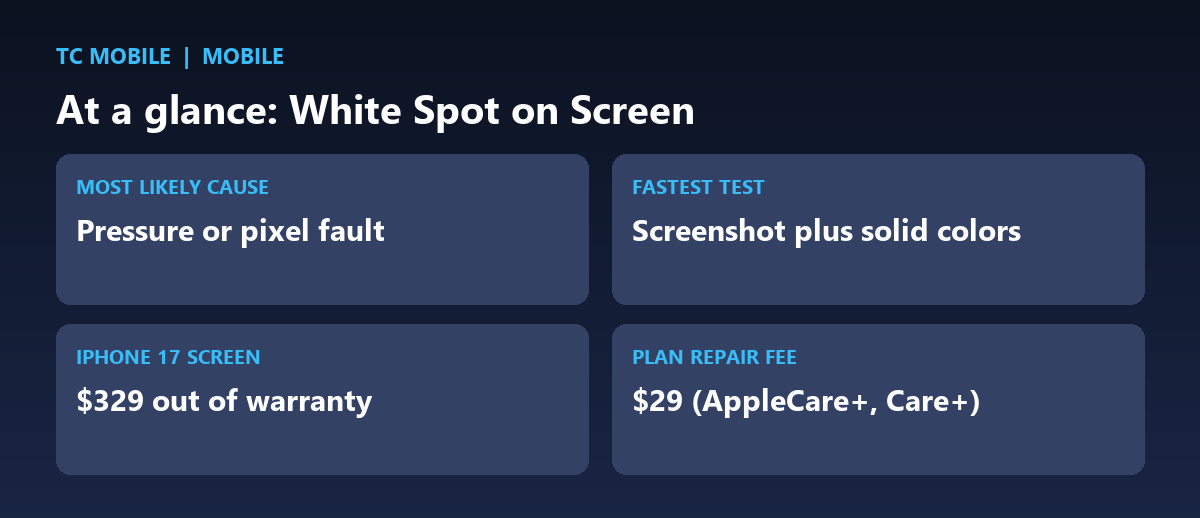
Most white spots on phone screens come from hardware. On LCD phones they are usually pressure damage that lets the backlight shine through. On OLED phones they are usually a stuck or bright pixel, or dust trapped under the glass. You can tell which one you have in about a minute with a screenshot and a few solid-color backgrounds, and that result tells you whether to try a home fix, file a warranty claim or budget for a new screen.
Key takeaways
- If the spot shows up in a screenshot, it comes from software. If it doesn’t, it is in the hardware.
- A sharp dot points to a pixel fault. A cloudy glow that looks worst on dark images points to backlight or pressure damage.
- Never press, massage, heat or “polish” a spot. That can turn a small blemish into a large one.
- Warranties cover defects, not drops or pressure. With AppleCare+ or Samsung Care+, a screen repair starts at $29.
- Prices checked November 2026: Apple charges $329 to $379 for an iPhone 17-generation screen out of warranty.
Fact-checked
We checked these key facts against the sources named, on November 24, 2026:
- It replaced ISO 13406-2, which was withdrawn in 2008 (source: iso.org)
- Most flagships now use OLED, including every iPhone 17 model and the Galaxy S25 Ultra (source: gsmarena.com)
- Apple told owners back in 2017, when it launched the iPhone X, that minor burn-in on OLED iPhones is expected behavior and not a defect (source: support.apple.com)
- Only if the spot is a truly stuck pixel (source: makeuseof.com)
- Most white spots on phone screens come from hardware (source: technobezz.com)
White spot on your screen: the 60-second answer
A white spot almost always has one of four causes. The most common on older and budget LCD phones is pressure or backlight damage. Next come stuck or bright pixels on OLED panels, then dust or debris trapped between the layers, then software overlays that look like a fault but aren’t.
Here they are, roughly from most to least common on phones in use today:
- Pressure damage (mura) or backlight leak. On an LCD, a drop, a tight case or a heavy bag squeezes the layers. Backlight then leaks through as a cloudy pale patch.
- Stuck or bright pixel. One pixel or sub-pixel stays lit. It looks like a pinprick that never changes, whatever is on the screen.
- Trapped dust or debris. A speck sits under the cover glass or inside the display stack. You see it best with light shining across the screen at an angle.
- Software overlay. The AssistiveTouch button on iPhone, or the “show taps” dot on Android, can look like a white circle.
The free test that separates them is the screenshot test, which you then confirm on full-screen black and white images. A spot on a phone that has never been dropped or got wet is a candidate for a free warranty repair. A spot that appeared after a drop, pressure or liquid is treated as accidental damage and costs money unless you have a protection plan.
Step 1: Is it software or hardware?
Start by ruling out software, because the fixes are free and quick. If the spot disappears in a screenshot, after a restart or in safe mode, it isn’t a broken screen.
The screenshot test
Take a screenshot while the spot is visible, then open it on another device or zoom in on it. A screenshot captures what the phone draws, not what the panel physically shows. If the white dot is in the screenshot, an app, an overlay or a system feature is putting it there. If the screenshot is clean but the dot is still on your screen, the fault is in the display hardware.
Buying tip
Before you sell or trade in a phone, run the screenshot test and look at a full-screen white image. Buyers and trade-in graders check for exactly these spots, and a spot you can explain upfront avoids a lower offer later.
Force restart (iPhone) and safe mode (Galaxy, Pixel)
A restart clears temporary display glitches and stuck overlays. To force restart an iPhone 8 or later:
- Press and release volume up.
- Press and release volume down.
- Hold the side button until the Apple logo appears.
On Android, safe mode loads the phone without third-party apps, so a spot drawn by an app disappears. Google’s Pixel Help instructions for the Pixel 6 and later are to hold Power and Volume Up, then touch and hold Power off or Restart until the safe mode prompt appears, and tap OK. Wait for the “Safe mode” label at the bottom of the screen before you judge the result. On Samsung Galaxy phones, open the power menu, touch and hold the Power off icon until Safe mode appears, then tap it.
If the spot is gone in safe mode, uninstall recent apps one at a time, starting with screen dimmers, overlay launchers, game boosters and anything with “draw over other apps” permission. Restart normally to leave safe mode.
White dots that are features: AssistiveTouch and touch indicators
Some white dots are deliberate. On iPhone, AssistiveTouch puts a translucent gray-and-white floating button on screen. You turn it off in Settings > Accessibility > Touch > AssistiveTouch. Because you can drag it around, it is easy to mistake for a fault when it sits in a corner.
On Android, the developer options include Show taps, which draws a white dot wherever your finger touches. Pointer location draws crosshairs and a trail. If you turned on developer options once and forgot, check Settings > System > Developer options on a Pixel, or Settings > Developer options on a Galaxy, and switch both off.
Step 2: Know your panel, LCD or OLED
Your panel type decides what the spot is likely to be. LCD screens are lit by a backlight, so damage shows up as light leaking where it shouldn’t. OLED screens light each pixel on its own, so faults show up as individual pixels misbehaving.
To check your phone, look up its spec sheet. Or open a pure black image in a dark room: on OLED (Samsung calls it AMOLED) the black areas are fully off and blend into the bezel, while an LCD shows a faint gray glow. Most flagships now use OLED, including every iPhone 17 model and the Galaxy S25 Ultra. LCD survives in the iPhone XR, iPhone 11, the third-generation iPhone SE and many affordable mobile phones at the bottom of the Android market.
LCD phones: backlight and pressure
On an LCD, a stack of diffuser and reflector films spreads the light from LEDs along the edge. A guide from iMobie notes that a white spot on an LCD iPhone such as the XR or 11 is almost always pressure damage from a drop or a tight case squeezing the layers. The patch is soft-edged and pale. It looks worst on dark backgrounds and fades on white, because a white image is already as bright as the backlight. These spots almost never heal, and if the layers keep shifting they can grow.
OLED phones: stuck pixels and burn-in
OLED phones have no backlight to leak, so a white spot on one is usually a single stuck or bright pixel, or debris under the glass. Burn-in is a different problem. It shows up as a faint ghost of static interface elements, such as a keyboard or navigation bar, and it looks darker or tinted rather than white. Apple told owners back in 2017, when it launched the iPhone X, that minor burn-in on OLED iPhones is expected behavior and not a defect. Temporary image retention fades within minutes, while burn-in stays.
Step 3: Read the spot: what its shape tells you
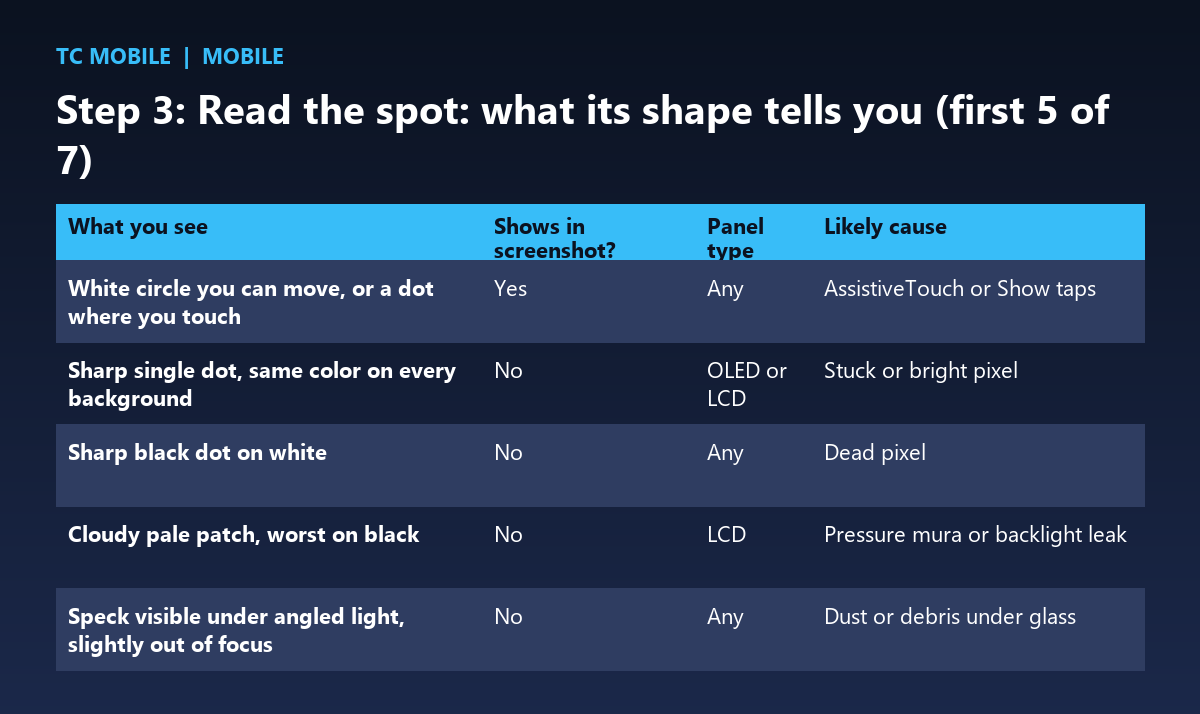
Once you have ruled out software, the shape, sharpness and behavior of the spot tell you the cause. Use this table with full-screen black, white, red, green and blue images.
| What you see | Shows in screenshot? | Panel type | Likely cause | DIY fix? | Next step |
|---|---|---|---|---|---|
| White circle you can move, or a dot where you touch | Yes | Any | AssistiveTouch or Show taps | Yes | Turn the feature off |
| Sharp single dot, same color on every background | No | OLED or LCD | Stuck or bright pixel | Sometimes | Try a pixel-cycling video, then warranty |
| Sharp black dot on white | No | Any | Dead pixel | No | Warranty if no damage |
| Cloudy pale patch, worst on black | No | LCD | Pressure mura or backlight leak | No | Remove case, then repair |
| Speck visible under angled light, slightly out of focus | No | Any | Dust or debris under glass | No | Apple or authorized service |
| Spot or blotch that grows after getting wet | No | Any | Moisture between layers | No | Power off, get it inspected |
| Faint ghost of keyboard or status bar | No | OLED | Burn-in or image retention | Retention only | Dark mode, vary content |
Sharp dot vs cloudy patch
A pinpoint with crisp edges is a pixel. A patch with soft, fuzzy edges, usually bigger than a pencil eraser, is a backlight or layer problem. This sorts out a common question in MacRumors forum threads about a white dot on the lower middle of an iPhone XR screen. On an LCD XR, a soft dot in a spot where your thumb or a pocket edge presses is classic pressure damage, not a pixel.
| Defect | Looks like | Visible on | Fixable at home? |
|---|---|---|---|
| Dead pixel | Black dot | White and light colors | No |
| Stuck pixel | Red, green, blue or mixed dot | Black and contrasting colors | Sometimes |
| Bright (hot) pixel | White dot that is always on | Black most clearly | Rarely |
| Backlight spot | Cloudy pale patch | Black and dark scenes | No |
Visible on black vs only on white
A spot that looks bigger on a black background, as one Microsoft Answers poster put it, is a backlight leak. On black, all the leaked light stands out. A dot that shows only on white and looks dark there is a dead pixel or debris blocking light. If a dot shows on everything, stays sharp and doesn’t change when you tilt the phone, it is a pixel. If it shifts slightly or looks out of focus when you tilt the phone, it is a speck sitting above the pixels.
A blue spot on screen follows the same rules. A sharp blue pinpoint on black is a stuck blue sub-pixel. A spreading blue, purple or black blot on an OLED after a drop is physical panel damage, and it usually gets worse.
Growing spot after a drop or liquid
A spot that gets bigger over days needs a technician, not more home fixes. On an LCD, moisture between the films spreads as pale blotches. On an OLED, a crack inside the panel can spread outward from the point of impact. Power the phone off, leave it alone and get it inspected. A spot growing on the bezel above the screen, a pattern raised in Android Central’s forums, can point to a lifting screen or a swelling battery underneath. Stop charging the phone if the glass seems to be rising.
Fixes you can safely try at home
Home fixes work for software overlays, image retention and some stuck pixels. Nothing you do at home repairs a backlight leak, a dead pixel, trapped debris or liquid damage.
Remove the case and screen protector first
A case that is too tight around the edges, or a tempered-glass protector with a trapped grain of grit, can press on the display. Take both off, clean the screen with a soft, slightly damp, lint-free cloth (a step in Apple’s display troubleshooting guides) and look again on black. If a bubble or speck was under the protector, the “spot” moves or disappears. A pressure spot that fades over an hour once the case is off was probably caused by the case. Buy one that fits properly.
Check before you replace anything
Shine a flashlight across the screen at a low angle. Dust on top of the glass or under a protector throws a tiny shadow or sparkles. A pixel fault doesn’t change with the light.
Stuck-pixel fixer apps: when they work
Pixel-cycling apps and videos flash red, green, blue and white rapidly over the bad pixel. The idea is to nudge a stuck sub-pixel back into normal operation. They can help only a truly stuck pixel, one that is lit in a single color. They can’t revive a dead pixel, and they do nothing for backlight bleed or debris. Run them in short sessions of 10 to 20 minutes with the phone unplugged and on a cool surface. If several sessions over a day change nothing, the pixel is not coming back.
For OLED image retention, show varied content, turn brightness down and switch on dark mode for a while. Setting your keyboard to dark mode is an easy change, because the keyboard is one of the most common sources of ghosting.
What not to do
Watch out
Pressing, rubbing or “massaging” a spot, heating it with a hair dryer, applying toothpaste and putting a wet phone in rice can all make the damage worse. Several also count as user damage if you later file a claim.
- Pressure. Older videos tell you to rub a stuck pixel with a cloth-covered finger. On a modern laminated panel, that can crack layers and create new pressure spots.
- Heat. Heat softens the adhesives and stresses the OLED materials, and on a wet phone it spreads moisture.
- Toothpaste and abrasives. These are scratch removers. They dull the oleophobic coating and do nothing for a pixel.
- Rice. Apple’s liquid-detection guidance advises against putting an iPhone in rice. Grains and starch dust can get into ports.
Is a white spot covered by warranty?
A white spot is covered when it is a manufacturing defect: a pixel fault or trapped debris on a phone with no impact or liquid damage. It isn’t covered when the spot comes from a drop, pressure or water, because standard warranties exclude accidental damage. Apple’s one-year limited warranty covers defects, not things like a cracked screen. Samsung and Google also give US phones a one-year limited warranty on defects.
Apple: diagnostics and pixel anomalies
Apple’s iPhone display troubleshooting guide lists pixel anomalies and debris under the glass as separate symptoms. It points to a Display Pixel Anomalies diagnostic, which Apple Support or a technician can run on your phone. Apple’s support article on pixel anomalies says they affect a small percentage of panels. It also says an evaluation at Apple or an authorized provider may carry a charge, and that material trapped inside the display has to be removed by an Apple Store or Apple Authorized Service Provider.
Did you know?
According to Apple’s own support article on display pixel anomalies, some apparent pixel faults aren’t pixel faults at all. They are dust or foreign material trapped inside the display or on the front of the glass.
Samsung and Google Pixel
On a Galaxy phone, start a repair through Samsung Members, Samsung’s support site or a Samsung-authorized walk-in center. Samsung Care+ covers accidental screen damage for a fee that depends on your plan. For Pixel phones, Google handles warranty claims by mail-in or walk-in through authorized partners such as uBreakiFix, which offers free diagnostics and a one-year limited warranty on Pixel repairs. Either way, the technician decides whether the spot counts as a defect or as damage, so your evidence matters.
Before you file a claim, gather this:
- Photos of the spot on full-screen black, white, red, green and blue, with the phone in focus.
- A screenshot showing the spot doesn’t appear in it.
- The date you first noticed it, and whether it has grown since.
- A plain statement that the phone hasn’t been dropped or exposed to liquid, if that is true.
- Proof of purchase and any plan number.
The ISO 9241-307 pixel rules explained
ISO 9241-307 sets how many faulty pixels a panel can have per million pixels and still pass. It replaced ISO 13406-2, which was withdrawn in 2008. Phone makers generally don’t publish an ISO class for their screens, but the standard shows how the industry thinks about “acceptable” defects.
| Class | Bright pixels | Dark pixels | Sub-pixel defects | Typical use |
|---|---|---|---|---|
| 0 | 0 | 0 | 0 | Zero-defect and premium panels |
| I | 1 | 1 | 2 | High-end monitors |
| II | 2 | 2 | 5 | Mainstream monitors |
| III | 5 | 15 | Up to 50 | Low-cost panels |
Did you know?
Lenovo says its monitors exceed ISO 9241-307 Classes 1 and 2 because they allow no pixel or adjacent sub-pixel defects. ViewSonic applies a zero-defective-pixel policy to its VP and VG series monitors.
A phone screen has about 2 to 3 million pixels, so a single always-on white dot is borderline even under Class II. Because bright pixels in the middle of the screen are the most noticeable, they are the strongest case for an exchange, especially within the return window.
What a white-spot screen repair costs in 2026
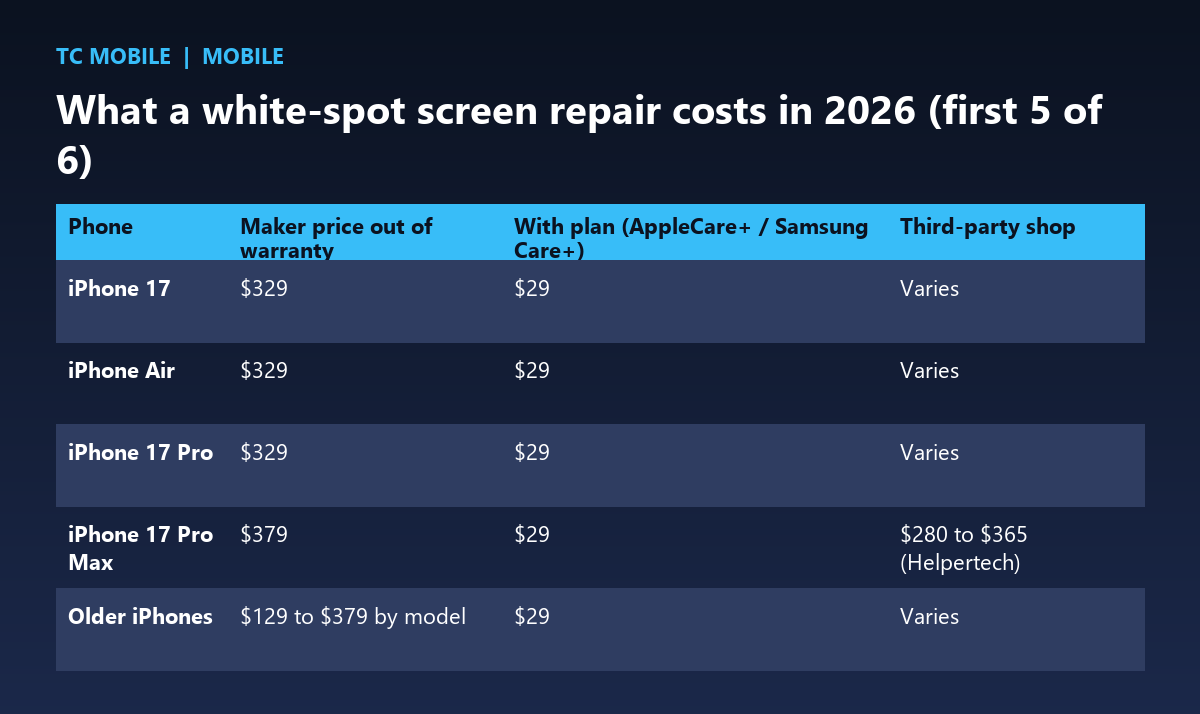
If the spot isn’t covered, the fix is a full display replacement, because pixels and backlights can’t be repaired one at a time. Expect $29 with a protection plan, and roughly $250 to $380 without one on a current flagship.
| Phone | Maker price out of warranty | With plan (AppleCare+ / Samsung Care+) | Third-party shop | Source |
|---|---|---|---|---|
| iPhone 17 | $329 | $29 | Varies | Apple via Neowin |
| iPhone Air | $329 | $29 | Varies | Apple via Neowin |
| iPhone 17 Pro | $329 | $29 | Varies | Apple via Neowin |
| iPhone 17 Pro Max | $379 | $29 | $280 to $365 (Helpertech) | Apple, Helpertech |
| Older iPhones | $129 to $379 by model | $29 | Varies | AppleScoop |
| Galaxy S25 Ultra | $279 suggested (“from $259” quoted in store) | $29 standard, $0 with Theft and Loss | $289 (iFixforU) | Samsung via FixUpPhone, iFixforU |
Prices were checked in November 2026.
Apple vs third-party shop
Apple’s price includes a genuine display, keeps features like True Tone working without fuss and leaves your warranty intact. A third-party shop such as Helpertech in Minnesota can save you up to about $100 on an iPhone 17 Pro Max. Ask whether the part is genuine or aftermarket, because cheaper aftermarket panels often have weaker brightness and color. If you need the screen and back glass replaced together, Apple lists $419 for most iPhone 17 models and $469 for the 17 Pro Max without coverage.
For Pixel owners, genuine parts give a useful price floor. Android Central and 9to5Google report the Pixel 10 screen part at $159.99 and the Pixel 10 Pro part at $249.99 through iFixit, before labor. A phone with a reputation as a repairable phone keeps those costs predictable.
Samsung Care+ tiers
Samsung Care+ fees for cracked or damaged screens run from $29 to $249 depending on your device tier and plan, according to ecoATM’s breakdown. A FixUpPhone guide re-confirmed on November 5, 2026 lists the standard plan at $29 per claim for the Galaxy S25 Ultra, and $0 on the plan with Theft and Loss.
Here is the honest counter-argument: on a phone worth $200 or less, a $250-plus screen often isn’t worth it. A stable cloudy patch at the edge is a cosmetic annoyance you can live with. If it sits in the middle of the screen or is growing, put the repair money toward a new device, and use a buying guide to help you choose a phone with a plan that covers screens.
White spots on TVs, monitors and laptops
On LCD TVs and monitors, round white dots usually mean a small lens has come off one of the backlight LEDs. A pale patch usually means pressure or a warped diffuser sheet. Neither is a pixel fault, and neither can be fixed by cleaning.
Why white dots appear on a TV
Direct-lit LCD TVs put a small diffuser lens over each LED. iFixit’s repair community says these lenses can come unglued over time, often because heat weakens the adhesive. The bare LED then shows as a bright circle, most obvious on blue or dark scenes. That matches the many “white dots have appeared on my TV” threads in Samsung’s EU Community. Samsung’s own support pages describe a built-in Picture Test, found on recent models under Settings > Support > Device Care > Self Diagnosis. If the dots appear in the test, Samsung says the TV itself has a fault and you should contact support with the test results. A dot on a laptop or monitor that looks brighter in dark scenes, a common complaint on Dell’s forums, is usually backlight bleed or a displaced lens. Report it under warranty.
How to clean white spots on a monitor safely
Turn the monitor off and let it cool, so you can see dust clearly. Wipe in one direction with a dry microfiber cloth, then use a cloth lightly dampened with distilled water for stubborn marks. Never spray liquid directly onto the screen. Use almost no pressure, because pushing on an LCD creates exactly the pressure marks you are trying to remove. If a mark survives gentle cleaning, it is inside the panel.
How to prevent new white spots
Most white spots come from pressure, heat or liquid, so prevention is mostly about how you carry the phone and how well your accessories fit.
- Buy cases made for your exact model and protectors with an alignment frame, so nothing presses on the panel or traps grit.
- Don’t carry the phone in a back pocket, or at the bottom of a bag under heavy items.
- On OLED, use dark mode, auto-brightness and a short screen timeout, and don’t leave navigation or game interfaces on screen for hours.
- Keep the phone out of hot cars and away from liquid, and dry it with the power off if it gets wet.
If a spot is already there, the most useful thing you can do today is photograph it on solid colors and note the date. That record decides whether your next step is a free claim or a $29 to $379 bill.
FAQ
How do I fix a white dot on my phone screen?
First rule out software with a screenshot, a restart and safe mode. If the dot is a stuck pixel, a pixel-cycling video can sometimes revive it. If it is pressure damage, a backlight leak or debris, only a screen replacement fixes it.
How do I get rid of white dots on my screen?
Turn off AssistiveTouch on iPhone, or Show taps in Android developer options, if either is on. Remove the case and protector and clean the glass. Dots that remain after those steps are hardware faults that need repair.
Why are white dots appearing on my TV?
On LCD TVs, white circles usually mean diffuser lenses have come loose from the backlight LEDs. On Samsung TVs, run the Picture Test. If the dots appear in it, contact Samsung support.
How do I clean white spots on a monitor?
Power it off, then wipe gently with a dry microfiber cloth, followed by one lightly dampened with distilled water. Press as little as possible. A spot that stays is inside the panel.
Is a white spot on a phone screen covered by warranty?
Yes, if it is a defect on a phone with no drop or liquid damage. Pressure and impact spots count as accidental damage. With AppleCare+, eligible iPhone screen or back-glass repairs carry a $29 fee, while Samsung Care+ repair fees vary by plan, device and service.
Will a white spot on my screen spread or get bigger?
A single stuck pixel usually stays the same. Pressure, crack and moisture spots can grow. Treat any spot that is growing as urgent, and stop pressing on it.
Is a white spot a dead pixel or a stuck pixel?
Neither, usually. A dead pixel is black, and a stuck pixel is a color. An always-on white dot is a bright pixel, while a soft white patch is backlight or pressure damage.
Can a screen protector cause a white spot?
Yes. Grit or a bubble under tempered glass looks like a spot and can press on an LCD hard enough to cause mura. Remove the protector to check.
How much does it cost to fix a white spot on an iPhone screen?
As of November 2026, Apple charges $329 for iPhone 17, iPhone Air and iPhone 17 Pro screens, and $379 for the iPhone 17 Pro Max. Older models cost $129 and up, and the fee with AppleCare+ is $29.
Can stuck pixel fixer apps really fix a white spot?
Only if the spot is a truly stuck pixel. They can’t fix dead pixels, backlight bleed, debris or liquid damage, so stop if a few short sessions change nothing.
About this article
- Fact-checked against the sources listed below before publication.
- Published
Sources (8)
- Apple tells how much it'll charge to repair your iPhone Air and iPhone 17 series (neowin.net)
- iPhone 17 repair and battery costs (igeeksblog.com)
- iPhone 17 and AirPods Pro 3 repair and service cost (macobserver.com)
- iPhone repair cost 2026: screen and battery price for every model (applescoop.org)
- iPhone 17 repair cost - Helpertech (helpertech.com)
- Samsung Galaxy S25 Ultra used buying guide (fixupphone.com)
- What does a Samsung screen repair cost? - ecoATM (blog.ecoatm.com)
- Galaxy S25 Ultra screen repair cost - iFixforU (ifixforu.com)